
FAQ
How do I create a new request in IAjuda?
Target Audience: Iscte Community
Issue: I would like to request support through IAjuda, but I do not know how to create a request.
Answer/Solution:
To create a new request in IAjuda:
- Access the IAjuda portal.
- Navigate to the area related to your request (Human Resources or Information Systems).
- Select the category and service that best match your need.
- Complete the form with all relevant information.
- Attach supporting documentation, if required.
- Submit the request.
After submission, you will receive a ticket number that you can use to track the status of your request. The request will be automatically routed to the team responsible for handling it.
Further Information:
Please also refer to:
- IAjuda (Overview)
How to check the installed SPSS version?
Target Audience: Iscte-IUL Community.
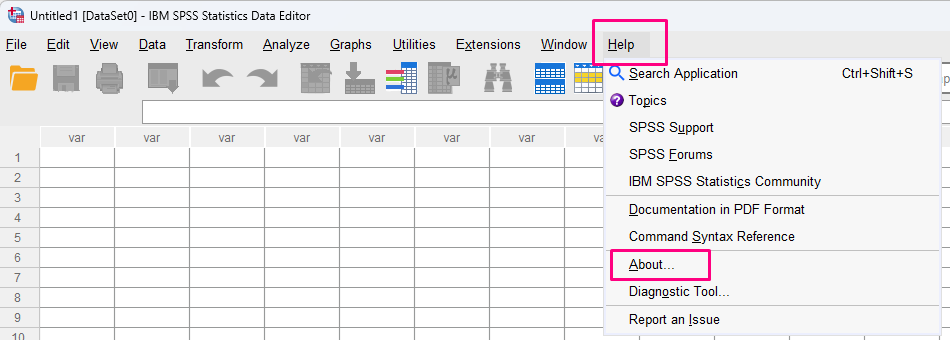
Answer/Solution: To confirm the installed version of IBM SPSS Statistics, follow the steps below:
- Open IBM SPSS Statistics.
- From the menu bar, select Help.
- Click About.
- A window containing the product information will be displayed.
- Check the installed version number (for example: 29.0.2, 30.0.0, etc).
What to Do If Your Device Is Showing Unusual Behavior
Target Audience: Iscte Community
Signs of Suspicious Behavior
Common indicators that your device may be experiencing a security issue include:
- Sudden slowness or abnormal performance
- Frequent crashes or unexpected errors
- Unusual pop-ups, advertisements, or warning messages
- Redirects to unknown or unexpected websites
- Changes to browser settings (such as the homepage or search engine)
- Unknown or unfamiliar programs and applications appearing on the device
Answer/Solution:
📡 Disconnect the Device from the Internet (If Necessary) → This helps reduce the risk of data transmission or remote control by malicious actors
- Disable Wi-Fi or disconnect the network cable
- Avoid communicating with external systems until the issue has been assessed
🛑 Avoid Continuing to Use the Device → This helps prevent a potential compromise from worsening
- Do not access institutional applications or services
- Do not enter usernames, passwords, or other credentials
- Avoid performing sensitive activities, such as financial transactions or accessing confidential information
⚠️ Check Security Alerts → Security notifications may provide useful information about the cause of the problem
- Review alerts from the operating system, antivirus software, or endpoint protection tools.
- Identify any detected threats or suspicious activity
- Do not ignore critical security warnings
📸 Record Relevant Information → This information can assist technical teams with diagnosis and investigation
- Take screenshots of any unusual behavior or error messages
- Note:
- When the issue started
- What actions were being performed at the time
- Identify any applications, websites, or files involved
📣 Contact Technical Support → Prompt reporting enables timely technical intervention and helps protect both the device and the wider community
- Report the issue as soon as possible
- Include:
- The symptoms observed
- When they occurred
- Any actions already taken
Further Information:
Even if the issue is ultimately not confirmed as a security incident, it should still be reported. Early reporting helps prevent future problems and contributes to the overall security of institutional systems.
See also:
See also:
- Email (overview)
- Troubleshooting Guide
- Cybersecurity Awareness
What to Do If You Entered Your Credentials on a Suspicious Page
Target Audience: Iscte Community
Answer/Solution:
🔐 1. Change Your Password Immediately → This is essential to prevent unauthorized access using compromised credentials
- Change the password or the affected account as soon as possible
- Chose a strong, unique password that is not used elsewhere
- If the same password is used for other services, change it for those accounts as well
🔄 2. Sign Out of Active Sessions → This helps ensure that any unauthorized access already established is terminated
- Sign out of all active sessions and devices (global sign-out, if available)
- Sign back in only after changing your password
🔐 3. Strengthen Account Security → Additional security measures can help prevent further unauthorized access
- Enable Multi-Factor Authentication (MFA) if it is not already enabled/li>
- Review your account security settings
- Check for unauthorized changes, such as email forwarding rules or modified recovery options
🔍 4. Review Account Activity → This can help determine whether the account has already been misused
- Check for:
- Unrecognized sign-ins
- Emails sent without your knowledge
- Changes to account data or settings
- Continue monitoring account activity after changing your password.
- Check for:
📸 5. Collect Evidence → This information may assist with incident investigation and prevention
- Save the URL of the suspicious page
- Take screenshots of the page, if available
- Record the date and time of the incident
📣 6. Contact Technical Support → Technical support may be able to apply additional protective measures and monitor for suspicious activity
- Report the incident as soon as possible
- Include:
- Confirmation that credentials were entered on a suspicious page
- When the incident occurred
- Any actions already taken (e.g., password change, MFA activation)
Further Information:
Even after changing your password, you should continue monitoring the affected account for a period of time. Unauthorized access attempts or other consequences of the incident may occur after the initial compromise.
See also:
- Email (overview)
- Troubleshooting Guide
- Cybersecurity Awareness
What to Do If You Clicked on a Suspicious Link
Target Audience: Iscte Community
Answer/Solution:
🛑 1. Stop Interacting with the Page → The less interaction that occurs, the lower the risk of compromise.
- Close the website immediately
- Do not click any additional links, buttons, or page elements
- Do not download any associated files
🚫 2. Do Not Enter Any Information → The primary goal of phishing attacks is to obtain user information
- Do not enter your username, password, or any personal information
- Do not complete any forms displayed on the page
- Do not approve any access requests or permissions
🔐 3. Secure Your Account (If Necessary) → This should be a priority to prevent unauthorized access
If credentials were entered:
- Change your password immediately
- Sign out of active sessions, if possible
- Enable additional authentication (e.g., MFA) when available
💻 4. Check for Impact on Your Device → Unexpected behavior may indicate an attempt to install malware
- Verify whether any files were downloaded
- Watch for unusual behavior, such as pop-ups, slow performance, or unexpected redirects
- Avoid continuing to use the device if you suspect it may be compromised
📸 5. Collect Evidence → This information can assist with analysis and help prevent similar incidents
- Save the URL of the suspicious website
- Take screenshots of the page
- Record the date and time of the incident
📣 6. Contact Technical Support → Prompt reporting helps reduce the impact and protect other users
- Report the incident as soon as possible
- Include:
- The link that was accessed
- The actions performed
- Whether any credentials were entered
Futher Information:
Even if no information was entered, the incident should still be reported, as it can help prevent similar attacks within the community.
See also:
- Email (overview)
- Troubleshooting Guide
- Cybersecurity Awareness
How Can I Activate My Iscte Account?
Target Audience: Iscte Community
Answer / Solution:
Follow the instructions provided on the User Account page, according to your user type (provisional or permanent account).
Further Information:
Activating your Iscte account is the first step to access Iscte’s digital services. The process is straightforward but includes important security and recovery configurations.
During activation, you will set up the key components required for secure access:
🔑 Password Setup
- Choose a secure password
- This password will be used to log in to all Iscte services
📱Multi-Factor Authentication (MFA) (MFA)
- Configure an additional verification method (e.g., mobile app)
- This will be required during login to enhance security
- MFA setup is mandatory for accessing many services
📧 Recovery Email
- Associate a personal email address
- This email will be used to recover access in case of password reset or authentication issues
- Ensure the email is valid and accessible
After Activation
It is recommended to:
- Test access to your institutional email
- Confirm that MFA is working correctly
- Store your username and recovery details in a safe place
Proper account activation ensures secure, uninterrupted, and reliable access to all Iscte services.
See also:
- Iscte User Account (overview)
- Troubleshooting Guide
What Is the Difference Between Username and Email Address?
Target Audience: Iscte Community
Answer / Solution:
The username (username) and the institutional email addressre two distinct elements of your Iscte account. Although they may look similar, they serve different and complementary purposes.
Understanding this difference is essential to:
- Avoid access issues
- Use services correctly
- Reduce common login errors
Further Information:
Iscte systems separate these two concepts because each one serves a specific purpose:
- 🔐 Authentication (System Access) → Username
- The username, together with the password, is used to verify your identity
- It is required when logging into systems and platforms
- 📧 Communication (Messaging) → Email Address
- The email address is used to send and receive messages
- It is your official communication channel with people and services
- This distinction improves security and ensures better organization of services.
- 🔐 Authentication (System Access) → Username
Common Mistakes:
- Trying to log in using the email address when the system requires the username
- Entering only part of the username (without @iscte-iul.pt)
- Confusing contexts (login vs. sending emails)
- Even if they look similar, not all systems accept both formats.
Best Practices:
- Always use the full username (xxxx@iscte-iul.pt) when logging in
- Do not assume the username and email are the same
- Check carefully which one is being requested
If you encounter a login error, ask yourself:
- “Am I using the correct username, or mistakenly using my email address?”
- This simple check resolves a large number of access issues.
- If in doubt, test your authentication here: https://login.iscte-iul.pt
See also:
- Iscte User Account (overview)
- E-mail (overview)
- Troubleshooting Guide
What Is My Iscte Email?
Target Audience: Iscte Community
Answer / Solution:
The institutional email address is automatically assigned to each user after activating their Iscte account. This address is unique and identifies the user in official communications.
The format depends on the type of user:
- Students → firstname_lastname@iscte-iul.pt
- Employees → firstname.lastname@iscte-iul.pt
Further Information:
The institutional email is the main official communication channel at Iscte. Through it, users receive:
- Academic communications (schedules, assessments, notifications)
- Administrative and institutional information
- Announcements, notices, and events
Regularly checking your Iscte email is essential to ensure you do not miss any important information. Although they may look similar, the username and institutional email are not exactly the same.
Common Email Access Issues:
- Incorrect credentials
- Application configuration issues
- Pending multi-factor authentication (MFA)
Best Practices
- Check your email regularly
- eep your mailbox organized
- Be alert to suspicious messages (phishing)
- Prefer using Outlook for better compatibility
See also:
- Iscte User Account (overview)
- E-mail (overview)
- Troubleshooting Guide
What Is My Username?
Target Audience: Iscte Community
Answer / Solution:
The username is the unique identifier assigned to each user within Iscte systems.
- It is used to authenticate and access institutional services.
- In general, the username follows this format: xxxxx@iscte-iul.pt
- Example:
- For a user named Xisto Ximenes, the username would be: xxnes@iscte-iul.pt
- This format must always be used in full, including the domain
@iscte-iul.pt.
Further Information:
- Many Iscte services (such as email, Microsoft 365, VPN, and academic platforms) rely on centralized authentication systems. In these cases, the system requires the full username to correctly identify the user.
- Common causes of access issues:
- Entering only part of the username (e.g.,
xxnes) - Using an incorrect or incomplete format
- Confusing the username with the email address
- These mistakes prevent the system from recognizing the user, resulting in login failures.
- Entering only part of the username (e.g.,
- Best Practices
- Always use the full username (xxnes@iscte-iul.pt)
- Avoid relying on browser autofill
- Double-check the username before trying again
- If in doubt or if access issues occur, it is recommended to test the login directly at login.iscte-iul.pt
See also:
- Iscte User Account (overview)
- Troubleshooting Guide
Público Alvo: Comunidade Iscte
Resposta/Solução:
O nome de utilizador é o identificador único atribuído a cada utilizador nos sistemas do Iscte.
- É através deste identificador que o utilizador se autentica e acede aos diferentes serviços institucionais.
- Regra geral, o nome de utilizador tem o seguinte formato: xxxxx@iscte-iul.pt
- Exemplo: o nome de utilizador da pessoa Xisto Ximenes é xxnes@iscte-iul.pt
- 👉 Este formato deve ser sempre utilizado na sua totalidade, incluindo o domínio @iscte-iul.pt.
Informação Adicional:
- Muitos serviços do Iscte (como email, Office 365, VPN ou plataformas académicas) utilizam sistemas de autenticação centralizada. Nesses casos, o sistema necessita do nome de utilizador completo para identificar corretamente a pessoa.
Uma das causas mais comuns de falhas de acesso:
É introduzir apenas parte do nome de utilizador (ex.: xxnes).
Usar um formato incorreto ou incompleto
Confundir o nome de utilizador com o endereço de email
👉 Estes erros impedem o sistema de reconhecer o utilizador, resultando em falhas de login.
- Boas práticas
- Utilizar sempre o nome de utilizador completo (xxnes@iscte-iul.pt)
- Evitar confiar no preenchimento automático do navegador
- Confirmar o usernamenome de utilizador antes de tentar novamente
- 👉 Em caso de dúvida ou problemas de acesso, recomenda-se testar o login diretamente em https://login.iscte-iul.pt
Consulte também:
What is an Iscte User Account?
Target Audience: Iscte Community
Answer / Solution:
An Iscte user account represents the official digital identity of each member of the academic community. Through this account, users can securely identify and authenticate themselves across institutional systems.
With this single account, users can centrally access a wide range of services, including:
-
- Institutional email
- Microsoft 365 tools (Outlook, Teams, OneDrive, etc.)
- Academic and administrative platforms (Moodle, Fénix, internal portals)
- Network services (Eduroam Wi‑Fi, VPN)
In practical terms, the account acts as the gateway to the entire Iscte digital ecosystem, providing secure and unified access to all essential services.
Further Information:
See also:
-
- Iscte User Account (overview)
- Troubleshooting Guide
What are call captures codes?
Target Audience: Iscte Employees.
Answer/Solution:
Call captures codes codes allow you to answer calls directed to other extensions within your team or unit, improving call handling efficiency.
Further Information:
See also:
- VoIP (overview)
- Troubleshooting Guide
Can I use VoIP outside campus?
Target Audience: Iscte Employees.
Answer/Solution:
Yes. As long as you have:
- Internet access
- A configured device or application
you can make and receive calls from anywhere.
Further Information:
See also:
- VoIP (overview)
- Troubleshooting Guide
Público Alvo: Trabalhadores do Iscte
Resposta/Solução:
Sim, desde que tenha Internet e um dispositivo configurado.
Informação Adicional:
Consulte também:
Where can I find my VoIP credentials?
Target Audience: Iscte Employees.
Answer/Solution:
Your VoIP credentials are individual and available in Fénix:
- Personal area
- Contacts section
- VoIP information linked to your extension
Further Information:
VoIP can be used on various devices, including computers, smartphones and dedicated VoIP phones.
See also:
- VoIP (overview)
- Troubleshooting Guide
How do I use a Cisco IP phone?
Target Audience: Iscte Employees
Answer/Solution:
Make a call
- Lift the handset or press the Speaker button
- Dial the number or extension
- Press Call (if required)
Answer a call
- Lift the handset
- Or press the Answer softkey or the blinking line button
End a call
- Hang up the handset
- Or press End Call
Put a call on hold
- Press Hold during the call
- Press Resume to return to tha call
Transfer a call
- Press Transfer during the call
- Dial the destination number
- Press Transfer again to complete
Forward calls
- Press Forward All (or similar option on screen)
- Enter the destination number
- To cancel, press the same option again
(Tip: Some institutional call forwarding requests must be made via the iAjuda portal)
Access voicemail
- Access voicemailMessagesbutton
- Follow the on-screen or audio instructions
Adjust volume
- Use the volume buttons on the side of the phone
View call history
- Press Applications or Recents
- Browse incoming, outgoing, and missed calls
Further Information:
See also:
- VoIP (overview)
- Troubleshooting Guide
What devices can I use with VoIP?
Target Audience: Iscte Employees.
Answer/Solution:
You can access the VoIP service using:
- Computers, via softphone applications
- Smartphones and tablets, using compatible apps
- Cisco IP phones, installed at your workstation
IP phones provide a traditional phone experience enhanced with digital VoIP features.
Further Information:
See also:
- VoIP (overview)
- Troubleshooting Guide
What are the advantages of VoIP?
Target Audience: Iscte Employees.
Answer/Solution:
VoIP provides several benefits compared to traditional telephony:
- Lower costs, as it uses existing network infrastructure
- Greater flexibility, across multiple devices
- Mobility, allowing use on or off campus
- High audio quality, depending on network conditions
- Advanced features, such as:
- Voicemail
- Call forwarding
- Video calls
- Integration with digital tools
Further Information:
See also:
- VoIP (overview)
- Troubleshooting Guide
Who can use the VoIP service at Iscte?
Target Audience: Iscte Employees.
Answer/Solution:
The VoIP service is available exclusively to Iscte employees and is used as the institution’s official internal communication system. Extensions, access rights, and devices are managed by the IT department.
Further Information:
See also:
- VoIP (overview)
- Troubleshooting Guide
How to export Google Drive using Google Takeout
Target Audience: Iscte Community
Answer/Solution:
- Access Takeout: Go to takeout.google.com and sign in to your Google account (xnnes@iscte-iul.pt).
- Select Data: Click Deselect all and look for Drive in the list.
- Check only the box for Google Drive.
- Click All Drive data included to select specific folders, if desired.
- Set up Export: Scroll to the bottom and click Next step.
- Choose Destination and Format
- Destination: Select Send download link via email.
- Frequency: Select Export once.
- File type and size: Choose .zip and increase the size to 10 GB or 50 GB to avoid multiple files.
- Finish: Click Create export.
- Google will send an email with the download link, which may take hours or days, depending on the volume of data.
⚠️ If you are unable to export your data, please contact IT Support.
Further Information:
See also:
The print job is stuck in the print queue
Atualizado/Updated: 2026-05-15
Target Audience: Iscte Employees
Probable Cause:
If a job is stuck in the print queue, it means it was not sent or processed correctly by the printer.
Answer/Solution:
If a job is stuck in the print queue, it means it wasn’t sent or processed correctly by the printer. Follow the steps below to solve the issue.
- Check the print queue
- On your computer, open the print queue for the printer you are using
- Check the document’s status:
- Paused / On hold
- Error
- If there are multiple jobs:
- Identify your document
- Check if it is blocked by a previous job
- Cancel blocked jobs
- Right-click on the document and select Cancel
- If you cannot remove it:
- Cancel all jobs in the queue
- After clearing the queue
- Wait a few seconds
- Try printing again
- Restart the print service (on the computer)
- Close all open applications
- Restart the computer
- This helps clear communication errors with the printer
- Check network connection
- Confirm that you are connected to the Iscte network:
- Eduroam Wi-Fi, network cable, or VPN
- An unstable connection can cause transmission failures and leave jobs “stuck”
- Confirm that you are connected to the Iscte network:
- Check the printer status
- Verify that the printer:
- Is turned on
- Has no errors (e.g., paper jam, low toner)
- Physical issues may prevent the print queue from processing
- Verify that the printer:
- Resend the document
- After clearing the queue:
- Reopen the file
- Send a new print job
- Avoid resending multiple times without clearing the queue first
- After clearing the queue:
- Test on another Multifunction Device/Printer
- If the problem persists:
- Try printing on another available printer
- This allows you to confirm whether the problem is specific to the device
- If the problem persists:
If the issue persists:
If you are unable to resolve the issue, please contact IT Support and provide the following information:
- Printer name
- Location
- Document name (if possible)
- Description of the error encountered
- Screenshot of the error message (if available)
Further Information:
See also:
- Printing and Scanning (overview)
- How to install printers (Windows/macOS/Linux)
- I can’t print
- Printing a document in Word (Microsoft)
- Printing a spreadsheet or workbook (Microsoft)
- How to print PDFs correctly (Adobe)