Services
How to schedule a channel meeting in Teams?
Atualizado/Updated: 2026-01-07
Target Audience: Iscte-IUL Community
Answer/Solution:
- Select “Teams
” in Teams. - Select a team.
- Nexto to “Meet now
“, select the dropdown arrow. - Select “Schedule a meeting
“. - Add other attendees.
- Select “Send“.
- Select “Teams
Tips:
- Everyone on the team you scheduled the meeting for will receive a personal invitation.
- You can also invite a channel to a regular meeting by typing the channel name in the Add channel field.
- Channels cannot be edited or added after the invitation has been sent. You will need to send a new invitation with the updated channel.
How to schedule a meeting in Teams from Chat?
Atualizado/Updated: 2026-01-07
Target Audience: Iscte-IUL Community
Answer/Solution:
- Select “Chat
” in Teams. - Select “More chat options
” at the top of the chat. - Select “Schedule a meeting
“. - Add meetings details.
- Select “Send“.
- Select “Chat
Error in activating license in Amos and SPSS
Atualizado/Updated: 2025-10-28
Problem: If you receive this type of error when activating your IBM SPSS Statistics or IBM SPSS Amos license:
Authorization in progress … (***************)
Authorization failed.: Authorization Error
*** End Of Transaction.
One or more codes failed.
Click “Next” to license authorization via e-mail.
Resolution: Replace the “licenseactivator.jar” file located in the root folder of the software.
» Select your device’s operating system below and follow the steps to resolve the error.
- Close the SPSS/Amos software (it must not be running).
- Download the
licenseactivator.jarfile, which you can find here (just click on the licenseactivator.jar file or select the file and click on “Download”).
- Go to the folder where the program is installed. Open File Explorer (quick shortcut: Win + E).
Depending on the version installed, copy one of the paths below and paste it directly into the address bar at the top of the window:SPSS version licenseactivator.jar location 27 C:\Program Files\IBM\SPSS\Statistics\27 28 C:\Program Files\IBM\SPSS Statistics 29 C:\Program Files\IBM\SPSS Statistics AMOS version licenseactivator.jar location 27 C:\Program Files (x86)\IBM\SPSS\Amos\27 28 C:\Program Files\IBM\SPSS\Amos\28 29 C:\Program Files\IBM\SPSS\Amos\29 30 C:\Program Files\IBM\SPSS\Amos\30 
Example – SPSS Statistics - Copy the new file provided and paste it into the same folder, replacing the original.

If a message appears asking for administrator permission, click Continue.

- Open IBM SPSS Statistics or IBM SPSS Amos.
- Re-enter the authorization code (code sent to activate the software license) and check that it works.
- Download the
licenseactivator.jarfile, which you can find here (just click on the licenseactivator.jar file or select the file and click on “Download”).
- Close all apps of the IBM SPSS Statistics software.
- Go to /Applications/IBM SPSS Statistics/SPSS Statistics.app
Right-click on the application icon

- Right-click on “Show Package Contents”

- Inside the Contents > bin folder, paste the downloaded licenseactivator.jar file and replace the old one.
- If a message pops up, confirm “Replace.”
- Open IBM SPSS Statistics.
- Re-enter the authorization code (code sent to activate the software license) and check if it works.
My camera isn’t working in Microsoft Teams
Atualizado/Updated: 2026-01-07
Target Audience: Iscte-IUL Community
Answer/Solution:
Check if your camera is in use
Close all other apps that might be using your camera (like Zoom or FaceTime).
If you’re using an external camera, try unplugging it and plugging it back in.
Try restarting your device.
Contact support from your device’s manufacturer in case it’s a hardware issue.
I can’t join a meeting in Microsoft Teams
Target Audience: Iscte-IUL Community
Answer/Solution:
You’re waiting in the lobby: Some organizers might place attendees in a lobby before admitting them into the meeting. Wait for someone to admit you, or reach out to the organizer directly to be let in.
Your internet browser isn’t supported: Teams doesn’t currently support Safari for Mac. If you’re joining a Teams meeting from the web, try joining from Microsoft Edge, Google Chrome, or other supported browsers.
Your internet connectivity is low: If your internet connection is low, you may not be able to join a Teams meeting right away. Try waiting for your connection to improve, joining from your supported mobile device, or reaching out to your internet provider.
Security policies for the meeting are preventing you from joining: If a meeting organizer enables end-to-end encryption for a meeting, you might have limited access to join. Try reaching out to the organizer to be let in.
Further Information:
How to invite people to a meeting in Teams?
Target Audience: Iscte-IUL Community
Answer/Solution:
- New calendar
- Select Calendar in Teams.
- Schedule an event or select an existing one and select Edit.
- In the Invite attendees field, enter who you want to add.
- Select + Optional to add optional attendees.
- Select Save.
- New calendar
- Classic calendar
- Select Calendar in Teams.
- Schedule an event or double-click an existing one.
- In the Invite attendees field, enter who you want to add.
- Select + Optional to add optional attendees.
- Select Save.
- Classic calendar
Further Information:
How to Create Breakout Rooms in Teams?
Atualizado/Updated: 2025-07-25
Target Audience: Iscte-IUL Community
Answer/Solution:
To create breakout rooms, you must be a meeting organizer or a presenter in the meeting organizer’s organization who’s been appointed a breakout rooms manager.
Before a meeting
If you create breakout rooms before a meeting starts, you can invite up to 300 people. As soon as the meeting starts, you can open the breakout rooms.
- Select Calendar in Teams.
- Double-click a meeting to expand its details.
- Select Breakout rooms > Create rooms.
- Choose the number of rooms you want (up to 50).
- Select Add rooms.
- Select Assign participants.
- Choose how you want participants to be assigned.
- Select Next > Save.
During a meeting
- Select Rooms in the meeting controls.
- Choose the number of rooms you want to create (up to 50).
- Choose how you want participants to be assigned.
- Select Create rooms.
Tip: To add another breakout room during the meeting, select Rooms > Add room in the meeting controls.
Further Information:
How to Add Co-Organizers to a Meeting in Microsoft Teams?
Target Audience: Iscte-IUL Community
Answer/Solution:
- New calendar
- Select Calendar inTeams.
- Select an event.
- Make sure the people you want to add as co-organizers are added as required attendees.
- Select Edit > More options.
- In Event, select Meeting options.
- In Roles > Choose co-organizers, search and select their names from the dropdown menu.
- Select Save.
- New calendar
- Classic Calendar
- Select Calendar inTeams.
- Select a a meeting or event.
- Make sure the people you want to add as co-organizers are added as required attendees.
- Select Edit.
- In the meeting description, press and hold ctrl and select Meeting options.
- In Roles > Choose co-organizers, search and select their names from the dropdown menu.
- Select Save.
- Classic Calendar
Note: Co-organizers must be in the same org as the meeting organizer. They can also use a guest account in the same org.
Further Information:
What can I do during a Teams meeting?
Target Audience: Iscte-IUL Community
Answer/Solution:
- Meeting controls
- Chat
- Present content
- Presenter modes
- Share slides
- Share sound
- Use video
- Apply video filters
- Mute and unmute
- Spotlight a video
- Multitasking
- Raise your hand
- Live reactions
- Take meeting notes
- Join a breakout room
- Customize your view
- Laser pointer
- Cast from a desktop
- Share physical resources
- Use a green screen
- Join as an avatar
- Customize your avatar
- Use emotes, gestures, and more
Further Information:
How do I Manage My Calendar in Teams?
Target Audience: Iscte-IUL Community
Answer/Solution:
Further Information:
How do I schedule a Teams Meeting?
Target Audience: Iscte-IUL Community
Answer/Solution:
Further Information:
How to take part in a Teams Meeting?
Público Alvo: Comunidade Iscte-IUL
Answer/Solution:
Further Information:
How to log in to Microsoft Teams
Atualizado/Updated: 2025-07-22
Target Audience: Iscte-IUL Community
Answer/Solution:
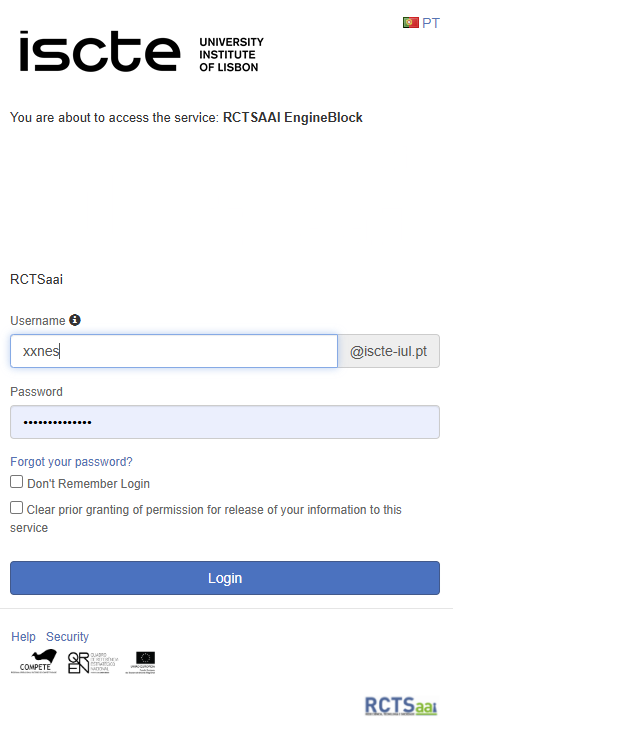
- Start Microsoft Teams.
- In Windows, select Start > Microsoft Teams.
- On Mac, open the Applications folder and select Microsoft Teams.
- On the web, go to https://teams.microsoft.com.
- Sign in with your username and password (e.g., xxnes@iscte-iul.pt and password).
Further Information:
Does swiping the card before the start of the lesson count towards attendance? And after the end of the lesson?
Target Audience: Iscte-IUL Students
Answer/Solution: For the registration to be valid, it must be made within the following time interval:
- 10 minutes before the start of the lesson until 10 minutes before the end of the lesson.
In other words:
- In a lesson that takes place from 8:00 to 9:30 am, registration must take place between 7:50 and 9:19 am.
- In a lesson that takes place from 9:30 to 11:00, registration must take place between 9:20 and 10:49.
How can I identify Iscte’s RFID readers? And what are they for?
Atualizado/Updated: 2025-12-31
Target Audience: Iscte-IUL Community
Answer/Solution:
- Door opening control system readers
These are applied to the doors of communal spaces (auditoriums, laboratories, classrooms, meeting rooms and dining rooms) and are used to open the doors.
- Door opening control system readers
- Readers for the student attendance control system
These are installed inside Iscte’s auditoriums, laboratories and classrooms and are used to record student attendance.
- Readers for the student attendance control system
- Print and copy service readers
These are applied/embedded in the self-service printing and copying system equipment and are used to access the equipment.
- Print and copy service readers
I’m a student at Iscte and I have the following question regarding class attendance: Do I swipe my card before or after the lecturer?
Atualizado/Updated: 2025-12-19
Target Audience: Iscte-IUL Students
Answer/Solution:
- The card swiped by the teacher at the reader outside the classroom only serves to open the classroom door.
- The card swiped by the student at the reader inside the classroom is used to record the student’s presence in class.
- For class attendance to be correctly recorded, the card must be swiped at the reader from 10 minutes before the start of the lesson until 10 minutes before the end of the lesson, i.e.:
- In a lesson from 8:00 to 9:30, the card must be swiped at the reader from 7:50 to 9:19;
- In a lesson from 9:30 to 11:00, the card must be swiped at the reader from 9:20 to 10:49.
Can’t share OneDrive files
Atualizado/Updated: 2025-07-08
Target Audience: Iscte-IUL Community
Answer/Solution: If you can’t share files from OneDrive, it could be because:
-
- You’ve reached your sharing limits;
- You need to validate your account;
- The item is in your Personal Vault;
- OneDrive is not running;
- Your organisation has disabled or restricted the programme.
Shall I save files in OneDrive or SharePoint?
Atualizado/Updated: 2025-07-08
Target Audience: Iscte-IUL Community
Answer/Solution:
-
- If you’re working on a file in isolation, save it to OneDrive. Your OneDrive files are private unless you share them with others, which is particularly useful if you haven’t created a team yet.
- If you’re already working in a team – in Microsoft Teams, SharePoint, or Outlook – you should save your files where your team works, because OneDrive for work or school also connects you to all your shared libraries.
How can I validate my Office365 account?
Atualizado/Updated: 2025-07-08
Target Audience: Iscte-IUL Community
If you’re having problems sending share emails, it may be due to validation problems with your Microsoft Account.
Answer/Solution:
- Go to https://account.live.com/reputationcheck to validate your Microsoft account.
- Make sure your Microsoft Account Profile is up to date and complete.
- Make sure you accept the “Terms of Use“, if requested.