
Services
What types of RFID readers are there at Iscte?
Atualizado/Updated: 2026-05-25
Target Audience: Iscte Community
Answer/Solution: Iscte has 3 types of RFID readers:
- Door opening control system readers
Used in all common areas – auditoriums, laboratories, classrooms, meeting rooms and dining rooms. - Student attendance control system readers
Applied in auditoriums, laboratories and classrooms - Readers for the printing and scanning system
Applied/embedded in the self-service printing and scanning system equipment.
- Door opening control system readers
Further Information:
See also:
- Iscte ID Card (overview)
- Troubleshoting Guide
Printing and Scanning
Atualizado/Updated: 2026-05-15
Target Audience: Iscte Employees
Answer/Solution:
- The printing, photocopying, and scanning service is reserved for Iscte employees (faculty, researchers, and technical staff).
- The iscte on printers.iul.intra printer is part of the standard installation on computers assigned to Iscte faculty, researchers, and technical staff and can also be installed on their personal computers.
- Authentication on these devices is performed using the Iscte ID card, which is personal and non-transferable.
If You Encounter Difficulties:
You should contact IT Support, providing the following information:
- Printer name (iscte on printers.iul.intra)
- Location and type of equipment (printer or multifunction device)
- Document name (if possible)
- Description of the error observed
- Screenshot of the error message (if available)
Further Information
See also:
- Printing and Scanning (overview)
How can I uninstall Microsoft or Office 365?
Target Audience: All the world
Answer/Solution:
- Open the “Control Panel“:
- Press the Windows logo key, then type “control panel“.
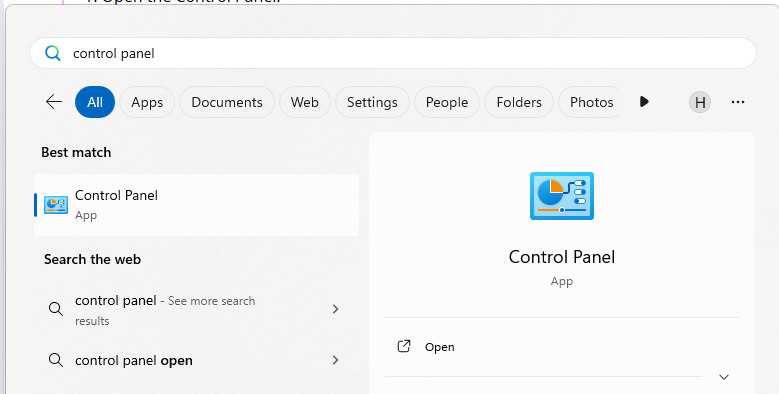
- Select “Control Panel” from the search results.
- Press the Windows logo key, then type “control panel“.
- Navigate to Programs and Features:
- Click on “Programs“, then “Programs and features“.
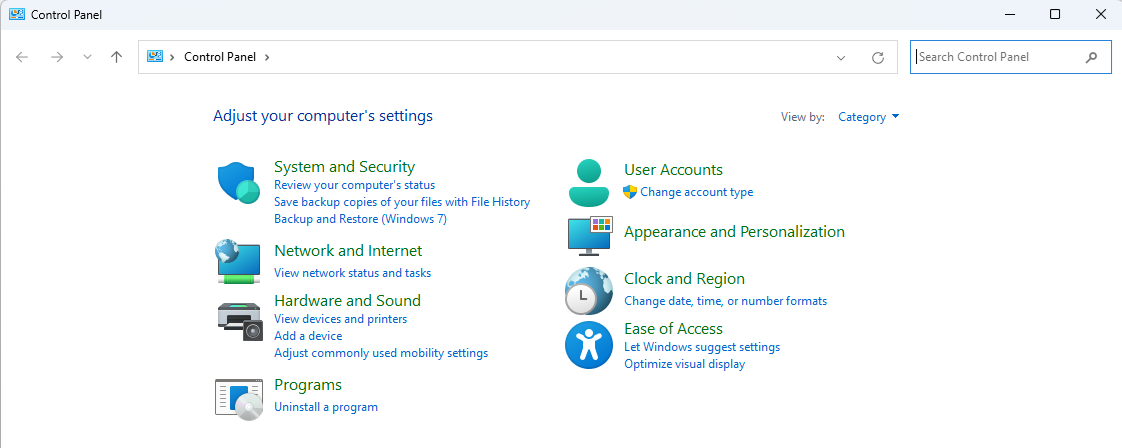
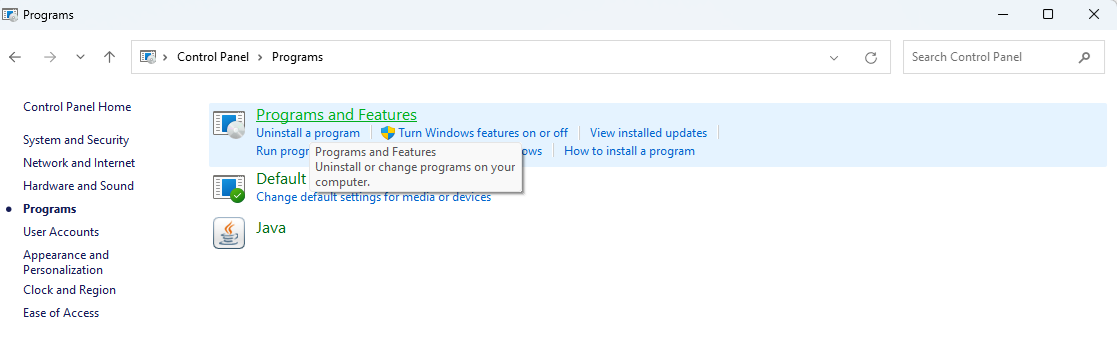
- Click on “Programs“, then “Programs and features“.
- Select the Office Product:
- Locate the Microsoft Office product you want to uninstall (e.g., “Microsoft 365”).
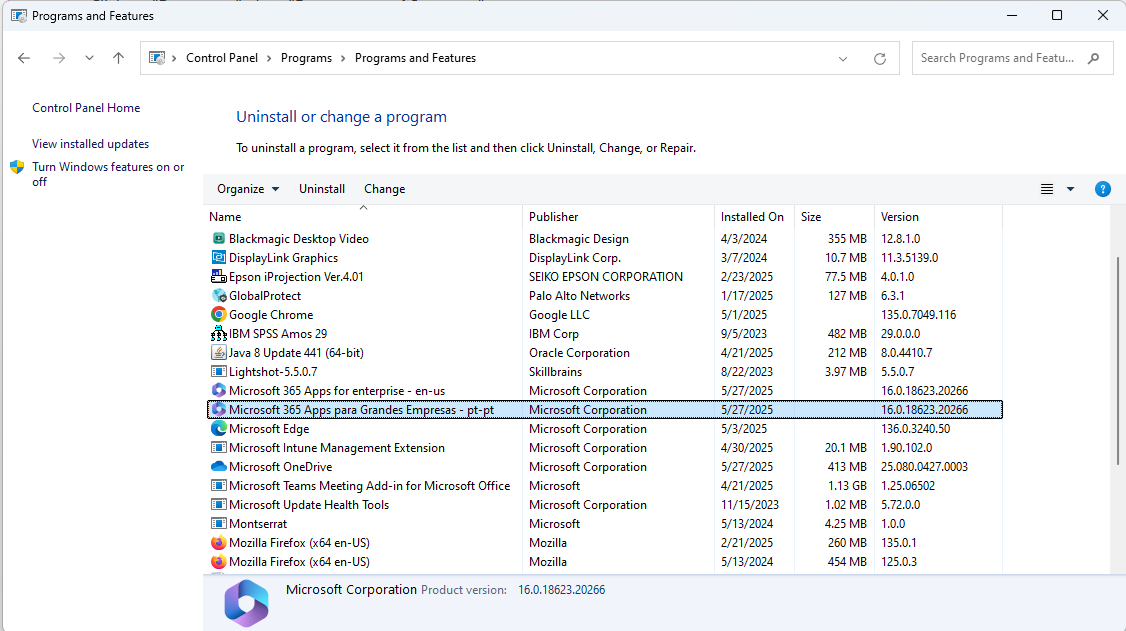
- If you installed Office as part of a suite (like Office Home and Student), search for the suite name. For standalone apps, search by the app name.
- Locate the Microsoft Office product you want to uninstall (e.g., “Microsoft 365”).
- Initiate the Uninstall:
- Click the “Uninstall” button.
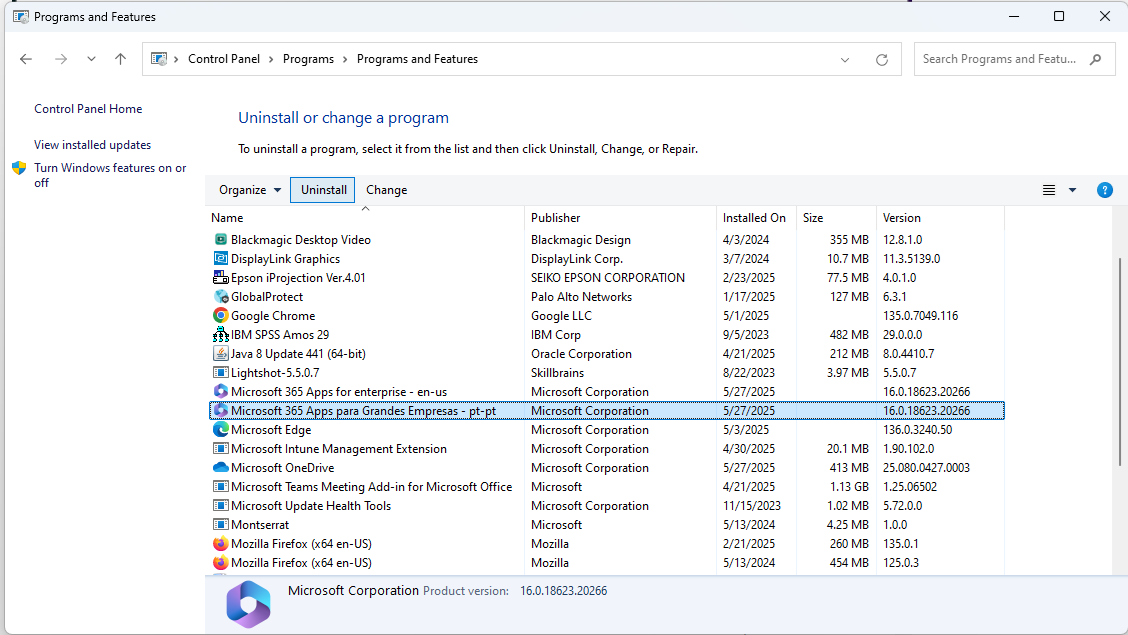
- Click the “Uninstall” button.
- Follow the Prompts:
- Follow the on-screen instructions to complete the uninstall process.
Further Information: To uninstall Office on macOS, open Finder, go to ‘Applications’, select the Office programms and move them to the trash.
Networks and Connectivity
Target Audience: Iscte-IUL Community
Answer/Solution: The network and connectivity service ensures access:
- Iscte‘s wired and wireless networks, which are part of the RCTS (Science, Technology and Society Network, managed by FCCN).
- To a secure connection between the personal computer (home network) and the Iscte network (VPN).
- To Voice over IP service (limited to Iscte employess).
- See here the RCTS Acceptable Use Policy
Further Information: Click here
I can’t set a password for my Iscte account
Atualizado/Updated: 2025-12-11
Target Audience: Iscte-IUL Community
Answer/Solution: Given the degree of criticality required to obtain a quality password, all passwords defined for access to multiple Iscte services must meet certain requirements:
- Contain at least 10 characters.
- It must contain distinct characters from at least three of the following four categories:
- Unaccented uppercase character (‘A’ to ‘Z’)
- Unaccented lowercase character (‘a’ to ‘z’)
- Digits (0 to 9)
- Special or non-alphabetic characters (e.g. !, $, #)
- Must not contain characters considered illegal:
- ;
- ,
- ”
- ‘
- %
- *
- It must not be the same as your last 4 passwords.
- Must not contain the username (aka login).
- It must not contain the names you use, excluding particles with less than three characters.
What is Voice over IP?
Atualizado/Updated: 2026-05-25
Target Audience: Iscte Employees.
Answer/Solution:
VoIP (Voice over Internet Protocol) is a technology that allows users to make voice calls over the Internet instead of using traditional telephone lines. Voice is converted into digital data, transmitted over the network, and converted back into sound at the destination.
Further Information:
VoIP can be used on various devices, including computers, smartphones and dedicated VoIP phones.
See also:
- VoIP (overview)
- Troubleshooting Guide
In the b-on service, what are “all for all” and “some for some” contents?
Atualizado/Updated: 2026-01-31
Target Audience: Iscte-IUL community
Answer/Solution:
-
- The “all for all” contents are general contents to which subscription is obligatory. In other words, content that is common to all b-on members. There are two sets of general content available, one for research and higher education institutions and the other for hospitals.
- b-on also offers optional subscription content, under the “Some for Some” regime, only for institutions that want to subscribe to it and at an associated cost.
Further Information: Click here
b-on Publishers
Atualizado/Updated: 2026-01-31
What’s b-on?
Atualizado/Updated: 2026-01-31
I can’t connect to the VPN because I can’t use the MFA app. What should I do?
Atualizado/Updated: 2026-05-13
Target Audience: Iscte Community
Answer/Solution:
If you can’t connect to the VPN because you can’t access or use the MFA app (e.g. Okta Verify), check if:
-
- You have changed your phone or personal device.
- The Okta Verify app (or another authentication app, such as Google Authenticator) has been uninstalled.
- If the problem persists, please contact IT Support.
Further Information:
-
- Click here
How do I resolve the ‘Connection failed’ error?
Atualizado/Updated: 2026-05-13
Target Audience: Iscte Community
Answer/Solution: If you have MFA configured and you get the error ‘Connection Failed’ as shown in the image below:

You should do the following:
- For Windows computers, you’ll need to make sure you’ve installed the correct version of the 32/64-bit VPN.
- Check that you don’t have the IP and DNS configured manually (e.g. 8.8.8.8 or 8.8.4.4).
- If you have antivirus software, we recommend disabling pop-up blocking in your browser. Or choose another browser as your default.
- Alternatively, uninstall the VPN (GlobalProtect):
– Windows – Through the Control Panel > Select Programs > Programs and Features and, after uninstalling, restart the computer. Then install and configure the VPN again.
– MacOS – Run globalprotect Setup > continue/next> select ‘Uninstall GlobalProtect.’ After uninstalling, restart the computer. Then install and configure globalprotect (VPN) again.
- Check your device’s processor. If you have an ARM processor, you should remove the installed version, restart the computer and install the version from this link.
Further Information:
- Click here
How do I install a VPN on a Mac with an old version of macOS?
Atualizado/Updated: 2026-05-12
Target Audience: Iscte Community
Answer/Solution: If your MacOS operating system is older than Bing Sur 11.7.10, you must use the following file to install the VPN: GlobalProtect(old).pkg
Further Information: Before installation, you must uninstall GlobalProtect by following these steps:
- Run GlobalProtect Setup and click Continue/Next.
- Select the ‘Uninstall GlobalProtect’ option and complete the process.
Restart the computer. - Install the VPN again using the file GlobalProtect(old).pkg.
TIP: Do not update the VPN after installation, as this could prevent it from working.
Further Information:
- Click here
How to install VPN on a device with an ARM CPU?
Atualizado/Updated: 2026-05-12
Target Audience: Iscte Community
Answer/Solution: If you are going to install the GlobalProtect VPN on a device with an ARM processor (e.g. Snapdragon), you will need to use the version compatible with this system.
- For this purpose, download and install the following file: GlobalProtectARM64-6.3.3.1-634.msi
Further Information:
- Click here
I have two classes in a row in the same classroom. How many times should I swipe my card in the RFID attendance reader?
Atualizado/Updated: 2026-05-25
Target Audience: Iscte Students
Answer/Solution:
- There must be a register for each lesson, even if the lessons are from the same UC.
- The entry must be made within the following time interval: 10 minutes before the start of the lesson until 10 minutes before the end of the lesson.In other words:
- In a lesson that takes place from 8:00 to 9:30 a.m., registration must be carried out between 7:50 and 9:19 a.m.
- In a lesson taking place from 9:30 to 11:00, registration must be carried out between 9:20 and 10:49.
Further Information:
The RFID student attendance reader is inside the classroom.
See also:
- Iscte ID Card (overview)
- Troubleshoting Guide
Do I have to swipe my Iscte card at the beginning and end of the lesson?
Atualizado/Updated: 2026-05-25
Target Audience: Iscte Student.
Answer/Solution:
- All you have to do is register once.
- Registration must take place within the following time frame: 10 minutes before the start of the lesson until 10 minutes before the end of the lesson.
In other words:
- In a lesson that takes place from 8:00 am to 9:30 am, registration must be carried out between 7:50 am and 9:19 am.
- In a lesson that takes place from 9:30 to 11:00, registration must take place between 9:20 and 10:49.
Further Information:
See also:
- Iscte ID Card (overview)
- Troubleshoting Guide
How can I use ZOOM APPS?
Atualizado/Updated: 2025-01-17
Target Audience: Iscte-IUL Community
Answer/Solution:
- Download the latest version of Zoom.
- In the ZOOM client, click on the “APPS” tab on the desktop or access it via the toolbar in the meeting.
- Click on “Discover” to see the list of available apps and add your favorites.
Further information: Direct access to the Zoom API is still restricted to the FCCN for security and service management reasons.
Whats the type of my Zoom account?
Atualizado/Updated: 2025-01-17
Target Audience: Iscte-IUL Community
Answer/Solution:
- The Colibri service is a service that requires user authentication by the RCTSaai federation.
- The authentication process is carried out by you, using your Iscte account credentials (e.g. xxnes@iscte-iul.pt and the corresponding password).
- Once logged in, all the information about your account will appear. In the “affiliation” field, you will see what type of account you have (students, staff or faculty).
Further Information:
- To check which type of account you have, click here.