
Applications
What do request statuses mean?
Target Audience: Iscte Community
Issue: My request shows a status that I do not recognize.
Answer/Solution:
The statuses displayed in IAjuda indicate the current state of a request.
The most common statuses include:
- New – The request has been submitted and is awaiting review
- In Progress – The request has been assigned to the responsible team
- Awaiting User Information – An action or response is required from the requester
- Resolved – A solution has been provided
- Completed – The request has been closed
If you have any questions about a status shown on your request, check the request details for more information.
Further Information:
Please also refer to:
- IAjuda (Overview)
How do I create a new request in IAjuda?
Target Audience: Iscte Community
Issue: I would like to request support through IAjuda, but I do not know how to create a request.
Answer/Solution:
To create a new request in IAjuda:
- Access the IAjuda portal.
- Navigate to the area related to your request (Human Resources or Information Systems).
- Select the category and service that best match your need.
- Complete the form with all relevant information.
- Attach supporting documentation, if required.
- Submit the request.
After submission, you will receive a ticket number that you can use to track the status of your request. The request will be automatically routed to the team responsible for handling it.
Further Information:
Please also refer to:
- IAjuda (Overview)
How can I get info on student statuses in Fénix+?
Target Audience: Iscte-IUL Teachers
Answer/Solution:
Open a browser (Chrome, Firefox, Edge, Safari, Opera…)
- Go to https://fenix-mais.iscte-iul.pt/
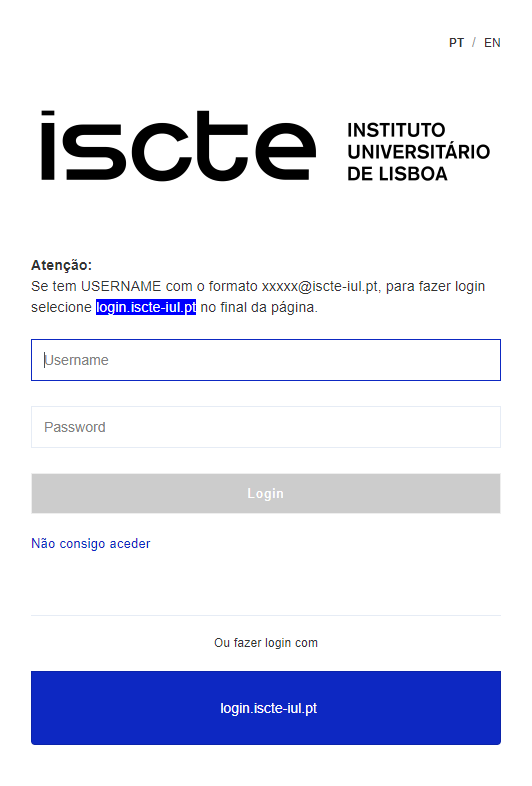
- If you have Iscte account credentials in the format xxnes@iscte-iul.pt and the corresponding password, click on “login.iscte-iul.pt” and log in using your Iscte account credentials (e.g., xxnes and the corresponding password).
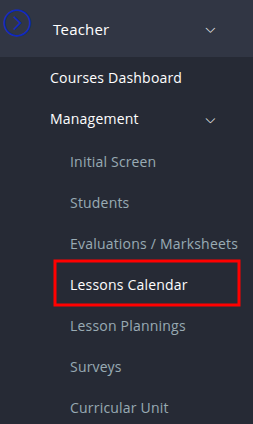
- In the “Teacher” tab, select “Management” → “Students“.
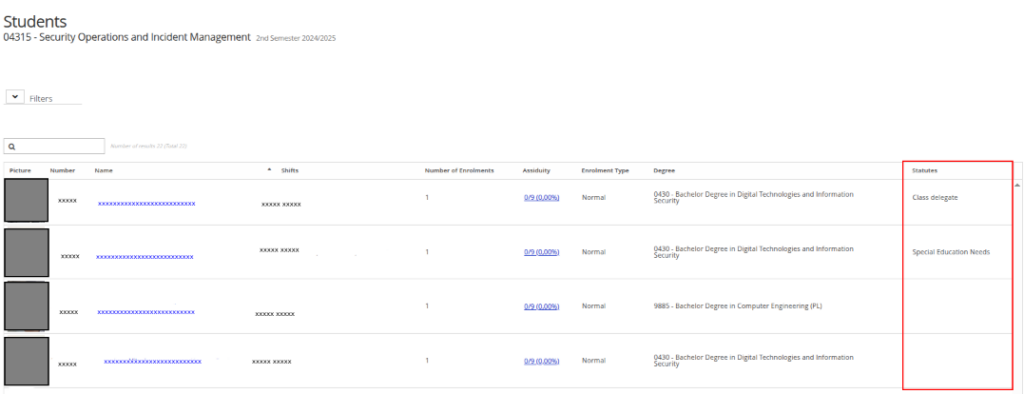
- Information about the students statuses appears in the respective column.
Futher Information:
How to create extra/replacement class in Fénix +?
Target Audience: Iscte-IUL Teachers
Answer/Solution:
Open a browser (Chrome, Firefox, Edge, Safari, Opera…)
- Go to https://fenix-mais.iscte-iul.pt/
- If you have Iscte account credentials in the format xxnes@iscte-iul.pt and the corresponding password, click on “login.iscte-iul.pt” and log in using your Iscte account credentials (e.g., xxnes and the corresponding password).

- In the “Teacher” tab, select “Management” → “Lessons Calendar” → “Courses Dashboard“’ → “Manage“.

- Click on “Create Extra Lesson/Substitution“.
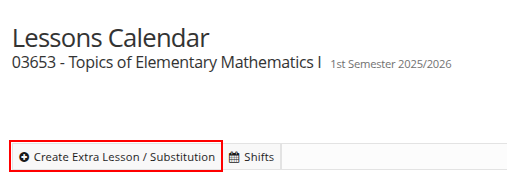
- Fill in at least the mandatory fields (*) and the fields referring to “Room Requirements” in the “Create Extra Lesson / Substitution” window and click on “Create“.
- Click on “Save“.
Futher Information:
How to check student attendance in Fénix +?
Target Audience: Iscte-IUL Teachers
Answer/Solution:
Open a browser (Chrome, Firefox, Edge, Safari, Opera…)
- Go to https://fenix-mais.iscte-iul.pt/
- If you have Iscte account credentials in the format xxnes@iscte-iul.pt and the corresponding password, click on “login.iscte-iul.pt” and log in using your Iscte account credentials (e.g., xxnes and the corresponding password).

- In the “Teacher” tab, select “Management” → “Lessons Calendar” → “Courses Dashboard“’ → “Manage“.

- Identify the lesson line by checking the “Date” and “Time” and click “students” in the “Assiduity” column.
Futher Information:
- Learn +
How to create a summary in Fénix +?
Target Audience: Iscte-IUL Teachers
Answer/Solution:
Open a browser (Chrome, Firefox, Edge, Safari, Opera…)
- Go to https://fenix-mais.iscte-iul.pt/
- If you have Iscte account credentials in the format xxnes@iscte-iul.pt and the corresponding password, click on “login.iscte-iul.pt” and log in using your Iscte account credentials (e.g., xxnes and the corresponding password).

- In the “Teacher” tab, select “Management” → “Lessons Calendar” → “Courses Dashboard“’ → “Manage“.

- Identify the lesson line by checking the “Date” and “Time” and click “+ Create” in the ‘Summary’ column.
- Fill in the fields in the “Create Summary” window and finish by clicking “Create“.
Futher Information:
How to view/change personal contacts-Iscte that will be imported into other Iscte applications?
Target Audience: Iscte-IUL Employees
Answer/Solution:
- Open a browser (Chrome, Firefox, Edge, Safari, Opera…)
- Go to https://fenix-mais.iscte-iul.pt/
- If you have Iscte account credentials in the format xxnes@iscte-iul.pt and the corresponding password, click on “login.iscte-iul.pt” and log in using your Iscte account credentials (e.g., xxnes and the corresponding password).

- In the “ISCTE.solutions” tab, select “Personal Area” → “ISCTE Contacts” → “View Contacts”.
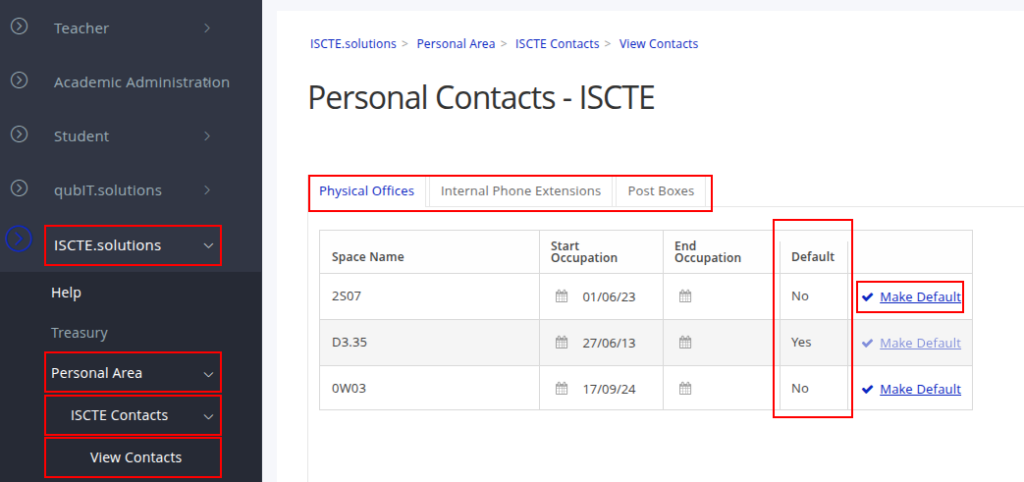
- Choose the type of contact (Offices, Telephone Extensions or Lockers) by clicking on the respective tabs.
- Click on the ‘Make Default’ option in the line of information you wish to make preferred.
- Click on ‘Yes’.
Further Information:
What is Moodle?
Atualizado/Updated: 2025-12-18
It is the e-Learning platform used at Iscte-IUL.
- Content Management: Teachers provide class materials, such as texts, videos, and links.
- Communication: Facilitates interaction, with forums and messages.
- Assessment: Allows for the submission of assignments, the administration of tests, and the detection of plagiarism.
- Collaborative Learning: Supports pedagogical models that promote interaction between students and teachers.
- Accessibility: Integrates tools (such as the ReadSpeaker module) for reading texts and documents, benefiting all students.
- Learn more
How to access it?
- Site page
- Use your Iscte account credentials.
What is MyIscte?
It is Iscte’s intranet.
Who uses it?
- Iscte employees.
What is it for?
- Access to internal information, services, and specific applications.
How to access it?
- Service page
- Use your Iscte account credentials.
What is IMeritus?
It is the digital platform for evaluating the performance of teachers and researchers at Iscte-IUL.
Main Functions
- Teacher Evaluation: Evaluates research, teaching, university extension, and management.
- Document Management: Centralizes regulations and other documents relevant to the evaluation.
Who uses it?
- Teachers and researchers at Iscte.
How to access it?
- Service page
- Use your Iscte account credentials.
What is Fénix +?
It is Iscte-IUL’s academic management platform.
Main features
- For Students
- Enrollment and Schedules
- Assessments and Grades
- Document Management
- Submission of Assignments
- For Faculty
- Curriculum Management
- Summaries & Attendance
- Integrated Assessment
- Coordination and Guidance
- Thesis/Project Management
- Curriculum Management
- For Students
How to access it?
- Service page
- Use your Iscte account credentials.
What is Eventos?
This is Iscte-IUL’s event management platform.
- Publication of the events calendar;
- Publication of venues available for events;
- Access to detailed information about each activity (prior registration required);
- Submission of venue reservation requests (prior registration required).
How to access it?
- Service site
- Use your Iscte account credentials.
What is edoc?
It is the document management system used at Iscte-IUL.
Help
How to access it?
- Service page
- Use your Iscte account credentials.
What is Clearooms?
It is a system for reserving workspaces (desks) and meeting rooms in Building 4.
- Desk Reservation: Allows you to reserve a desk.
- Room Reservation: Provides an easy way to find and reserve meeting and conference rooms.
- Integration: Integrates with calendar systems (such as Google/Outlook).
- Access: Uses Iscte credentials.
How to access it?
- Service page
- Use your Iscte account credentials.
Was is the Mobile App?
A tool that allows the entire Iscte community to access services and information from their cell phones.
Main Features
- Course/academic information: Check schedules, grades, and course progress.
- News and Events: Access to the latest news and events organized by Iscte.
- Human Resources Management: A specific section for employees (recently added).
- European Student Card: Option to issue and view the European student card.
- Universal Access: Use the same login and password used to access other Iscte systems, such as Fenix+ or Moodle.
Where to get it?
What is Ciência-iscte?
Atualizado/Updated: 2025-12-15
It is a scientific information management platform run by Iscte – Instituto Universitário de Lisboa, designed to facilitate the dissemination and management of the scientific output of its teaching staff and researchers.
It aggregates data on publications, research projects, conference presentations, and other academic and scientific activities.
How to access it?
- Service site
- Use your Iscte account credentials.
Is it possible to enrol a user in a course unit?
Atualizado/Updated: 2025-12-11
Target Audience: Iscte-IUL Teachers
Answer/Solution: Yes. Within the UC in Moodle, click on Participants » Enrol Users in the horizontal menu.
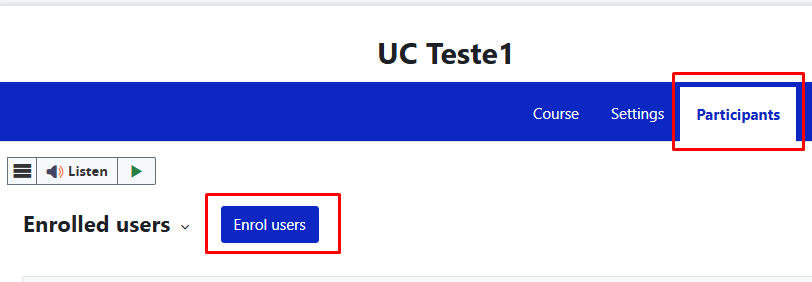
Enter the username or login and assign the right role.
Click the blue “Enrol Users” button.
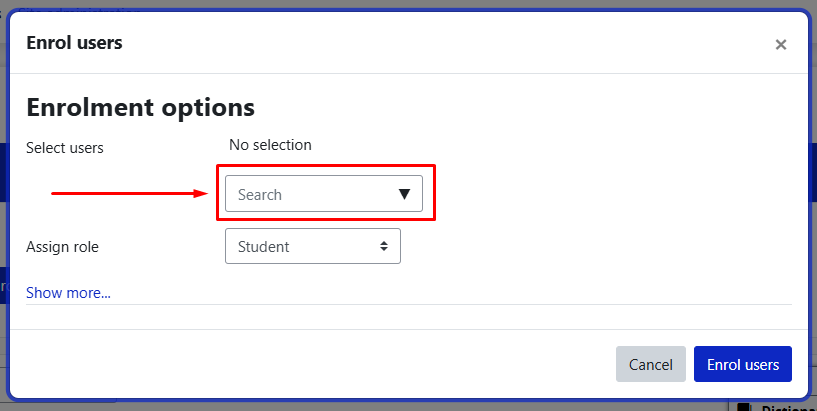
Note: If the user is not registered in Moodle, they will not appear in the list of users.
How do I activate an add-in in edoc?
Atualizado/Updated: 2025-12-12
EN
Público Alvo: Trabalhadores do Iscte-IUL
Sintoma: Deixou de aparecer o separador do Edoc no Outlook ou no Word
Causa: O add-in foi/está desativado
Resposta/Solução:
- Abrir uma aplicação do Office (Excel, Outlook, Word…).
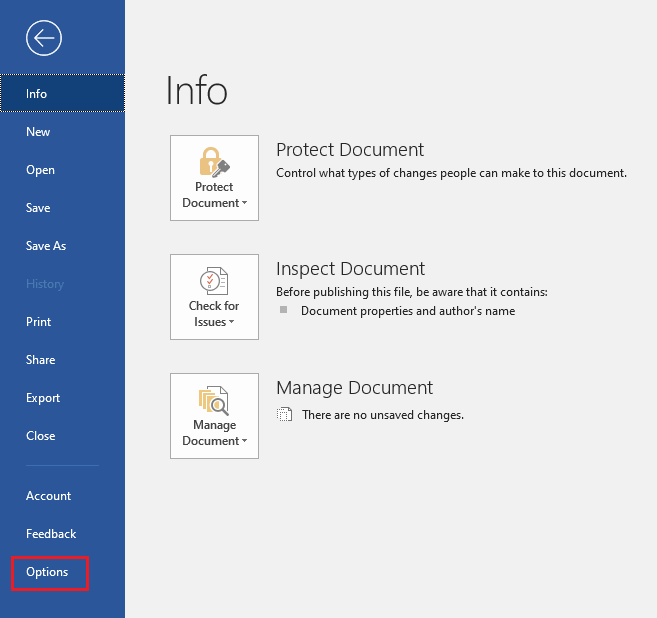
- Clicar em “Ficheiro | File“.
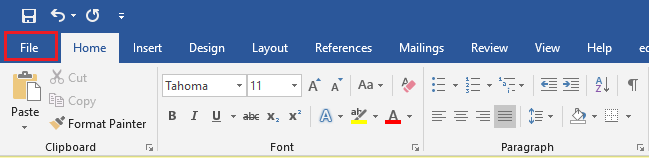
- Clicar em “Opções | Options“.
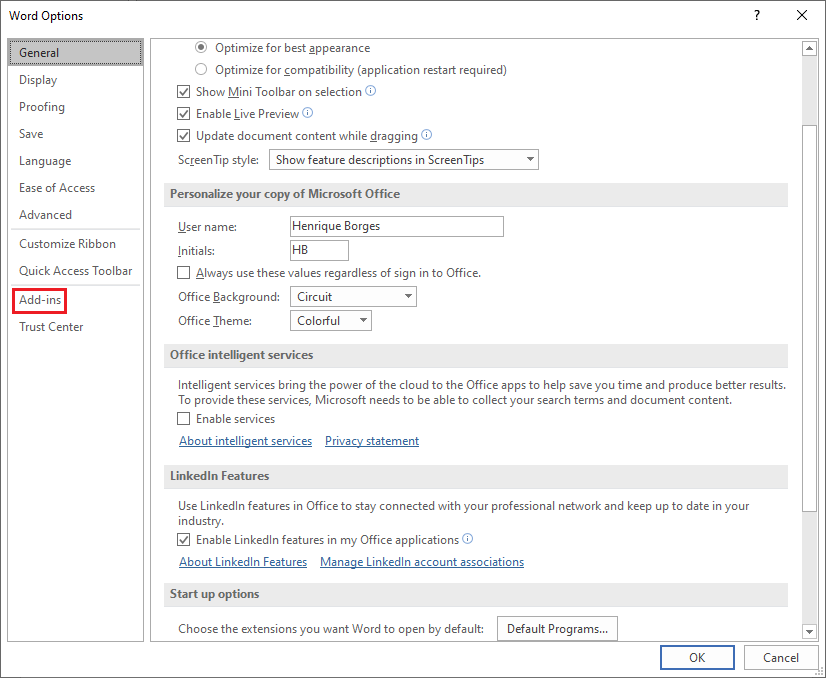
- Clicar em “Suplementos | Add-ins”.
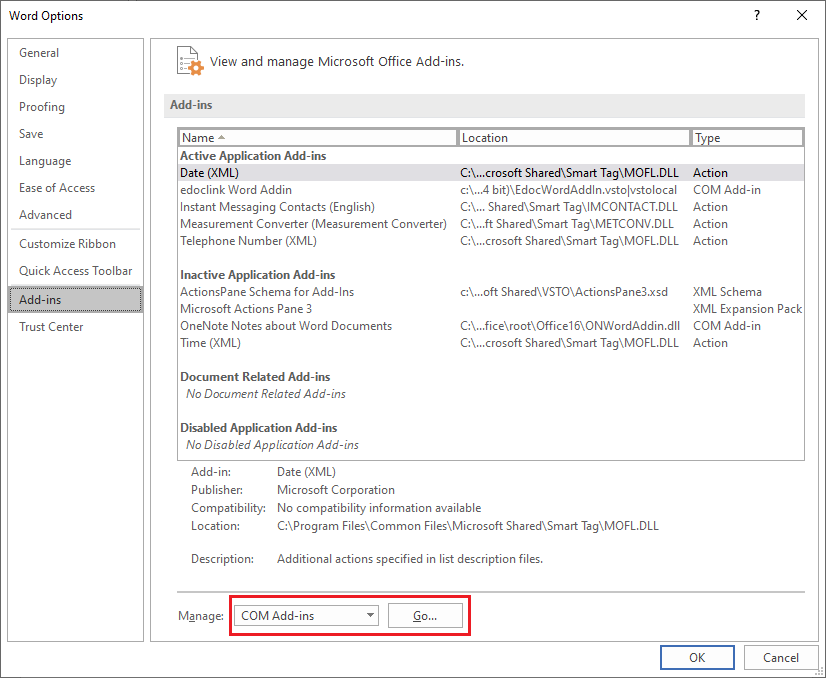
- Clicar em “Ir | Go“.
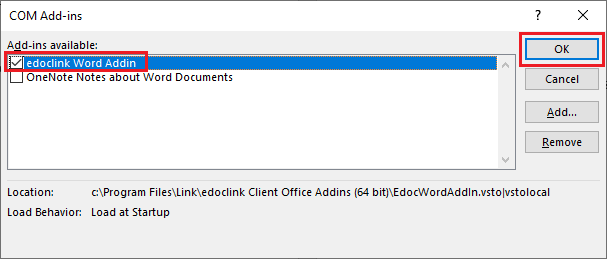
- Selecionar “edocklink Excel Addin” ou “edocklink Outlokk Addin” ou”edocklink Word Addin“, etc., conforme a aplicação do Office em uso, e clicar em “OK“.
How can I access Ciência-Iscte?
Atualizado/Updated: 2025-12-12
Target Audience: Iscte-IUL teachers and researchers
Answer/Solution:
- Access the Ciência-Iscte platform at https://ciencia.iscte-iul.pt/.
- To authenticate yourself, use your Iscte account credentials (e.g. xxnes@iscte-iul.pt and your password).
Further Information: See here the FAQs provided by Ciência-iscte.