Applications
How can I access the I-Meritus platform?
Atualizado/Updated: 2025-05-23
Target Audience: Iscte-IUL Teachers and Researchers
Answer/Solution:
- Access the I-Meritus platform at https://i-meritus.iscte-iul.pt/.
- To authenticate yourself, use your Iscte account credentials (e.g. xxnes@iscte-iul.pt and your password).
Further Information: I-Meritus is a platform designed for the performance evaluation of teachers and researchers.
How do I access the Online Learning platform?
Atualizado/Updated: 2025-05-23
Target Audience:
- All users with a valid Iscte-IUL account; and
- External users with a Google or Microsoft account.
Answer/Solution: The platform is accessible at https://online-learning.iscte-iul.pt/.
Further Information:
- This platform is available to all users with a valid Iscte-IUL account and external users with a Google or Microsoft account. To log in, use your Iscte account credentials (e.g. xxnes@iscte-iul.pt and password).
- At the moment, none of the courses available on the platform are available to the general public (they are only available to Iscte-IUL users).
What is Iscte-IUL’s website address?
Atualizado/Updated: 2025-05-23
Target Audience: The whole world
Answer/Solution: The Iscte-IUL Portal can be accessed at https://www.iscte-iul.pt/
Further Information:
- It is the institution’s main digital platform, with the mission of informing, communicating and supporting students, teachers, researchers and the general public.
- Through this website, you can access institutional information, explore the training offer, find out about research projects and grants, follow the latest news and consult useful content to support students and applicants to Iscte’s courses.
How can I access Iscte-IUL’s Mobile App?

Atualizado/Updated: 2025-12-12
Target Audience: Iscte-IUL’s Community
Answer/Solution: The app can be downloaded from the “Google Store” or “App Store” depending on the brand of your cell phone.
Further Information: Iscte-IUL Mobile App provides information on courses, news and events, such as:
How do I access the Recruitment platform?
Atualizado/Updated: 2025-05-23
Target Audience: All the world
Answer/Solution: Iscte’s Recruitment Platform is available at https://recrutamento.iscte-iul.pt/
Further Information:
- It is the official system for publicizing jobs opportunities and managing applications for job opportunities at the institution.
- It allows you to view available vacancies, submit applications easily and monitor all stages of the recruitment and selection process.
How do I recover my Fenix+ password?
Atualizado/Updated: 2025-12-12
Target Audience: Iscte-IUL Course Candidates (fenix010101 or C010101 users)
Answer/Solution:
-
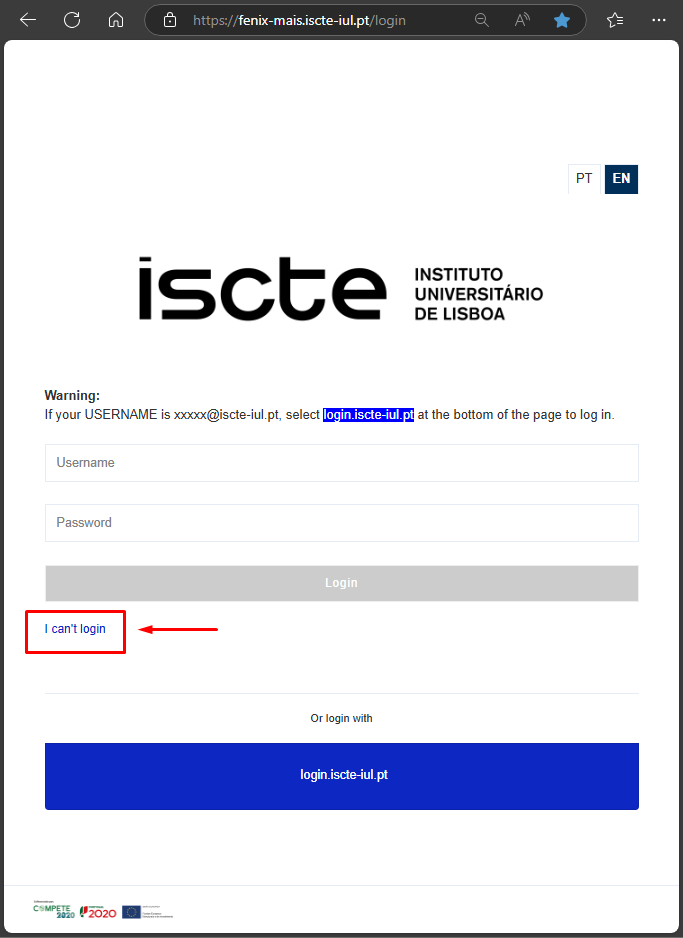
- Access Fénix+ at https://fenix-mais.iscte-iul.pt
- Click on “I can’t login”.
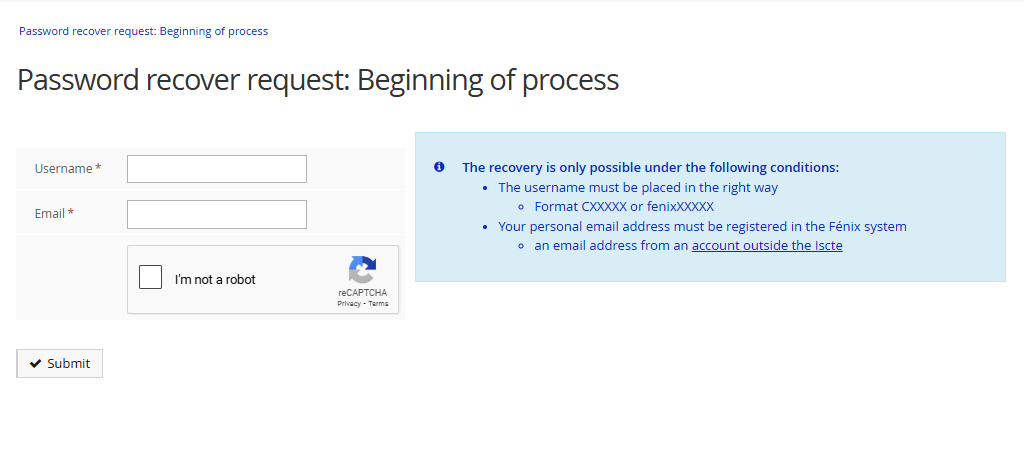
- Start the password recovery process:
– Enter username format CXXXXX or fenixXXXXX– Your personal e-mail address (which is registered on fenix+)
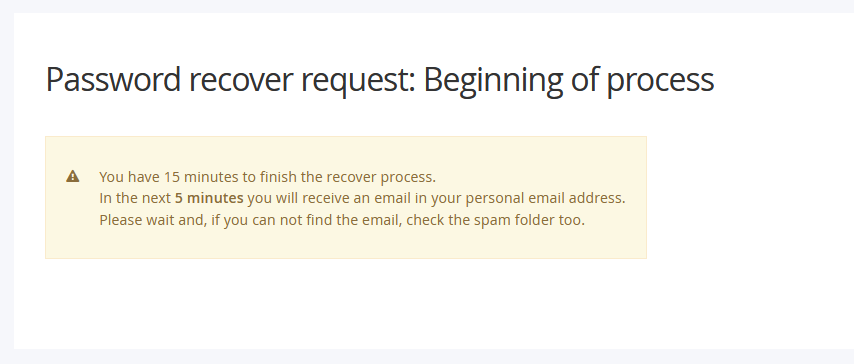
- Click on Submit. You will receive an email to your personal email address with a recovery link.
Why can’t I access the content with the padlock icon?
Atualizado/Updated: 2025-12-11
Target Audience: Iscte-IUL Students
Answer/Solution: The course materials are managed by the teacher(s) and the content that appear with the padlock icon (see image below) have been restricted to specific groups by the teacher(s).
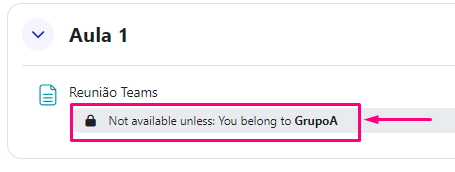
Further Information: If you believe you should be able to view this locked content, please contact the teacher(s) to add you to the required group.
I can log in to Moodle, but I can’t see the courses. Why?
Atualizado/Updated: 2026-07-28
Target Audience: Iscte-IUL Students
Answer/Solution:
-
- Make sure that you are correctly enrolled in courses on Fénix+.
- After being enrolled in Fénix+, you must wait up to 48 hours for the courses to become available in Moodle.
Further Information:
-
- Course enrollment only takes place at the beginning of the semester on the Moodle e-learning platform.
- Therefore, the 1st semester courses will not be visible to students who access Moodle before August 26th, 2026 and the 2nd semester courses will not be visible until January 2027 (although they are already on Fénix+).
-
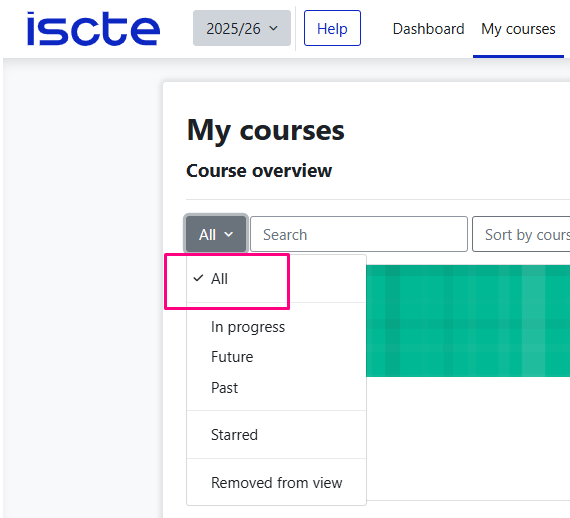
If you can access Moodle but don’t see all your courses, check the filter on the “My Courses” page. To ensure all your available courses are displayed, select “All” from the filter menu.
Is it possible to create groups by CSV?
Atualizado/Updated: 2025-05-28
Target Audience: Iscte-IUL Teachers
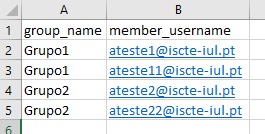
Answer/Solution: Yes. To do this, add the groups in the “group_name” column and the usernames in the “member_username” column in the CSV file:
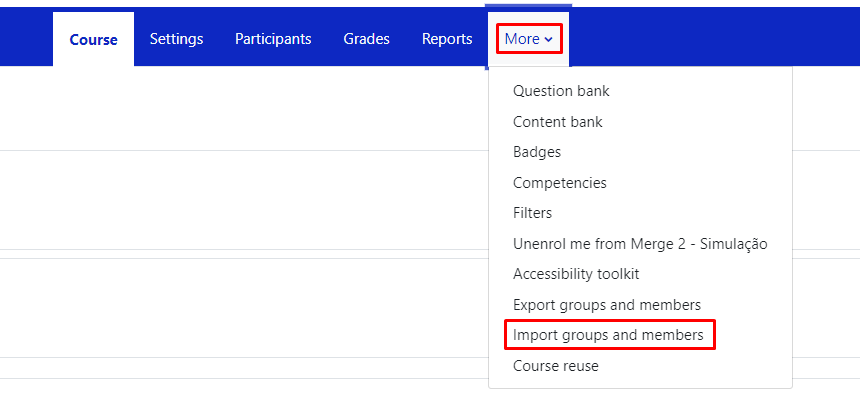
In the course unit, click on “More” in the top menu and select “Import groups and members”.
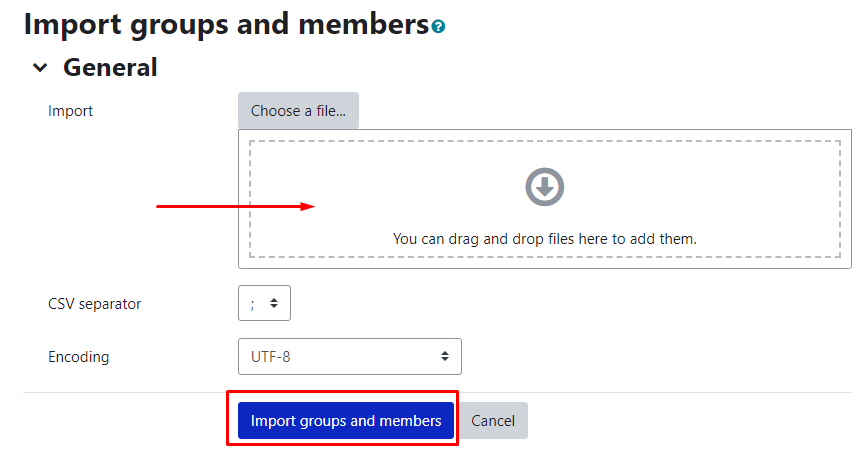
Drag (or select) the CSV file with the groups into the “Import” field and press the “Import groups and members” button, then “Continue“.
Further Information: You can download an example csv file.
I can’t upload files to UC in Moodle. What can I do?
Atualizado/Updated: 2025-05-28
Target Audience: Iscte-IUL Teachers
Answer/Solution: Make sure you have activated the “Edit mode” in the top right corner:

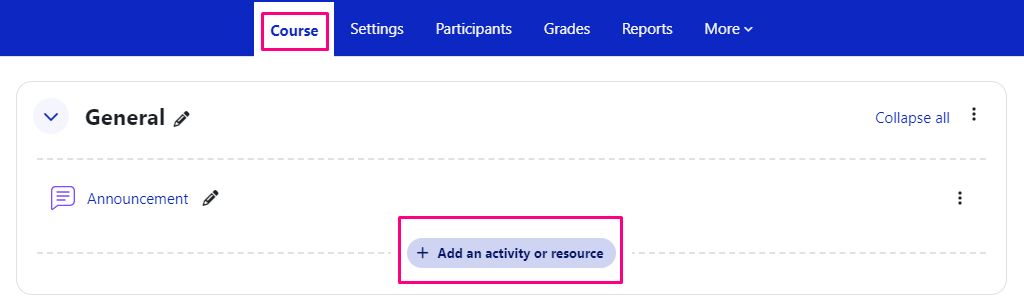
On the course page in Moodle, files should be added by creating an activity or resource in the “Course” section of the horizontal menu:
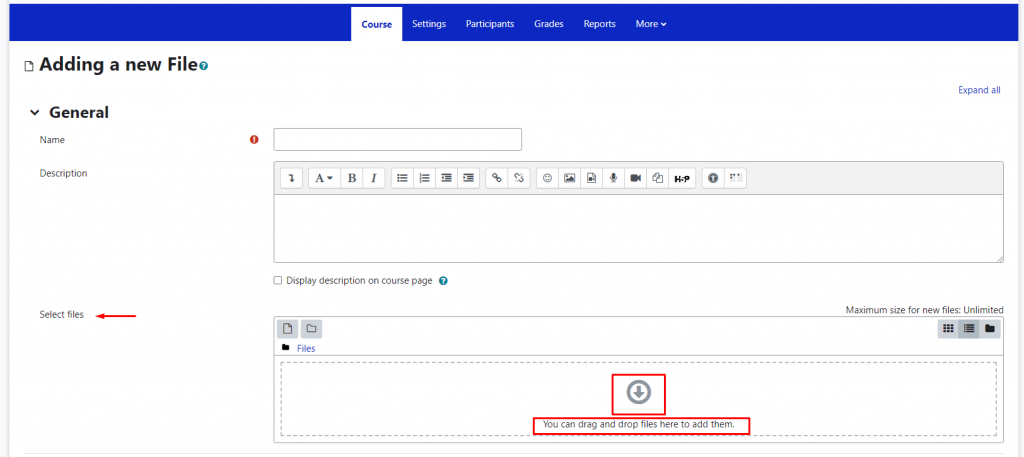
In the activity or resource created, drag or drop the file(s) into the “Select files” field or click on the downward arrow icon and select the file(s).
How can I extract a file with all the participant groups in Moodle?
Atualizado/Updated: 2025-05-28
Target Audience: Iscte-IUL Teachers
Answer/Solution: It is possible to export an Excel or CSV file with the groups, just go to the “Course Unit” page, and in the “Participants” menu, select “Overview” and press the button “Download“.
How to access the Moodle App on mobile devices?
Atualizado/Updated: 2026-05-14
Target Audience: Iscte-IUL Teachers and Students.
Answer/Solution: In the Moodle application, enter https://moodle24.iscte-iul.pt/ and then select the option Connect to your site https://moodle.iscte-iul.pt/ and log in.
Warning: The Moodle mobile application is not managed by Information Technology Services (IT Services). It is strongly recommended that it not be used for assessment activities.
How to insert a mathematical formula in LaTeX?
Atualizado/Updated: 2025-05-28
Target Audience: Iscte-IUL Teachers and Students
Answer/Solution: In order to embed a mathematical formula in LaTeX, it must start with $$ and end with $$ (e.g. $$ x^2 $$).
Further Information: Unlike Moodle 22/23, it is no longer necessary to enter the text in the text editor box in HTML mode.
Is it possible to make activities or resources (file, assignment, test, etc.) visible or invisible to students?
Atualizado/Updated: 2025-05-28
Target Audience: Iscte-IUL Teachers
Answer/Solution: Yes. In the “Edit” button on the right side of the activity or resource, choose the “Hide” option.
Do students receive email notification of announcements?
Atualizado/Updated: 2025-05-28
Target Audience: Iscte-IUL Teachers
Answer/Solution: Yes. Notifications of “Announcements and Forums” are also sent by email as well as appearing in the “Notifications” menu on the platform itself.
Can feedback in working groups be given individually to each student?
Atualizado/Updated: 2025-05-28
Target Audience: Iscte-IUL Teachers
Answer/Solution: Yes. In the correction of the work, in the feedback, you can activate or not the option Apply grades and feedback to entire group.
Is it possible to hide the contents from students while editing the Course Unit?
Atualizado/Updated: 2025-05-28
Target Audience: Iscte-IUL Teachers
Answer/Solution: Yes. In “Edit mode“, on the right side of the content (topic, tab, activity, etc), edit by selecting the “Hide” option.
How can I export the grades to a CSV file?
Atualizado/Updated: 2025-05-28
Target Audience: Iscte-IUL Teachers
Answer/Solution:
- Within the Course Unit, in the top menu click “Grades“;
- Select “Export“;
- Choose the format “Plain text file“; and
- Click “Download“.