Applications
What is an incident?
Atualizado/Updated: 2025-12-12
Target Audience: Iscte-IUL Community
Answer/Solution: An incident is an unplanned interruption of an IT service or a reduction in the quality of an IT service. A failure of a configuration item that has not yet had an impact on an IT service is also an incident. For example: The failure of a hard disc in a mirrored set of discs.
More examples of incidents: the computer in the classroom won’t switch on, the video projector won’t switch on, I can’t access the internet on the desktop in the office, the self-service printer on the C5 floor has a paper jam, I can’t log in to Iscte e-learning.
Further Information:
How can I access Ciência-Iscte?
Atualizado/Updated: 2025-12-12
Target Audience: Iscte-IUL teachers and researchers
Answer/Solution:
- Access the Ciência-Iscte platform at https://ciencia.iscte-iul.pt/.
- To authenticate yourself, use your Iscte account credentials (e.g. xxnes@iscte-iul.pt and your password).
Further Information: See here the FAQs provided by Ciência-iscte.
How do I access the Iscte-IUL Events management platform?
Atualizado/Updated: 2025-12-12
Target Audience: All the world
Answer/Solution:
- Access the Events platform at https://eventos.iscte-iul.pt/.
Further Information:
- The Events platform is dedicated to view, organize and manage the events that take place on Iscte’s premises.
How can I access the I-Meritus platform?
Atualizado/Updated: 2025-05-23
Target Audience: Iscte-IUL Teachers and Researchers
Answer/Solution:
- Access the I-Meritus platform at https://i-meritus.iscte-iul.pt/.
- To authenticate yourself, use your Iscte account credentials (e.g. xxnes@iscte-iul.pt and your password).
Further Information: I-Meritus is a platform designed for the performance evaluation of teachers and researchers.
How do I access the Online Learning platform?
Atualizado/Updated: 2025-05-23
Target Audience:
- All users with a valid Iscte-IUL account; and
- External users with a Google or Microsoft account.
Answer/Solution: The platform is accessible at https://online-learning.iscte-iul.pt/.
Further Information:
- This platform is available to all users with a valid Iscte-IUL account and external users with a Google or Microsoft account. To log in, use your Iscte account credentials (e.g. xxnes@iscte-iul.pt and password).
- At the moment, none of the courses available on the platform are available to the general public (they are only available to Iscte-IUL users).
What is Iscte-IUL’s website address?
Atualizado/Updated: 2025-05-23
Target Audience: The whole world
Answer/Solution: The Iscte-IUL Portal can be accessed at https://www.iscte-iul.pt/
Further Information:
- It is the institution’s main digital platform, with the mission of informing, communicating and supporting students, teachers, researchers and the general public.
- Through this website, you can access institutional information, explore the training offer, find out about research projects and grants, follow the latest news and consult useful content to support students and applicants to Iscte’s courses.
How can I access Iscte-IUL’s Mobile App?

Atualizado/Updated: 2025-12-12
Target Audience: Iscte-IUL’s Community
Answer/Solution: The app can be downloaded from the “Google Store” or “App Store” depending on the brand of your cell phone.
Further Information: Iscte-IUL Mobile App provides information on courses, news and events, such as:
How do I access the Recruitment platform?
Atualizado/Updated: 2025-05-23
Target Audience: All the world
Answer/Solution: Iscte’s Recruitment Platform is available at https://recrutamento.iscte-iul.pt/
Further Information:
- It is the official system for publicizing jobs opportunities and managing applications for job opportunities at the institution.
- It allows you to view available vacancies, submit applications easily and monitor all stages of the recruitment and selection process.
How do I recover my Fenix+ password?
Atualizado/Updated: 2025-12-12
Target Audience: Iscte-IUL Course Candidates (fenix010101 or C010101 users)
Answer/Solution:
-
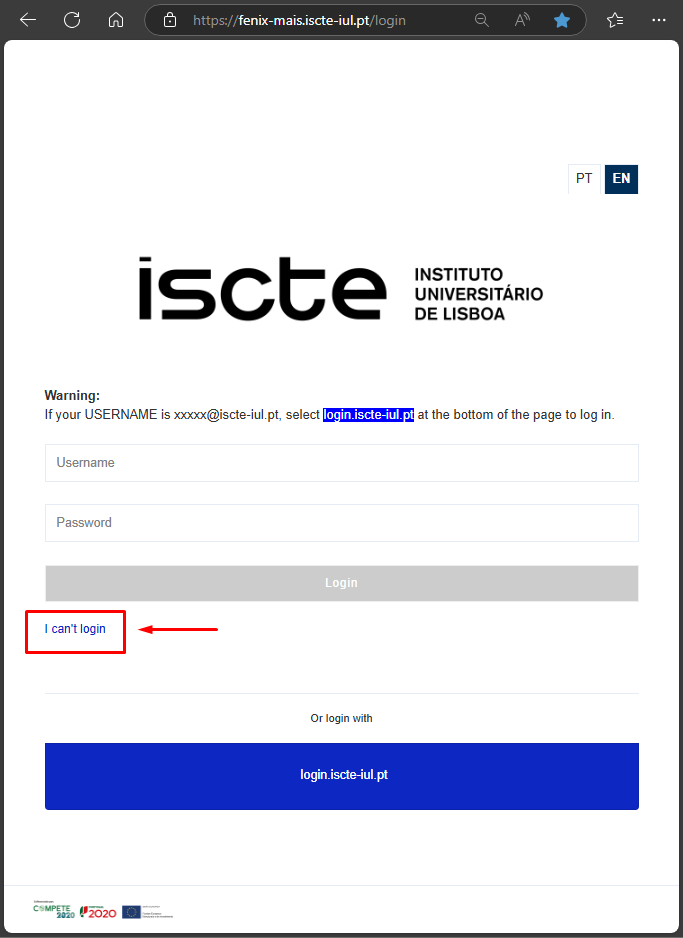
- Access Fénix+ at https://fenix-mais.iscte-iul.pt
- Click on “I can’t login”.
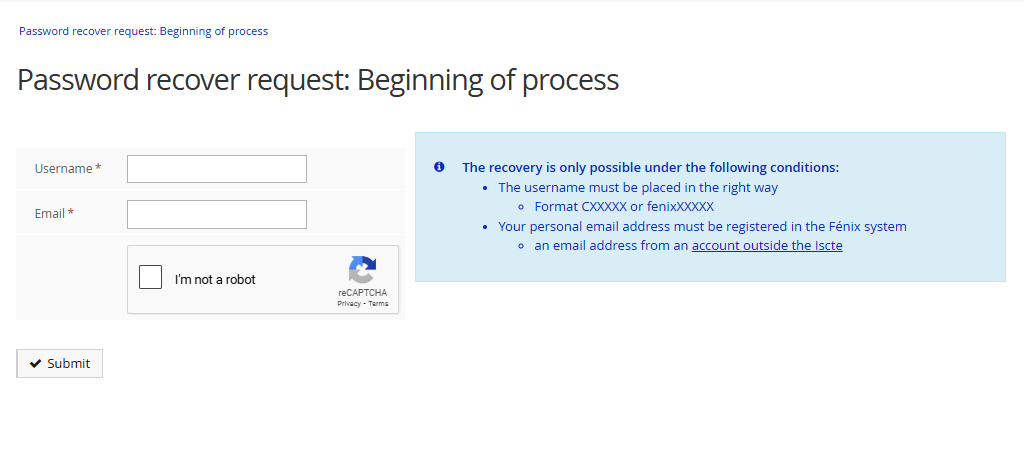
- Start the password recovery process:
– Enter username format CXXXXX or fenixXXXXX– Your personal e-mail address (which is registered on fenix+)
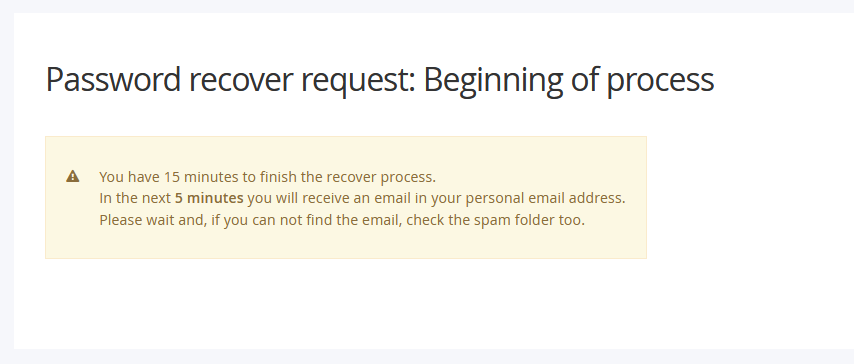
- Click on Submit. You will receive an email to your personal email address with a recovery link.
How can I accept the execution of a service request?
Atualizado/Updated: 2025-12-12
Target Audience: Iscte-IUL Community
Answer/Solution:
- Go to iAjuda.
- Click on “Validations”.
- Select the “Service Request”.
- Click on “Accept”.
- Rate the execution of the service request from 1 (insufficient) to 5 (excellent), both in terms of “Speed of intervention” and “Quality of intervention”. If you think it’s relevant, add a comment.
- Click on “Ok”.
How do I follow up a request to solve an incident?
Atualizado/Updated: 2025-12-12
Target Audience: Iscte-IUL Community
Answer/Solution:
- Go to iAjuda.
- Click on “My Tickets”.
- Select the “Incident”.
Apply one of the 5 filters provided by iAjuda to make it easier to identify the ticket: “In Resolution”, “Closed”, “Pending”, “Registered” and “Solved”. - For each “Incident” you can perform 3 types of actions: “Details”, “Update” and “Attachments”.
How to track the execution of a service request?
Atualizado/Updated: 2025-12-12
Target Audience: Iscte-IUL Community
Answer/Solution:
- Go to iAjuda.
- Click on “My Tickets”.
- Choose “Service Request”.
Apply one of the 5 filters provided by iAjuda to make it easier to identify the ticket: “In Resolution”, “Closed”, “Pending”, “Registered” and “Solved”. - For each “Service request” you can perform 3 types of actions: “Details”, “Update” and “Attachments”.
Service Catalog
Atualizado/Updated: 2025-12-19
Scope: Iscte community
Action: Iscte’s IT Services Catalog is available on the “SIIC Services Portal”: https://iajuda.iscte-iul.pt/
Additional information: the catalog is organized in a hierarchical structure (category/subcategory), with the following main categories:
- Applications → Access Management and Application Support.
- Data Center → Infrastructure and Server Services (servers, DMZ, backups).
- Cybersecurity → Digital Security and Audits.
- Accounts and Email → Institutional Account and Email Management.
- Equipment → Equipment Support and Management.
- Training → Training Requests.
- Printing and Scanning → Printing and Scanning Services.
- Networks, Internet, and Communications → Network, Internet, and Communications Services.
- Software, Licenses, and Contracts → Software, License, and Contract Management.
Incident Catalog
Atualizado/Updated: 2025-12-19
Scope: Iscte community
Action: Iscte’s IT Incident Catalog is available on the “SIIC Services Portal”: https://iajuda.iscte-iul.pt/
Additional information:
The catalog is organized in a hierarchical structure (category/subcategory), with the following main categories:
- Applications → Application and Software Incidents (Failures, errors, unavailability, or performance degradation in platforms and software).
- Data Center → Infrastructure and Server Incidents (Problems with Data Center services, including servers, DMZ, websites, and backups).
- Cybersecurity → Digital Security Incidents (Malicious code, fraud, intrusion, privacy violations, and other threats).
- Accounts and Email → Institutional Account and Email Incidents (Failures, errors, or unavailability in institutional accounts or email).
- Equipment → Equipment and Hardware Incidents (Malfunctions, failures, theft, or performance degradation of physical devices).
- Printing and Scanning → Printing and Scanning Service Incidents (Problems with access, configuration, or operation of the printing system).
- Networks, Internet, and Communications → Network, Internet, and Communications Incidents (Failures or difficulties accessing the network, Wi-Fi, VPN, or VoIP).
Why can’t I access the content with the padlock icon?
Atualizado/Updated: 2025-12-11
Target Audience: Iscte-IUL Students
Answer/Solution: The course materials are managed by the teacher(s) and the content that appear with the padlock icon (see image below) have been restricted to specific groups by the teacher(s).
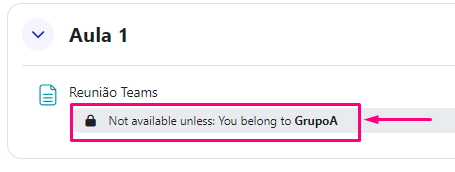
Further Information: If you believe you should be able to view this locked content, please contact the teacher(s) to add you to the required group.
I can log in to Moodle, but I can’t see the courses. Why?
Atualizado/Updated: 2025-12-11
Target Audience: Iscte-IUL Students
Answer/Solution:
-
- Make sure that you are correctly enrolled in courses on Fénix+.
- After being enrolled in Fénix+, you must wait up to 48 hours for the courses to become available in Moodle.
Further Information:
-
- Course enrollment only takes place at the beginning of the semester on the Moodle e-learning platform.
- Therefore, the 1st semester courses will not be visible to students who access Moodle before September 2025 and the 2nd semester courses will not be visible until January 2026 (although they are already on Fénix+).
Is it possible to create groups by CSV?
Atualizado/Updated: 2025-05-28
Target Audience: Iscte-IUL Teachers
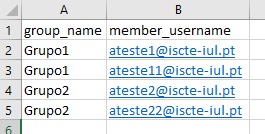
Answer/Solution: Yes. To do this, add the groups in the “group_name” column and the usernames in the “member_username” column in the CSV file:
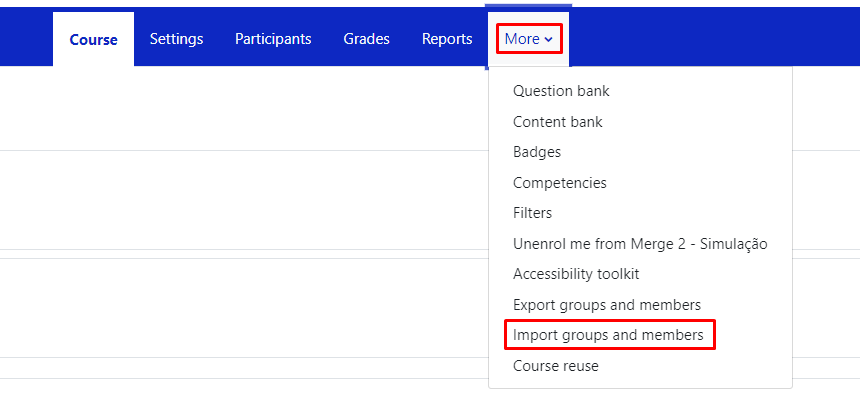
In the course unit, click on “More” in the top menu and select “Import groups and members”.
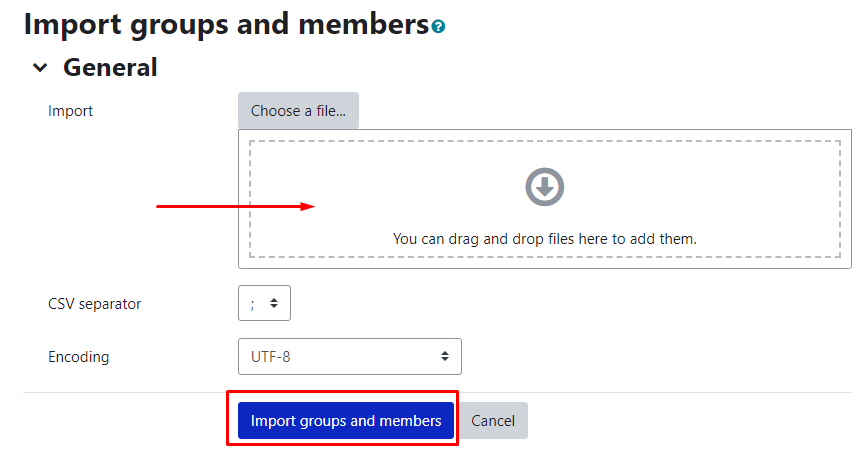
Drag (or select) the CSV file with the groups into the “Import” field and press the “Import groups and members” button, then “Continue“.
Further Information: You can download an example csv file.