FAQ
How do I schedule a meeting on the Colibri website?
Atualizado/Updated: 2025-01-14
Target Audience: Iscte-IUL Community
Answer/Solution:
- Sign in to the Colibri (https://videoconf-colibri.zoom.us) using your RCTSaai federation credentials (xxnes@iscte-iul.pt).
- Click “Meetings” and click “Schedule a Meeting“.
- Select the meeting options. Note that some of these options might not be available if they were disabled and locked to the off position at the account or group level.
- Click “Save” to finish.
- Zoom offers multiple methods to schedule a meeting.
- A host has control over the options for their scheduled meetings, except for settings that an administrator has locked for all users in the account or for all members of a specific group.
- Schedule from the Zoom desktop client or mobile app.
- Schedule from the Zoom web portal.
- Schedule for someone else.
- Find out more details here.
How do I schedule a meeting using Zoom App?
Atualizado/Updated: 2025-01-14
Target Audience: Iscte-IUL Community
Answer/Solution:
- Log in to the Zoom Desktop Client, using your RCTSaai federation credentials (xxnes@iscte-iul.pt).Check out how to do this here.
- Click on the “Schedule” icon.
- Choose the meeting settings. Note that some of these options may not be available if they have been disabled at the account or group level.
- Click on “Save” to finish.
Further Information: Click here
I can’t add alternative Hosts (Co-hosts)
Atualizado/Updated: 2025-01-29
Target Audience: Iscte-IUL Community
Answer/Solution:
-
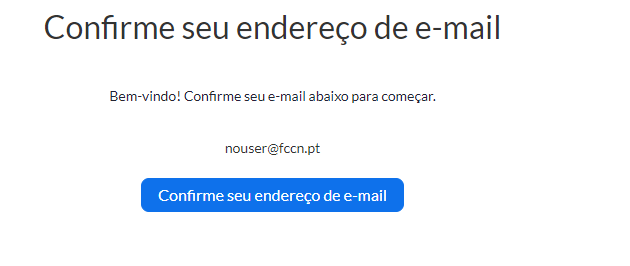
- In the Colibri service it is only possible to add alternative hosts (Co-hosts) other Colibri users belonging to the RCTSaai network, who have been assigned a PRO account at the time of the invitation.
- To ensure success at the time of the invitation, you should ask the user to log in to the Colibri service so that they can become a PRO user at that time.
- During a meeting, the host can set any participant as an alternative host (Co-host).
Further Information: Here’s how to log in to the Colibri service and become a PRO user.
How can I keep a meeting safe?
Atualizado/Updated: 2025-01-29
Scope: Iscte Community
During a Zoom meeting, the host and co-host have access to the Host Tools.
This menu centralizes the security control of the meeting, allowing the host or co-host to manage participants, video, audio, chat and other important options.
Most of the settings can be predefined when the meeting is scheduled.
This menu provides a clear overview of the security features in place, where the host can:
-
-
- Lock meeting: locks the meeting, preventing new participants from joining the meeting.
- Enable waiting room: activates the waiting room for new participants or to move current participants to the waiting room.
- Hide profile pictures: hides all profile pictures, including that of the host. Instead, the names will be displayed.
- You can set the following participant permissions independently: Share screen; Chat; Rename self; Activate own audio; Start video; Annotation on shared content; Share whiteboards; Share annotations; Record on computer; Request to record on computer; Request host to start cloud recording; Collaborate with Zoom Apps; Set meeting timers.
- Remove participant: allows you to remove a participant from the meeting. The participant cannot rejoin unless you allow removed participants to rejoin in the Meeting settings.
- Suspend participant activities: disable video, audio, Zoom Apps and the ability to share the screen for all participants. It also locks the meeting to prevent participants from joining. This option will be applied to all participants.
-
See the following Zoom help article for more information.
How long is my recording available in the cloud?
Atualizado/Updated: 2026-01-30
Target Audience: Iscte-IUL Community
Answer/Solution:
-
- Through the Colibri service it is possible to record Zoom meetings in the Cloud.
- These recordings are available for consultation and download for up to 30 days after the recording date.
- The recordings can be consulted and managed on the Zoom recordings page.
- To avoid losing your recording, transfer it to Educast.
How to schedule a Webinar?
Atualizado/Updated: 2025-01-09
Target Audience: Iscte Community
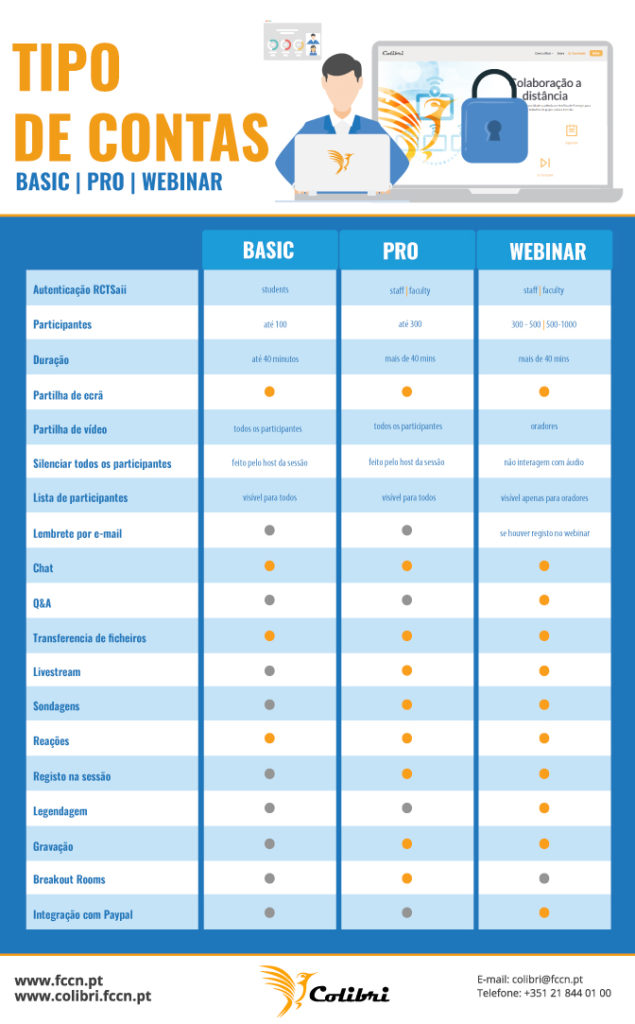
Answer/Solution: The Colibri service provides the possibility of requesting Webinars. This service is available through a request for institutions that are members of RCTS (Rede Ciência Tecnologia e Sociedade).
Additional Information:
-
- The Webinar service component is dedicated to online events aimed at large audiences, so it should only be requested for events that require a minimum of 300 participants.
- Current licensing allows for a maximum capacity of 1000 participants in each webinar.
- Requests for the webinar service must be made two working days (48 hours) in advance.
- Requests are subject to analysis and approval by FCCN support team and reservations may be conditioned by the type of event, licensing availability and/or previously scheduled reservations.
Why can’t I access the content with the padlock icon?
Atualizado/Updated: 2025-12-11
Target Audience: Iscte-IUL Students
Answer/Solution: The course materials are managed by the teacher(s) and the content that appear with the padlock icon (see image below) have been restricted to specific groups by the teacher(s).

Further Information: If you believe you should be able to view this locked content, please contact the teacher(s) to add you to the required group.
I can log in to Moodle, but I can’t see the courses. Why?
Atualizado/Updated: 2025-12-11
Target Audience: Iscte-IUL Students
Answer/Solution:
-
- Make sure that you are correctly enrolled in courses on Fénix+.
- After being enrolled in Fénix+, you must wait up to 48 hours for the courses to become available in Moodle.
Further Information:
-
- Course enrollment only takes place at the beginning of the semester on the Moodle e-learning platform.
- Therefore, the 1st semester courses will not be visible to students who access Moodle before September 2025 and the 2nd semester courses will not be visible until January 2026 (although they are already on Fénix+).
Printing error – Windows Hello
Atualizado/Updated: 2025-05-27
Target Audience: Iscte-IUL Employees
Answer/Solution: For users who have configured PIN or fingerprint authentication – Windows Hello – and were unable to print (error 0x000006ba), follow these steps:
- Access the “Printers & Scanners” menu using the Windows search box.

- Select the printer and press the “Remove“.

- Establish a connection to the Iscte print server by running the command \\printers.iul.intra in the Windows search box.

Tip: Outside Iscte installations, connect to the VPN before attempting to connect to the Iscte print server. - In the Windows Security window, click on “More choices“.

- Select “Use a different account“.

- Authenticate to the print server and select “Remember my credentials“.
Username: Type “IUL\username” (e.g., IUL\xxnes)
Password: Type Iscte account password
- Press the “OK” button.
- Install the “Iscte” network printer driver using the right mouse button and choosing the “Connect…” option and wait for the installation to finish.


- Access the “Printers & Scanners” menu using the Windows search box.
Is it possible to create groups by CSV?
Atualizado/Updated: 2025-05-28
Target Audience: Iscte-IUL Teachers
Answer/Solution: Yes. To do this, add the groups in the “group_name” column and the usernames in the “member_username” column in the CSV file:

In the course unit, click on “More” in the top menu and select “Import groups and members”.

Drag (or select) the CSV file with the groups into the “Import” field and press the “Import groups and members” button, then “Continue“.

Further Information: You can download an example csv file.
I can’t upload files to UC in Moodle. What can I do?
Atualizado/Updated: 2025-05-28
Target Audience: Iscte-IUL Teachers
Answer/Solution: Make sure you have activated the “Edit mode” in the top right corner:

On the course page in Moodle, files should be added by creating an activity or resource in the “Course” section of the horizontal menu:

In the activity or resource created, drag or drop the file(s) into the “Select files” field or click on the downward arrow icon and select the file(s).

How can I extract a file with all the participant groups in Moodle?
Atualizado/Updated: 2025-05-28
Target Audience: Iscte-IUL Teachers
Answer/Solution: It is possible to export an Excel or CSV file with the groups, just go to the “Course Unit” page, and in the “Participants” menu, select “Overview” and press the button “Download“.
How to access the Moodle App on mobile devices?
Atualizado/Updated: 2025-05-28
Target Audience: Iscte-IUL Teachers and Students.
Answer/Solution: In the Moodle application, enter https://moodle24.iscte-iul.pt/ and then select the option Connect to your site https://moodle25.iscte-iul.pt/ and log in.
Warning: The Moodle mobile application is not managed by Information Technology Services (IT Services). It is strongly recommended that it not be used for assessment activities.
How to insert a mathematical formula in LaTeX?
Atualizado/Updated: 2025-05-28
Target Audience: Iscte-IUL Teachers and Students
Answer/Solution: In order to embed a mathematical formula in LaTeX, it must start with $$ and end with $$ (e.g. $$ x^2 $$).
Further Information: Unlike Moodle 22/23, it is no longer necessary to enter the text in the text editor box in HTML mode.
Is it possible to make activities or resources (file, assignment, test, etc.) visible or invisible to students?
Atualizado/Updated: 2025-05-28
Target Audience: Iscte-IUL Teachers
Answer/Solution: Yes. In the “Edit” button on the right side of the activity or resource, choose the “Hide” option.
Do students receive email notification of announcements?
Atualizado/Updated: 2025-05-28
Target Audience: Iscte-IUL Teachers
Answer/Solution: Yes. Notifications of “Announcements and Forums” are also sent by email as well as appearing in the “Notifications” menu on the platform itself.
Can feedback in working groups be given individually to each student?
Atualizado/Updated: 2025-05-28
Target Audience: Iscte-IUL Teachers
Answer/Solution: Yes. In the correction of the work, in the feedback, you can activate or not the option Apply grades and feedback to entire group.