Collaboration and Knowledge
How to register/create an account on the NAU platform?
- Access the NAU platform website.
- Click on “Register” in the upper right corner.
Fill in the required fields on the account registration form. - Click on “Create Account.”
After completing the above procedure, you must activate your account via email. - Note: If you do not receive the automatic email in your inbox, confirm that the information you entered is correct and/or check your Spam, Junk Mail, or Trash folder.
- Learn + (Informação da responsabilidade da FCT).
How do I submit answers to tests?
In single-question questionnaires/tests/quizzes, the questions are independent and there is a “Submit” button for each question. In questionnaires/tests/quizzes where answers are submitted collectively, the “Submit” button is located at the end of a set of questions.
The number of attempts for questionnaires/tests/quizzes depends on the course and its answer options. After submitting the answer, the platform will provide feedback on whether the answer is correct or incorrect, as well as the number of attempts used. If there is no limit on the number of attempts, the button will always be active.
- Learn + (Informação da responsabilidade da FCT).
How do I link my Citizen Card and digital mobile key?
Target Audience: Everyone
Answer/Solution:
- This association allows you to access NAU using the Gov Authentication service.
- Follow the instructions provided by FCT here.
Further information:
How to schedule a meeting from the calendar in Teams?
Novo calendário
- Select “Calendar
” in Teams. - Select a timeslot on the calendar or select “New
“. - Add meeting details and attendees.
- Enable the “Teams meeting” button.
- Select “Save
“.
Calendário clássico
- Select “Calendar
” in Teams. - Select “New meeting
“. - Add meeting details and attendees.
- Make sure the “Online meeting” toggle is turned on.
- Select “Save
“.
How to schedule a channel meeting in Teams?
- Select “Teams
” in Teams. - Select a team.
- Nexto to “Meet now
“, select the dropdown arrow. - Select “Schedule a meeting
“. - Add other attendees.
- Select “Send“.
Tips:
- Everyone on the team you scheduled the meeting for will receive a personal invitation.
- You can also invite a channel to a regular meeting by typing the channel name in the Add channel field.
- Channels cannot be edited or added after the invitation has been sent. You will need to send a new invitation with the updated channel.
How to schedule a meeting in Teams from Chat?
- Select “Chat
” in Teams. - Select “More chat options
” at the top of the chat. - Select “Schedule a meeting
“. - Add meetings details.
- Select “Send“.
My camera isn’t working in Microsoft Teams
Check if your camera is in use
Close all other apps that might be using your camera (like Zoom or FaceTime).
If you’re using an external camera, try unplugging it and plugging it back in.
Try restarting your device.
Contact support from your device’s manufacturer in case it’s a hardware issue.
I can’t join a meeting in Microsoft Teams
Target Audience: Iscte-IUL Community
Answer/Solution:
You’re waiting in the lobby: Some organizers might place attendees in a lobby before admitting them into the meeting. Wait for someone to admit you, or reach out to the organizer directly to be let in.
Your internet browser isn’t supported: Teams doesn’t currently support Safari for Mac. If you’re joining a Teams meeting from the web, try joining from Microsoft Edge, Google Chrome, or other supported browsers.
Your internet connectivity is low: If your internet connection is low, you may not be able to join a Teams meeting right away. Try waiting for your connection to improve, joining from your supported mobile device, or reaching out to your internet provider.
Security policies for the meeting are preventing you from joining: If a meeting organizer enables end-to-end encryption for a meeting, you might have limited access to join. Try reaching out to the organizer to be let in.
Further Information:
How to invite people to a meeting in Teams?
Target Audience: Iscte-IUL Community
Answer/Solution:
- New calendar
- Select Calendar in Teams.
- Schedule an event or select an existing one and select Edit.
- In the Invite attendees field, enter who you want to add.
- Select + Optional to add optional attendees.
- Select Save.
- New calendar
- Classic calendar
- Select Calendar in Teams.
- Schedule an event or double-click an existing one.
- In the Invite attendees field, enter who you want to add.
- Select + Optional to add optional attendees.
- Select Save.
- Classic calendar
Further Information:
How to Create Breakout Rooms in Teams?
Atualizado/Updated: 2025-07-25
Target Audience: Iscte-IUL Community
Answer/Solution:
To create breakout rooms, you must be a meeting organizer or a presenter in the meeting organizer’s organization who’s been appointed a breakout rooms manager.
Before a meeting
If you create breakout rooms before a meeting starts, you can invite up to 300 people. As soon as the meeting starts, you can open the breakout rooms.
- Select Calendar in Teams.
- Double-click a meeting to expand its details.
- Select Breakout rooms > Create rooms.
- Choose the number of rooms you want (up to 50).
- Select Add rooms.
- Select Assign participants.
- Choose how you want participants to be assigned.
- Select Next > Save.
During a meeting
- Select Rooms in the meeting controls.
- Choose the number of rooms you want to create (up to 50).
- Choose how you want participants to be assigned.
- Select Create rooms.
Tip: To add another breakout room during the meeting, select Rooms > Add room in the meeting controls.
Further Information:
How to Add Co-Organizers to a Meeting in Microsoft Teams?
Target Audience: Iscte-IUL Community
Answer/Solution:
- New calendar
- Select Calendar inTeams.
- Select an event.
- Make sure the people you want to add as co-organizers are added as required attendees.
- Select Edit > More options.
- In Event, select Meeting options.
- In Roles > Choose co-organizers, search and select their names from the dropdown menu.
- Select Save.
- New calendar
- Classic Calendar
- Select Calendar inTeams.
- Select a a meeting or event.
- Make sure the people you want to add as co-organizers are added as required attendees.
- Select Edit.
- In the meeting description, press and hold ctrl and select Meeting options.
- In Roles > Choose co-organizers, search and select their names from the dropdown menu.
- Select Save.
- Classic Calendar
Note: Co-organizers must be in the same org as the meeting organizer. They can also use a guest account in the same org.
Further Information:
What can I do during a Teams meeting?
Target Audience: Iscte-IUL Community
Answer/Solution:
- Meeting controls
- Chat
- Present content
- Presenter modes
- Share slides
- Share sound
- Use video
- Apply video filters
- Mute and unmute
- Spotlight a video
- Multitasking
- Raise your hand
- Live reactions
- Take meeting notes
- Join a breakout room
- Customize your view
- Laser pointer
- Cast from a desktop
- Share physical resources
- Use a green screen
- Join as an avatar
- Customize your avatar
- Use emotes, gestures, and more
Further Information:
How do I Manage My Calendar in Teams?
Target Audience: Iscte-IUL Community
Answer/Solution:
Further Information:
How do I schedule a Teams Meeting?
Target Audience: Iscte-IUL Community
Answer/Solution:
Further Information:
How to take part in a Teams Meeting?
Público Alvo: Comunidade Iscte-IUL
Answer/Solution:
Further Information:
How to log in to Microsoft Teams
Atualizado/Updated: 2025-07-22
Target Audience: Iscte-IUL Community
Answer/Solution:
- Start Microsoft Teams.
- In Windows, select Start > Microsoft Teams.
- On Mac, open the Applications folder and select Microsoft Teams.
- On the web, go to https://teams.microsoft.com.
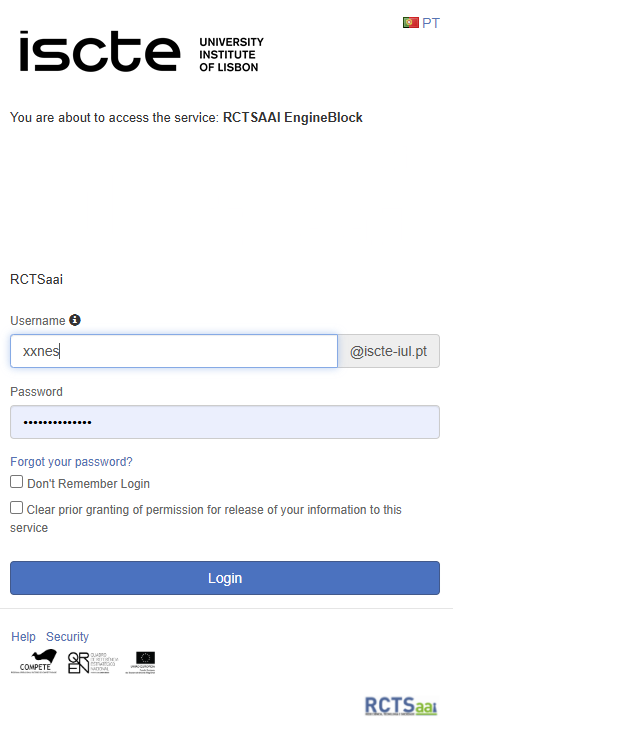
- Sign in with your username and password (e.g., xxnes@iscte-iul.pt and password).
Further Information:
I can’t log in to the Colibri service
Atualizado/Updated: 2025-07-08
Target Audience: Iscte-IUL Community
Answer/Solution: If you are having problems logging in to the Colibri service, proceed as follows:
- In your web browser, open a private browsing window.
To open a private browsing window in Google Chrome or Microsoft Edge, you can use the keyboard shortcut “Ctrl+Shit+N”, or click on the icon with three dots, and click on “New private browsing window”.
- Go to colibri.fccn.pt and click on the “Sign in” button.
- You will be redirected to the institution selection page where you must select “Iscte” and log in with your Iscte account credentials (e.g. xxnes@iscte-iul.pt and the corresponding password).
If you manage to access the Colibri service successfully, follow these steps:
- Close the private browsing window.
- Go to Internet browser options and clear the browser cache.
- Close the web browser and open it again;
- Access and log in to the Colibri service.
Further Information: Read the following help articles to find out how to clear the cache: