FAQ
How can I use ZOOM APPS?
Atualizado/Updated: 2025-01-17
Target Audience: Iscte-IUL Community
Answer/Solution:
- Download the latest version of Zoom.
- In the ZOOM client, click on the “APPS” tab on the desktop or access it via the toolbar in the meeting.
- Click on “Discover” to see the list of available apps and add your favorites.
Further information: Direct access to the Zoom API is still restricted to the FCCN for security and service management reasons.
Whats the type of my Zoom account?
Atualizado/Updated: 2025-01-17
Target Audience: Iscte-IUL Community
Answer/Solution:
- The Colibri service is a service that requires user authentication by the RCTSaai federation.
- The authentication process is carried out by you, using your Iscte account credentials (e.g. xxnes@iscte-iul.pt and the corresponding password).
- Once logged in, all the information about your account will appear. In the “affiliation” field, you will see what type of account you have (students, staff or faculty).
Further Information:
- To check which type of account you have, click here.
How can I hold a safe meeting?
Atualizado/Updated: 2025-01-17
Target Audience: Iscte-IUL Community
Answer/Solution:
- During a Zoom meeting, the host and co-host have access to the Host Tools.
- This menu centralizes the security control of the meeting, allowing the host or co-host to manage the participants, video, audio, chat and other important options.
- Most of the settings can be predefined when the meeting is scheduled.
- This menu provides a clear overview of the security features in place, where the host can:
- Lock meeting: locks the meeting, preventing new participants from joining the meeting.
- Enable waiting room: activates the waiting room for new participants or to move current participants to the waiting room.
- Hide profile pictures: hides all profile pictures, including that of the host. Instead, the names will be displayed.
- You can set the following participant permissions independently:
- Share screen;
- Chat;
- Self rename;
- Activate audio;
- Start video;
- Annotation on shared content;
- Share whiteboards;
- Share annotations;
- Record on computer;
- Request to record on computer;
- Request host to start cloud recording;
- Collaborate with Zoom Apps;
- Set meeting timers.
- Remove participant: allows you to remove a participant from the meeting. The participant cannot rejoin unless you allow removed participants to rejoin in the Meeting settings.
- Suspend participant activities: disable video, audio, Zoom Apps and the ability to share the screen for all participants. It also locks the meeting to prevent participants from joining. This option will be applied to all participants.
How do I log in to the Colibri service?
Atualizado/Updated: 2025-01-17
Target Audience: Iscte-IUL Community
Answer/Solution: The Colibri service uses the RCTSaai federated authentication service, and can be accessed via the Colibri website, in an internet browser, or via the Zoom application, using the SSO (Single Sign-On) authentication option.
Further Information: Click here
How can I change the language in the Zoom client on Windows?
Atualizado/Updated: 2025-01-17
Target Audience: Iscte-IUL Community
Answer/Solution:
- Select the “^” icon on the Windows taskbar.

- Right-click on the Zoom icon in the notification tray.
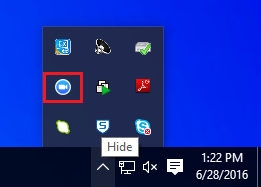
- Choose the “Switch languages” option.
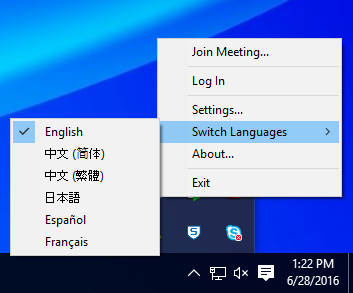
- Zoom is automatically restarted with the new language.
How can I change the language in the Zoom client on iOS?
Atualizado/Updated: 2025-01-17
Target Audience: Iscte-IUL Community
Answer/Solution:
- Open the Settings on your iOS device.
- Scroll down and tap “General”.
- Scroll down and tap “Language and region”.
- Tap on “iPhone/iPad language”.
- Choose your language.
- Tap “Done”.
- Zoom automatically restarts with the new language.
Further Information: On iOS, the language of Zoom is determined by the default language of the operating system.
How can I change the language in the Zoom client on Android?
Atualizado/Updated: 2025-01-17
Target Audience: Iscte-IUL Community
Answer/Solution:
- Open the “Settings” on your Android device.
- Tap on “Input language”.
- Tap on the new language.
- Zoom is automatically restarted with the new language.
Further Information: On Android, the language of Zoom is determined by the default language of the operating system.
I am a student and I can’t get a PRO account
Atualizado/Updated: 2025-01-17
Target Audience: Iscte-IUL Students
Answer/Solution:
- Students can only take advantage of BASIC licensing, given the high number of daily uses of the service.
- They can meet with up to 100 participants for 40 minutes. At the end of that session, they must log out and log back in using the same link/ID.
How can I access the b-on search service?
Atualizado/Updated: 2026-01-31
Target Audience: Iscte-IUL Community
Answer/Solution: Access to the b-on search service is via the website or the search portal.
Further Information: Click here
How can I accept the execution of a service request?
Atualizado/Updated: 2025-12-12
Target Audience: Iscte-IUL Community
Answer/Solution:
- Go to iAjuda.
- Click on “Validations”.
- Select the “Service Request”.
- Click on “Accept”.
- Rate the execution of the service request from 1 (insufficient) to 5 (excellent), both in terms of “Speed of intervention” and “Quality of intervention”. If you think it’s relevant, add a comment.
- Click on “Ok”.
How can I access the contents of b-on?
Atualizado/Updated: 2026-01-31
Target Audience: Iscte-IUL Community
Answer/Solution:
- Content can be accessed from any computer connected to the Internet and whose IP address belongs to the b-on network.
- This access can be made from the b-on search service, the publishers’ websites or through any search engine.
Further Information: Here‘s how to access b-on from home.
How do I add captions to a meeting?
Atualizado/Updated: 2025-01-17
Target Audience: Iscte-IUL Community
Answer/Solution: As the owner of the session, you can add captions to your meeting via a free online platform.
Further Information: Find out how with the tutorial – Real-time captions.
How do I follow up a request to solve an incident?
Atualizado/Updated: 2025-12-12
Target Audience: Iscte-IUL Community
Answer/Solution:
- Go to iAjuda.
- Click on “My Tickets”.
- Select the “Incident”.
Apply one of the 5 filters provided by iAjuda to make it easier to identify the ticket: “In Resolution”, “Closed”, “Pending”, “Registered” and “Solved”. - For each “Incident” you can perform 3 types of actions: “Details”, “Update” and “Attachments”.
How to track the execution of a service request?
Atualizado/Updated: 2025-12-12
Target Audience: Iscte-IUL Community
Answer/Solution:
- Go to iAjuda.
- Click on “My Tickets”.
- Choose “Service Request”.
Apply one of the 5 filters provided by iAjuda to make it easier to identify the ticket: “In Resolution”, “Closed”, “Pending”, “Registered” and “Solved”. - For each “Service request” you can perform 3 types of actions: “Details”, “Update” and “Attachments”.
Service Catalog
Atualizado/Updated: 2025-12-19
Scope: Iscte community
Action: Iscte’s IT Services Catalog is available on the “SIIC Services Portal”: https://iajuda.iscte-iul.pt/
Additional information: the catalog is organized in a hierarchical structure (category/subcategory), with the following main categories:
- Applications → Access Management and Application Support.
- Data Center → Infrastructure and Server Services (servers, DMZ, backups).
- Cybersecurity → Digital Security and Audits.
- Accounts and Email → Institutional Account and Email Management.
- Equipment → Equipment Support and Management.
- Training → Training Requests.
- Printing and Scanning → Printing and Scanning Services.
- Networks, Internet, and Communications → Network, Internet, and Communications Services.
- Software, Licenses, and Contracts → Software, License, and Contract Management.
Incident Catalog
Atualizado/Updated: 2025-12-19
Scope: Iscte community
Action: Iscte’s IT Incident Catalog is available on the “SIIC Services Portal”: https://iajuda.iscte-iul.pt/
Additional information:
The catalog is organized in a hierarchical structure (category/subcategory), with the following main categories:
- Applications → Application and Software Incidents (Failures, errors, unavailability, or performance degradation in platforms and software).
- Data Center → Infrastructure and Server Incidents (Problems with Data Center services, including servers, DMZ, websites, and backups).
- Cybersecurity → Digital Security Incidents (Malicious code, fraud, intrusion, privacy violations, and other threats).
- Accounts and Email → Institutional Account and Email Incidents (Failures, errors, or unavailability in institutional accounts or email).
- Equipment → Equipment and Hardware Incidents (Malfunctions, failures, theft, or performance degradation of physical devices).
- Printing and Scanning → Printing and Scanning Service Incidents (Problems with access, configuration, or operation of the printing system).
- Networks, Internet, and Communications → Network, Internet, and Communications Incidents (Failures or difficulties accessing the network, Wi-Fi, VPN, or VoIP).
Which School does my course belong to?
Atualizado/Updated: 2025-01-17
Scope: New ISCTE student.
Action: You can consult this information on ISCTE-IUL’s institutional portal: http://www.iscte-iul.pt.
How do I log in to the Zoom application?
Atualizado/Updated: 2025-01-17
Target Audience: Iscte-IUL Employees
Answer/Solution:
- Open the Zoom application.
- Choose the “Sign in” option.
- Choose the “SSO” option.
- In the “Domain” field, type “videoconf-colibri” (on linux you should also add .zoom.us).
- Click on “Continue”.
- You will be redirected to the institution selection page where you must select “Iscte” and log in with your Iscte account credentials (e.g. xxnes@iscte-iul.pt and the corresponding password).