Skip to content Skip to main navigation Skip to footer

Iscte User Account

PT

The User Account is personal, individual, and non-transferable, constituting the official digital identity of each member of the academic community. This account guarantees secure and unified access to all internal systems and services, ensuring centralized authentication via the Okta platform.

By activating the account, the user automatically gains access to a wide range of essential resources for academic and professional life, including:

    • Okta Platform – Centralizes authentication and allows you to manage access, reset passwords, configure MFA, and ensure secure and consistent login to all Iscte digital services.
    • Institutional Email – Each user receives a professional email address associated with Iscte (student: firstname_lastname@iscte-iul.pt; employee: firstname.lastname@iscte-iul.pt). This is the official channel for academic, administrative, and institutional communication.
    • Office 365 / Microsoft 365 – Includes applications such as Outlook, Teams, OneDrive, Word, Excel, PowerPoint, and other institutional collaborative tools. Access is granted using the Iscte username (xxnes@iscte-iul.pt) and the password configured during activation.
    • Internal Platforms and Services – The account unlocks access to all technological services associated with the Iscte user, including: internal management systems, administrative portals, printing services, subscribed databases, storage services, collaboration services, and software.

In essence, the Iscte account is the key to accessing the institution’s digital ecosystem. Its creation and correct use are essential to ensure:

    • Secure digital identity;
    • Simplified access to all services;
    • Protection of personal and institutional data;
    • Integration with academic and work tools;
    • Single sign-on (SSO) across the entire Iscte technological environment.

1. Activate Account

There are two types of users: Temporary and Definitive.

1.1. Temporary User

Main steps:

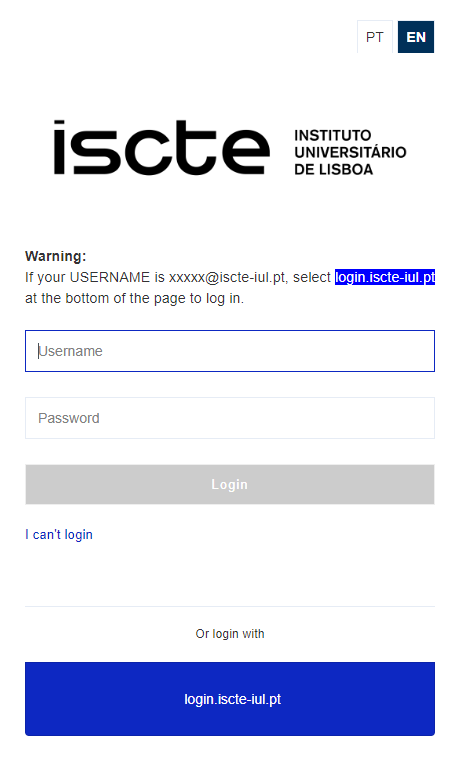
  1. Access Fénix+ and select I can’t log in.
  2. Start the password recovery process.
  3. Set a new password (following the requirements).
  4. Click Submit to generate your username (e.g., xxnes@iscte-iul.pt).
  5. Receive notification from Okta in your personal email.
  6. Activate your Okta account → set a new password → add your mobile phone number.
  7. Choose an image → Create Account.

Note: Full activation of access to internal systems, including Microsoft 365, may take up to 48 hours. The page to authenticate and access applications is: https://login.iscte-iul.pt/

For users of type fenix010101

  1. Go to https://fenix-mais.iscte-iul.pt and choose “EN” interface.
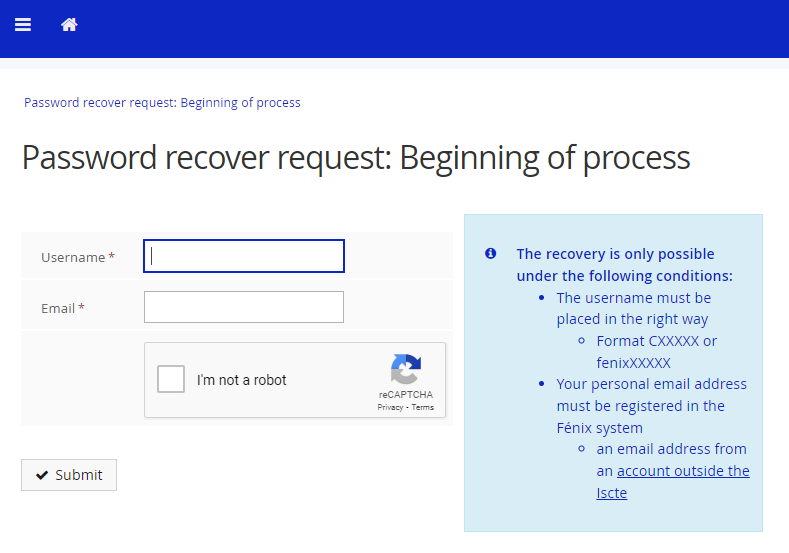
  2. Cick on “I can’t login”.


  3. Fill in the fields “Username“, “Email” (an email address from an account outside the Iscte that must be registered in the Fénix system), check “I´m not a robot” and click on “Submit“.


  4. Go to https://fenix-mais.iscte-iul.pt -> “MyFenix” -> “Other Services” -> “Ativate Account“.
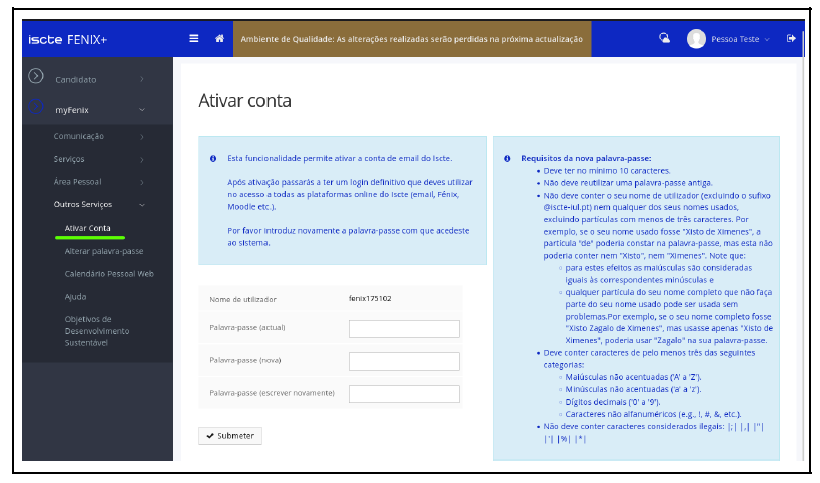


  5. Set a new password (verify password requirements).

  6. Click on “Submit“, to get Iscte’s username (like xxnes@iscte-iul.pt). 
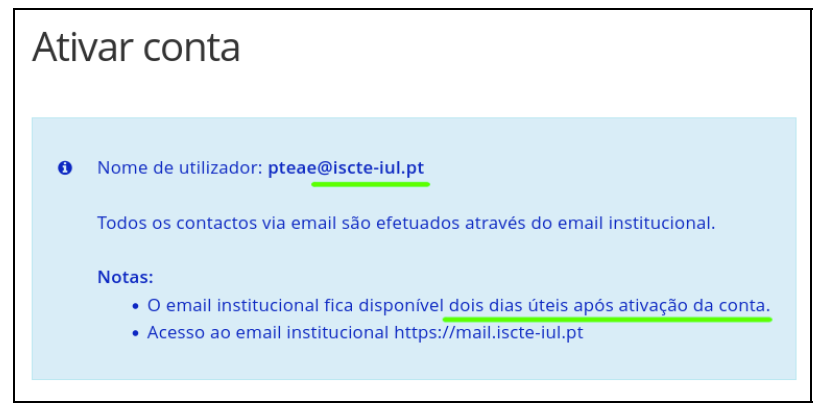


    The Iscte username allows access to the institutional email and the ‘Okta’ platform.

  7. Okta sends a notification to your personal email address (see image below):
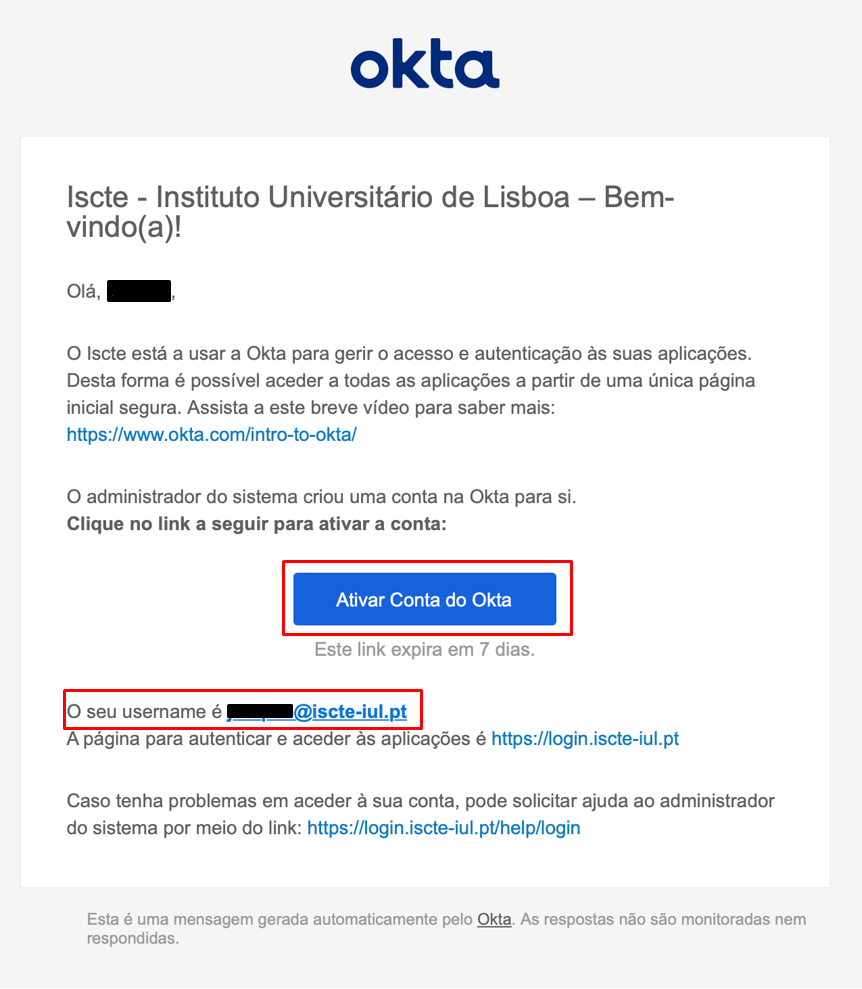


  8. Click on “Ativar Conta do Okta“.
  9. Set a new password and add a mobile phone number.
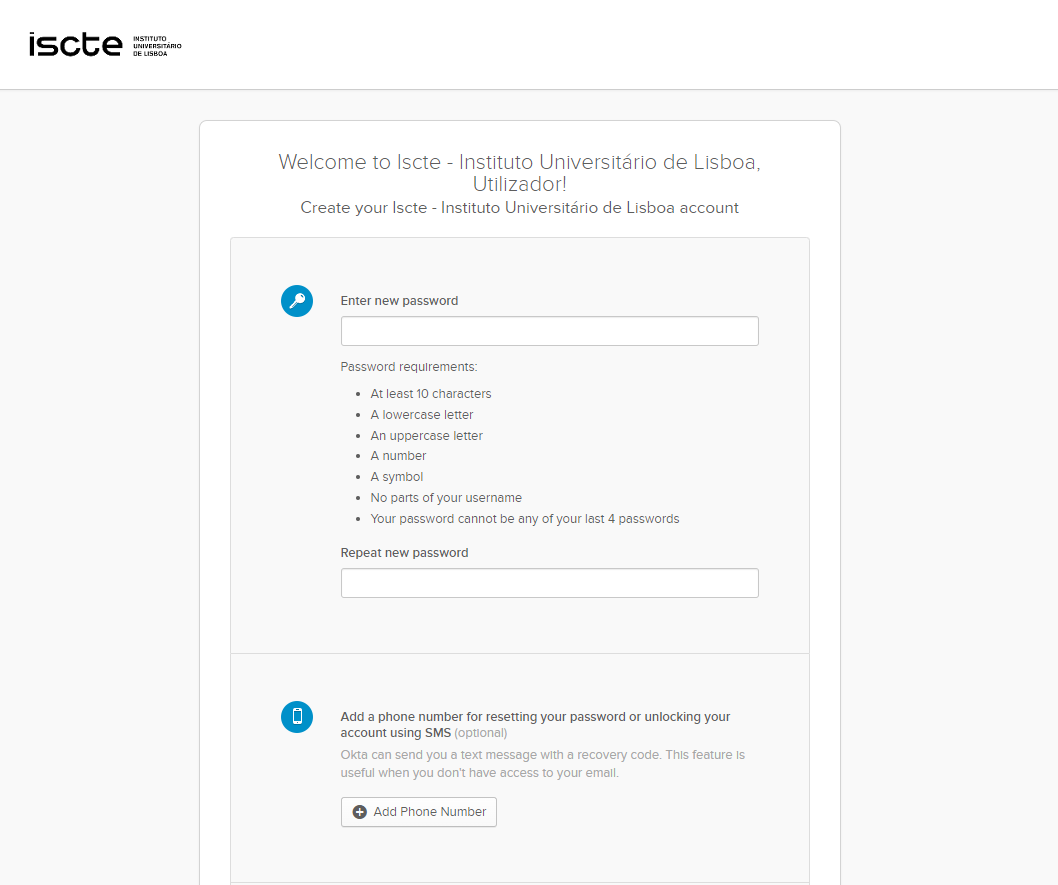


  10. Select an image and click on “Create My Account“.
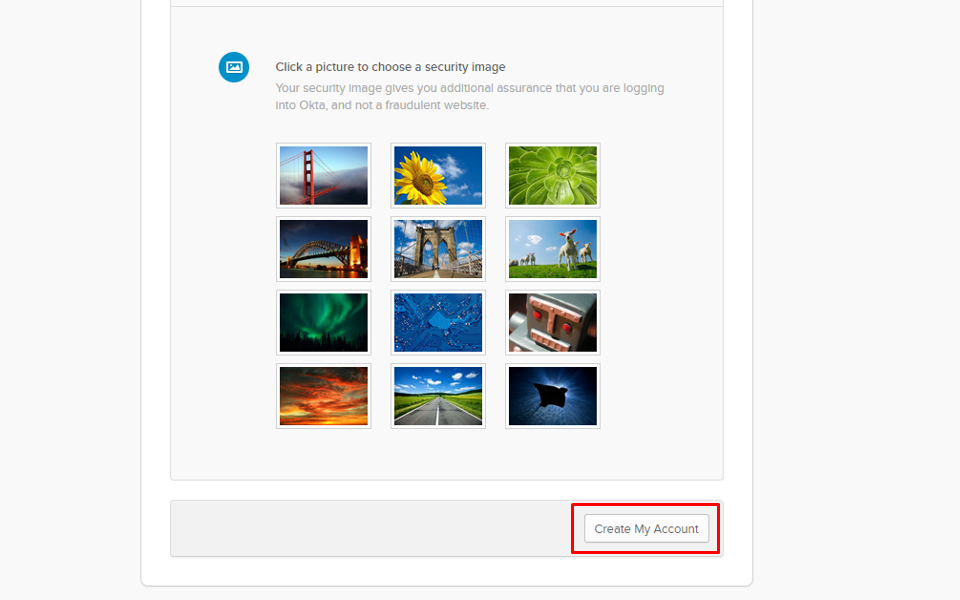


    TIP: Access to Iscte’s internal information systems and Office 365 will be available 48 hours after the account is activated. The page to authenticate and access the applications is: https://login.iscte-iul.pt/.

1.2. Definitive User

For users of the type xxnes@iscte-iul.pt

  1. Check your personal email inbox and see if you have received a notification from Okta.
  2. Click on Activate Okta Account.
  3. Set a new password and enter a mobile phone number.
  4. Choose an image and click on Create Account.

Note: Full activation of access to internal systems, including Microsoft 365, may take up to 48 hours. The page to authenticate and access applications is: https://login.iscte-iul.pt/

 For users of tipy tipo xxnes@iscte-iul.pt

  1. Check your personal mailbox to see if you have received a notification from Okta.


  2. Click “Ativate Okta Account“.
  3. Set a new password and add a mobile phone number.


  4. Select an image and click on “Create my account“.


    TIP: Access to Iscte’s internal information systems and Office 365 will be available 48 hours after the account is activated. The page to authenticate and access the applications is: https://login.iscte-iul.pt/.

2. Iscte's Credentials

Credentials are personal and must be kept secure. For example, user Xisto Ximenes has the following credentials:

    • Username: xxnes@iscte-iul.pt
    • Email address: Xisto_Ximenes@iscte-iul.pt (student) / Xisto.Ximenes@iscte-iul.pt (employee)
    • Password: Senha.2024

3. Password Requirements

The Iscte account password must comply with the following requirements:

    • Must be at least 10 characters long.
    • You should not reuse an old password.
    • It must not contain your username (excluding the @iscte-iul.pt suffix) or any of its used names, excluding particles that are less than three characters long.
    • It should not contain characters considered illegal (;, , ‘%, *, blank).
    • It must contain characters from at least three of the following categories:
      • Capitals not accented (‘A’ to ‘Z’).
      • Lowercase not accented (‘a’ to ‘z’).
      • Decimal digits (‘0’ to ‘9’).
    • Non-alphanumeric characters (!#&, etc.).

4. Password Recovery

Main steps:

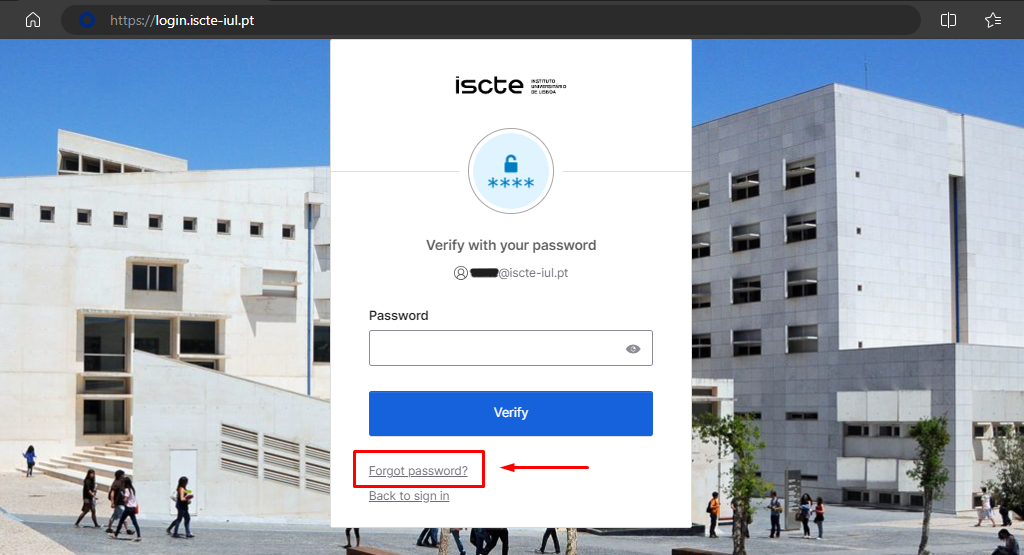
  1. Start the password recovery process at https://login.iscte-iul.pt/.
  2. Access your personal email account and follow the link sent by the sender <noreply.login@iscte‑iul.pt>.

    Note: The link is only valid for 5 minutes.

  3. If the link does not work, enter the verification code sent in the email.
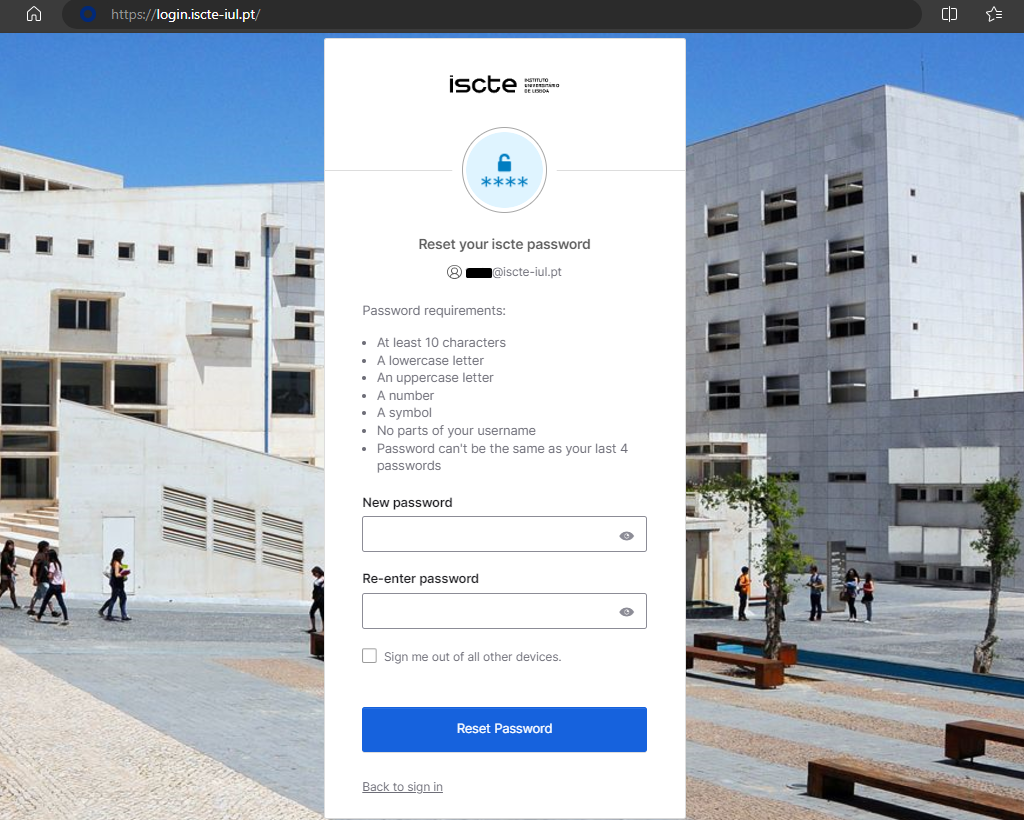
  4. Access the new reset window and set your new password.
  1. Go to https://login.iscte-iul.pt/
  2. Enter your Iscte username (e.g. xxnes@iscte-iul.pt) and click “Next“.
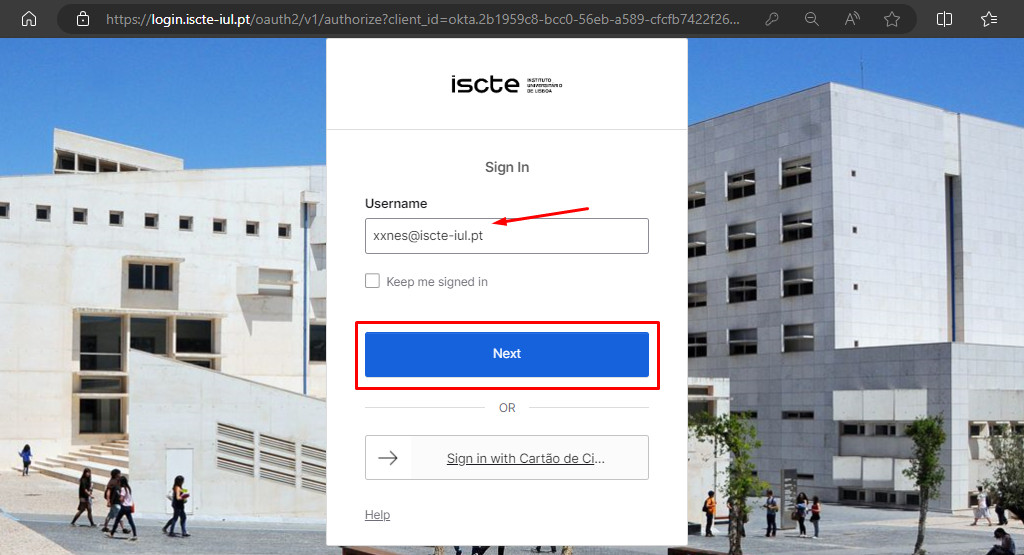
  3. Click on “Forgot password?“.

  4. Select the “Email” option to receive a password recovery e-mail to your personal e-mail address.


    Note
    : The ‘Phone’ method is temporarily unavailable.
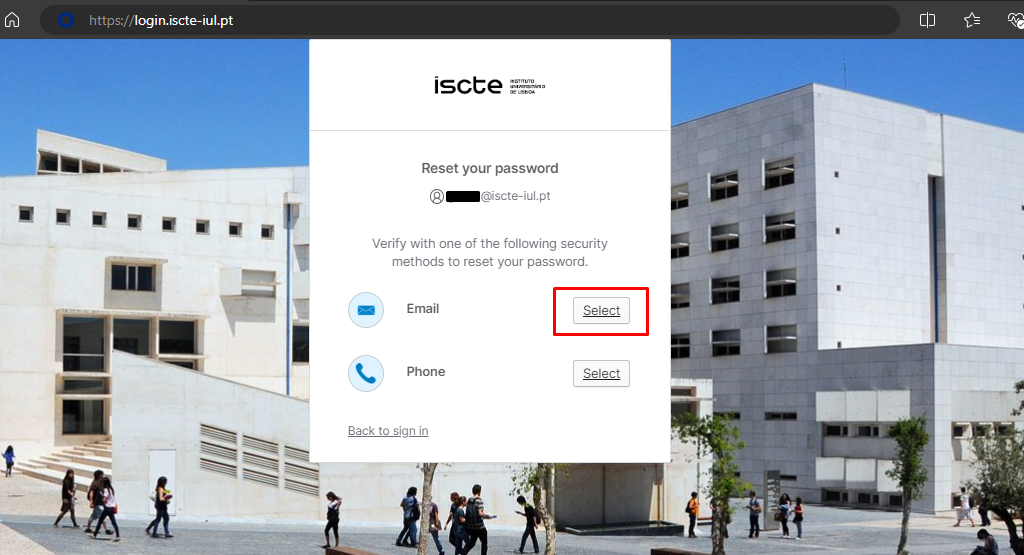
  5. Click on the ‘Send me an email’ button.
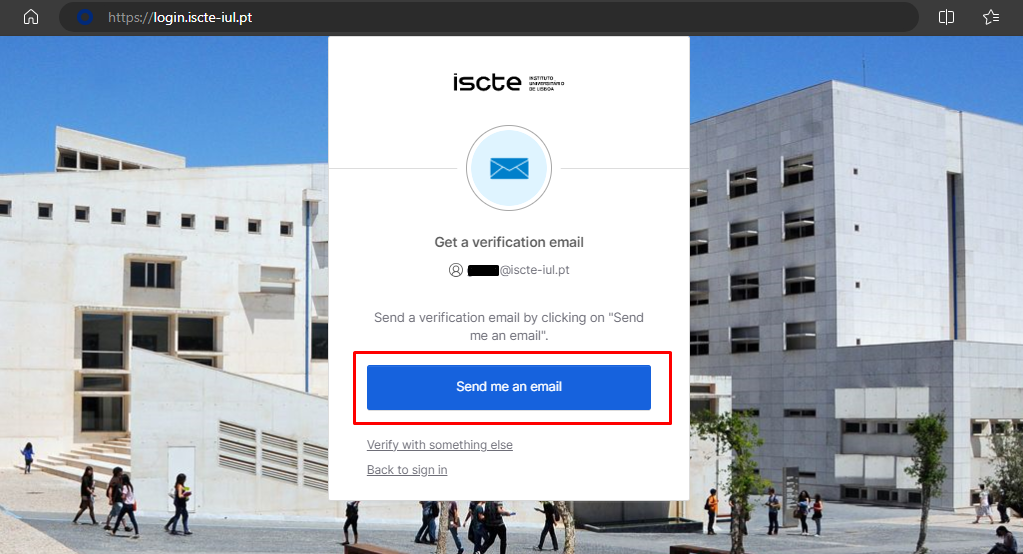


  6. Access your personal email account (which you have added to Okta).
  7. You will receive an automatic e-mail to your personal e-mail address from <noreply.login@iscte-iul.pt>, where you should click on the “Reset password” button.

    Please note: The password reset link is only valid for 5 minutes.
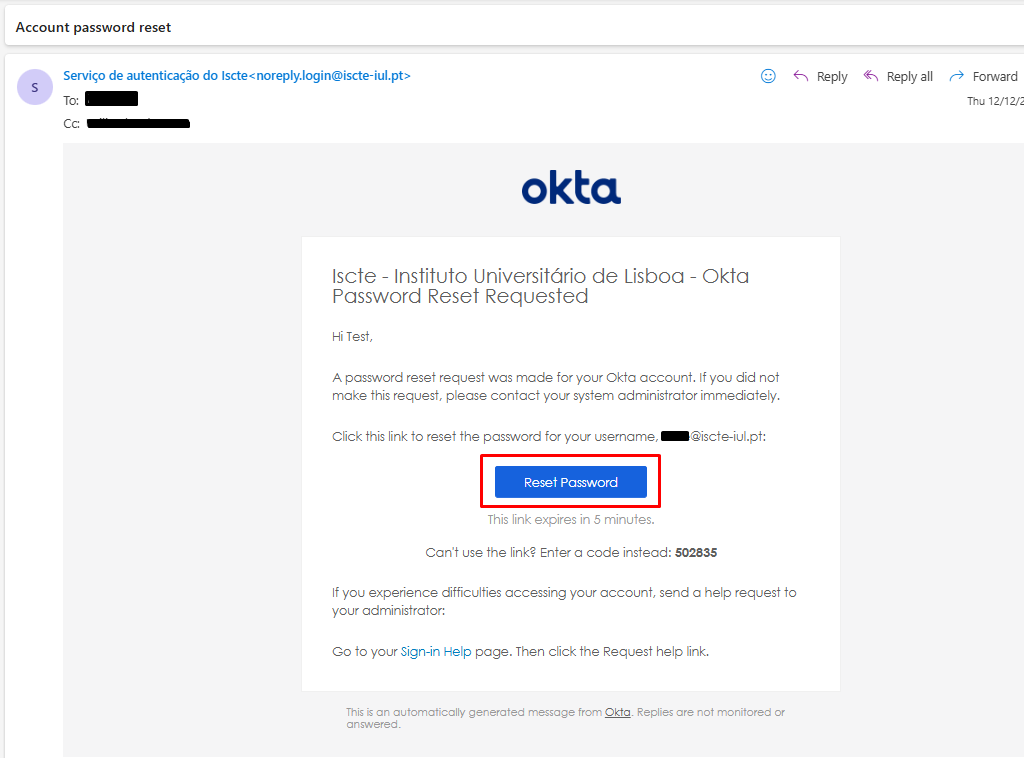


  8. A new login.iscte-iul.pt window will open in the default browser. Immediately change your password and then click on the “Reset password” button.

5. Best Practices

    • Passwords must be confidential.
    • Do not keep passwords on paper or in visible places.
    • Change passwords regularly, even on systems that do not require you to do so.
    • Do not save automatically in systems (e.g. browsers).
    • Don’t use the same passwords in academic and personal contexts.

To create a secure password, think of an easy-to-remember phrase and then define a method for turning that phrase into a password. For example:

Phrase: how to set a secure password in 2024!

Method: first letter of each word, third word in capitals, use only the last two digits of numbers and keep special characters.

Password: htSETasp24! (Do not use this example).

6. User Support

For activation, access issues, MFA, password reset, and credential-related questions, please use the following channels:

7. FAQ