Fenix +
How to create extra/replacement class in Fénix +?
Target Audience: Iscte-IUL Teachers
Answer/Solution:
Open a browser (Chrome, Firefox, Edge, Safari, Opera…)
- Go to https://fenix-mais.iscte-iul.pt/
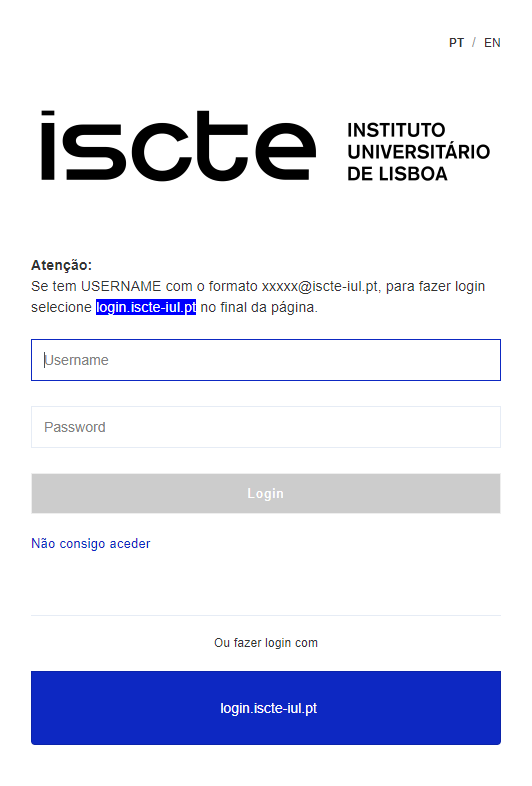
- If you have Iscte account credentials in the format xxnes@iscte-iul.pt and the corresponding password, click on “login.iscte-iul.pt” and log in using your Iscte account credentials (e.g., xxnes and the corresponding password).
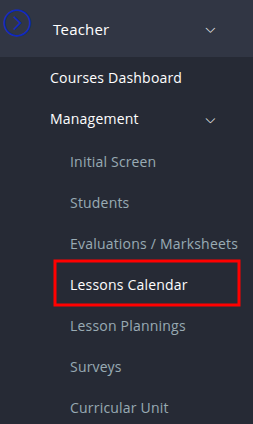
- In the “Teacher” tab, select “Management” → “Lessons Calendar” → “Courses Dashboard“’ → “Manage“.

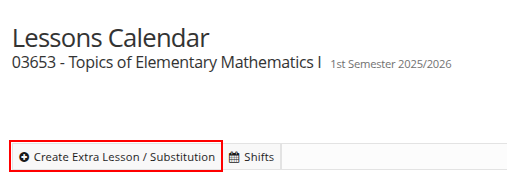
- Click on “Create Extra Lesson/Substitution“.

- Fill in at least the mandatory fields (*) and the fields referring to “Room Requirements” in the “Create Extra Lesson / Substitution” window and click on “Create“.
- Click on “Save“.
Futher Information:
How to check student attendance in Fénix +?
Target Audience: Iscte-IUL Teachers
Answer/Solution:
Open a browser (Chrome, Firefox, Edge, Safari, Opera…)
- Go to https://fenix-mais.iscte-iul.pt/
- If you have Iscte account credentials in the format xxnes@iscte-iul.pt and the corresponding password, click on “login.iscte-iul.pt” and log in using your Iscte account credentials (e.g., xxnes and the corresponding password).

- In the “Teacher” tab, select “Management” → “Lessons Calendar” → “Courses Dashboard“’ → “Manage“.

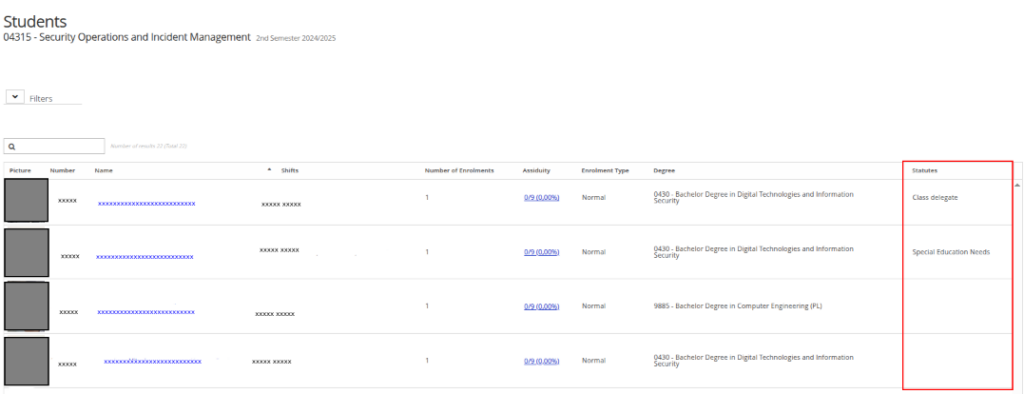
- Identify the lesson line by checking the “Date” and “Time” and click “students” in the “Assiduity” column.
Futher Information:
- Learn +
How to create a summary in Fénix +?
Target Audience: Iscte-IUL Teachers
Answer/Solution:
Open a browser (Chrome, Firefox, Edge, Safari, Opera…)
- Go to https://fenix-mais.iscte-iul.pt/
- If you have Iscte account credentials in the format xxnes@iscte-iul.pt and the corresponding password, click on “login.iscte-iul.pt” and log in using your Iscte account credentials (e.g., xxnes and the corresponding password).

- In the “Teacher” tab, select “Management” → “Lessons Calendar” → “Courses Dashboard“’ → “Manage“.

- Identify the lesson line by checking the “Date” and “Time” and click “+ Create” in the ‘Summary’ column.
- Fill in the fields in the “Create Summary” window and finish by clicking “Create“.
Futher Information:
How to view/change personal contacts-Iscte that will be imported into other Iscte applications?
Target Audience: Iscte-IUL Employees
Answer/Solution:
- Open a browser (Chrome, Firefox, Edge, Safari, Opera…)
- Go to https://fenix-mais.iscte-iul.pt/
- If you have Iscte account credentials in the format xxnes@iscte-iul.pt and the corresponding password, click on “login.iscte-iul.pt” and log in using your Iscte account credentials (e.g., xxnes and the corresponding password).

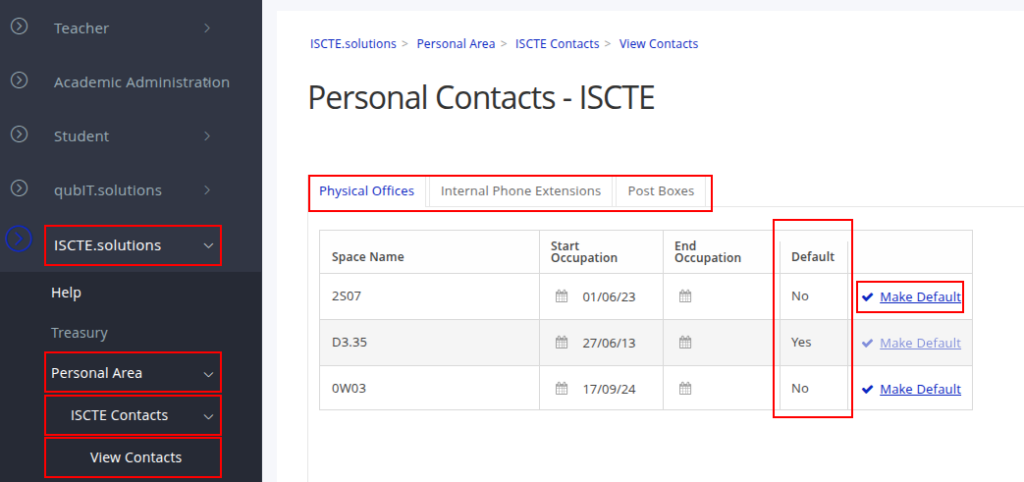
- In the “ISCTE.solutions” tab, select “Personal Area” → “ISCTE Contacts” → “View Contacts”.

- Choose the type of contact (Offices, Telephone Extensions or Lockers) by clicking on the respective tabs.
- Click on the ‘Make Default’ option in the line of information you wish to make preferred.
- Click on ‘Yes’.
Further Information:
What is Fénix +?
It is Iscte-IUL’s academic management platform.
Main features
- For Students
- Enrollment and Schedules
- Assessments and Grades
- Document Management
- Submission of Assignments
- For Faculty
- Curriculum Management
- Summaries & Attendance
- Integrated Assessment
- Coordination and Guidance
- Thesis/Project Management
- Curriculum Management
- For Students
How to access it?
- Service page
- Use your Iscte account credentials.
How do I recover my Fenix+ password?
Atualizado/Updated: 2025-12-12
Target Audience: Iscte-IUL Course Candidates (fenix010101 or C010101 users)
Answer/Solution:
-
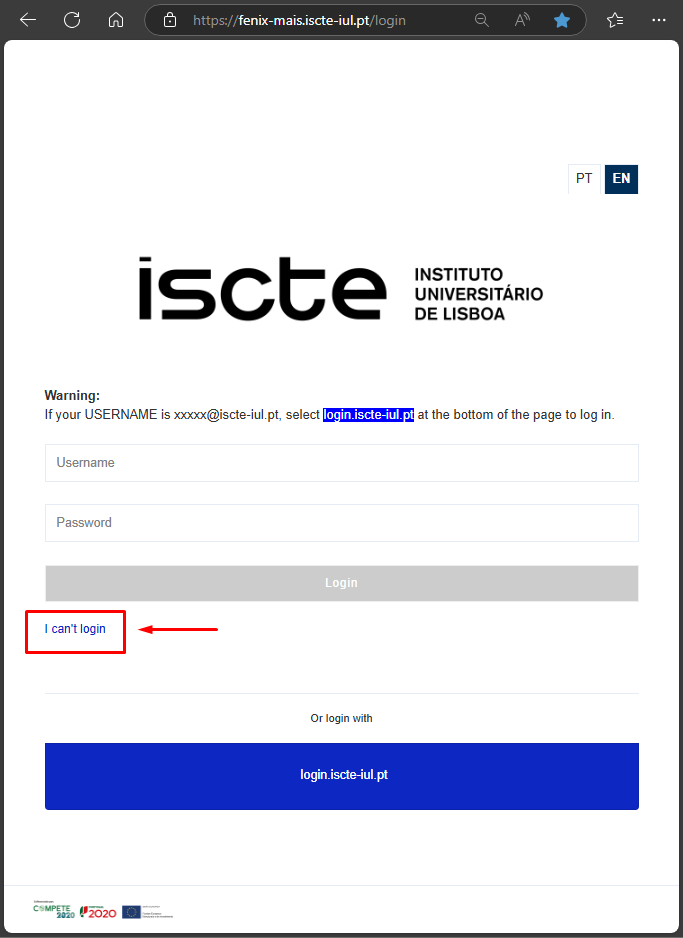
- Access Fénix+ at https://fenix-mais.iscte-iul.pt
- Click on “I can’t login”.

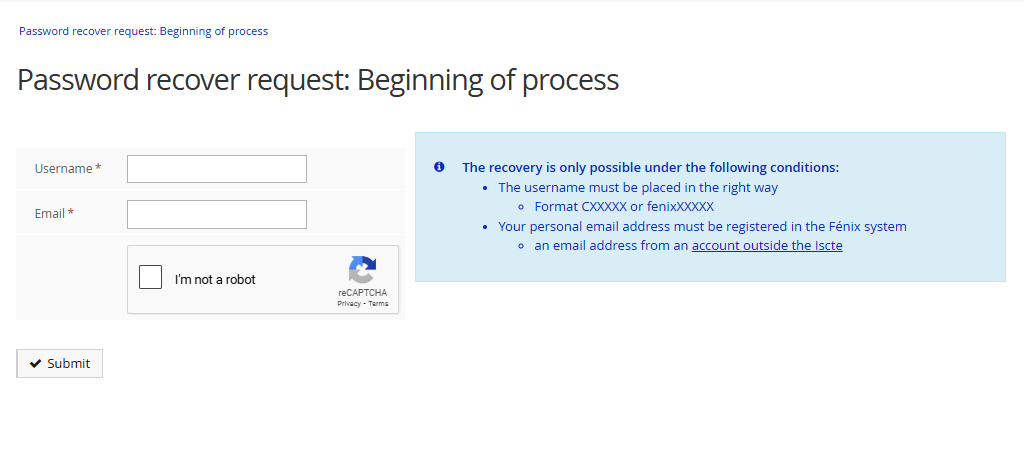
- Start the password recovery process:
– Enter username format CXXXXX or fenixXXXXX– Your personal e-mail address (which is registered on fenix+)

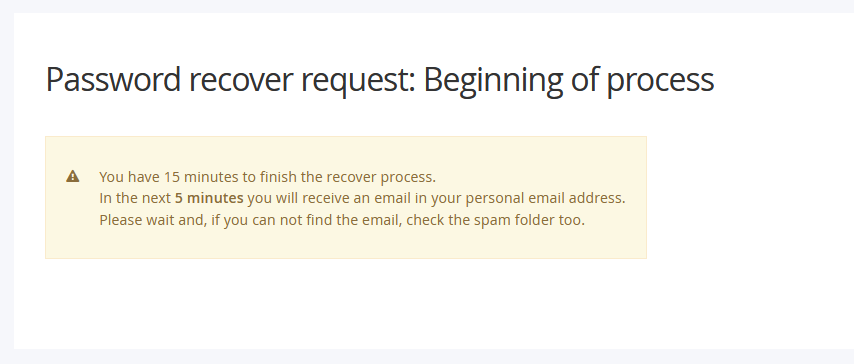
- Click on Submit. You will receive an email to your personal email address with a recovery link.