Skip to content Skip to main navigation Skip to footer

Clearooms

EN

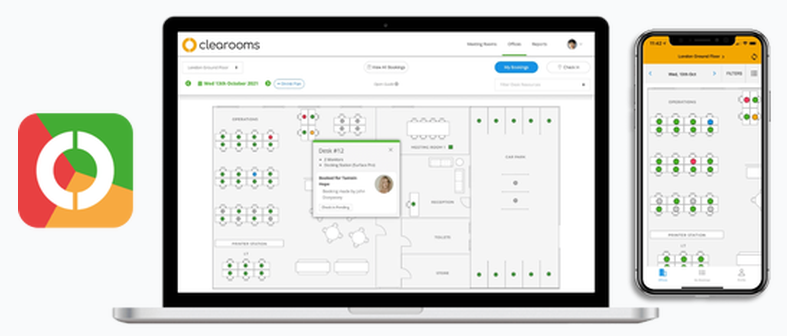
Sistema de reserva de posto de trabalho e salas de reunião no Edifício 4 – Iscte_Conhecimento e Inovação.


As salas de reunião no Clearooms proporcionam-lhe uma forma fácil e flexível de visualizar e reservar as suas salas de reunião.

    • Disponibilidade apresentada juntamente com a disponibilidade das secretárias
    • Todas as salas de um escritório numa única página
    • Aplicação móvel para reservar e editar reuniões


Reservar uma sala a partir da planta de piso

A partir dos gabinetes, os detalhes das reuniões do dia serão apresentados e pode clicar e arrastar a agenda para criar uma reunião. Quando selecionada, será aberta uma página de detalhes da reunião.

    • Adicione os participantes a partir da lista de utilizadores ou introduza um endereço de correio eletrónico completo.
    • Depois de adicionar um título e uma descrição, pode guardar a reunião.
    • Os participantes serão convidados através do Outlook/Google nas salas integradas.
    • Se a sua sala estiver integrada com a Microsoft, está disponível a opção de a tornar uma reunião de equipas.
    • A marca personalizada é visível se a sua sala estiver ligada a um dispositivo para exibição no escritório.
    • Tornar a reunião privada irá ocultar o título de outras pessoas no portal


Reservar uma sala a partir da aplicação móvel

Para reservar a partir da aplicação móvel, faça zoom sobre a sala que pretende reservar e clique no ícone.

Se já existirem reservas para o dia em causa, estas serão visualizadas e ser-lhe-á oferecido um botão de opção “reservar”. Se não existirem reservas para esse dia, entrará no calendário e poderá clicar em “Reservar” no canto superior direito.

Pode adicionar um assunto, uma descrição e tornar a reunião “privada”, bem como adicionar participantes (apenas para salas integradas).

Clique em guardar quando tiver terminado.


Reservar a partir da página da sala de reuniões

Na página da sala de reuniões, clique em qualquer secção verde da vista do dia. O processo de reserva é idêntico ao da vista de escritórios.

    • Os detalhes das reuniões do dia serão apresentados e pode clicar e arrastar na agenda para criar uma reunião. Quando selecionada, será aberta uma página de detalhes da reunião.
    • Adicione os participantes a partir da lista de utilizadores ou introduza um endereço de e-mail completo.
    • Depois de adicionar um título e uma descrição, pode guardar a reunião.
    • Os participantes serão convidados através do Outlook/Google nas salas integradas.
    • Se a sua sala estiver integrada com a Microsoft, está disponível a opção de a tornar uma reunião de equipas.
    • A marca personalizada é visível se a sua sala estiver ligada a um dispositivo para apresentação no escritório.
    • Tornar a reunião privada irá ocultar o título de outras pessoas no portal.

Dica: Pode voltar à marcação em qualquer altura para a editar. Apenas o organizador pode editar uma reunião existente.


    • Para obter o seu URL exclusivo, siga para My Bookings
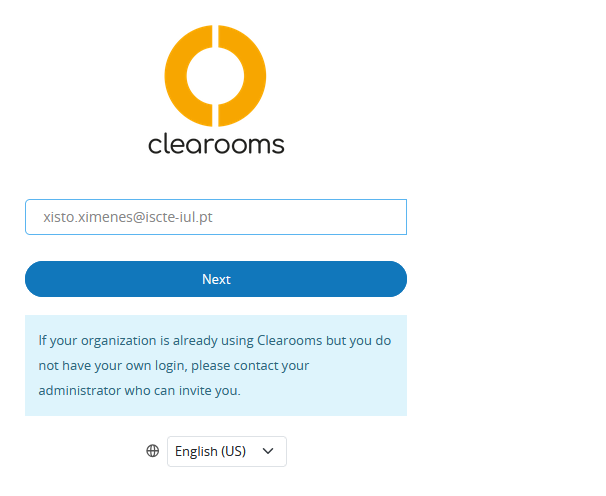
    • Inicie sessão com as suas credenciais do Iscte-IUL (por exemplo, xxnes@iscte-iul.pt e a sua palavra-passe).
    • A ligação está disponível clicando em Add to Calendar no canto superior direito da página.

    • Ao clicar nesta ligação, aparece uma janela pop-up que contém o seu URL exclusivo. Clique no ícone de cópia à direita da caixa de texto para copiar o URL para a sua área de transferência.
    • Pode utilizar este endereço para subscrever eventos em qualquer bom software de calendário, nomeadamente:
      • Calendar (MAC IOS)
      • Google Calendar
      • Outlook365

Calendar (MAC IOS)

    • Abra a sua aplicação de calendário e vá para a barra de ferramentas.
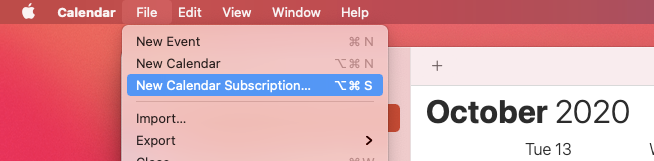
    • Clicar File -> New Calendar Subscription.


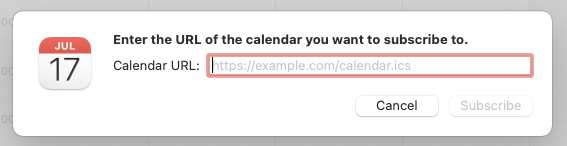
    • Cole o URL que copiou na caixa de texto URL do calendário e clique em Subscribe.


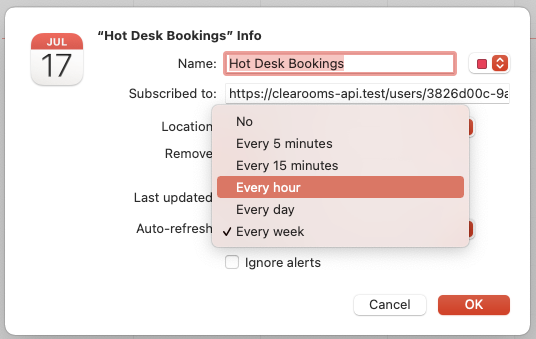
    • No ecrã seguinte, faça os ajustes que desejar – incluindo a definição do intervalo de atualização – e clique em OK.


Os seus eventos serão agora sincronizados automaticamente com o Calendário do MacOS.


Google Calendar

    • Siga a ligação https://calendar.google.com e procure a lista de calendários sobre lado inferior esquerdo.
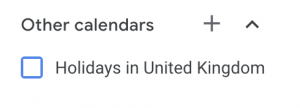
    • Deve ver Other Calendars.


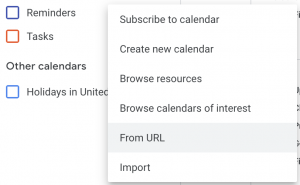
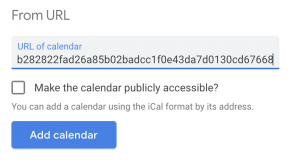
    • Clique no ícone + para abrir a janela de contexto e seleccione From URL.


    • Cole o URL que copiou na caixa de entrada e clique em Add Calendar.


Os seus eventos serão agora sincronizados automaticamente com o Google Calendar.

Dica: Tenha em atenção que não temos qualquer controlo sobre a frequência com que o Google escolhe atualizar os eventos. Normalmente, pode demorar algumas horas entre actualizações, mas o Google indica 8 horas entre actualizações.


Outlook365

    • Siga a ligação https://outlook.office.com/calendar
    • Clique no menu para alternar o painel esquerdo e, em seguida, clique em Add Calendar.
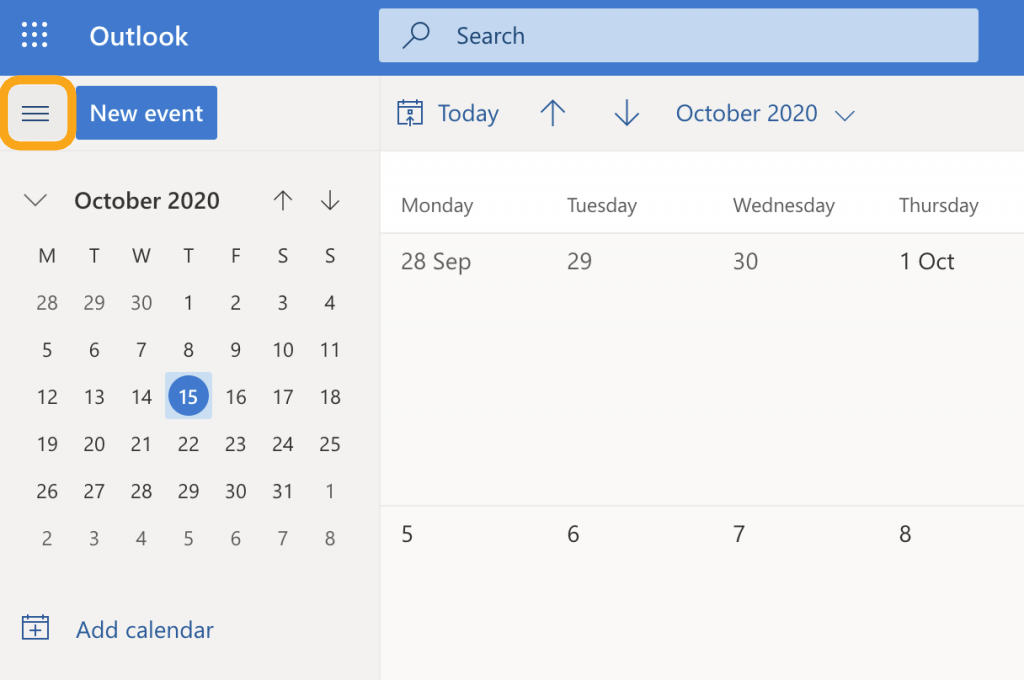
    • No menu que aparece, selecionar Subscribe from Web e cole o URL que copiou na caixa.
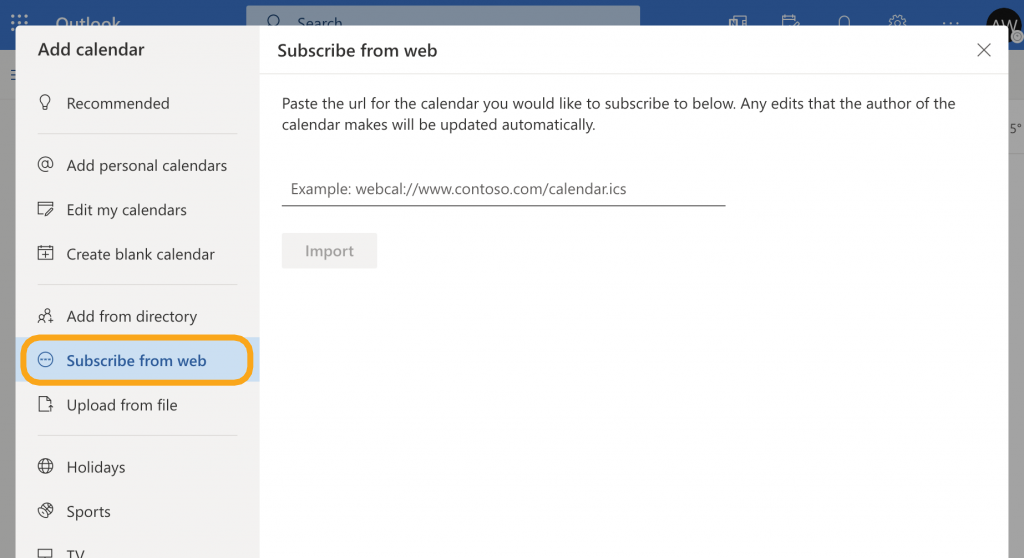


Os seus eventos serão agora sincronizados automaticamente com o seu Calendário do Outlook 365.

Se é membro da comunidade Iscte (trabalhador ou estudante), siga os passos aqui descritos.

Clearooms

PT

Booking system for desks and meeting rooms in Building 4 – Iscte_Knowledge and Innovation.


Meeting Rooms in Clearooms provides you with an easy and flexible way to view and book your meeting rooms.

    • Availability shown alongside desk availability
    • All rooms for an Office on a single page view
    • Mobile App for booking and editing meetings
    • Wall Display App for on site visibility of a rooms availability


Booking a room from the floor plan

From Offices the details of the days meetings will be displayed and you can click and drag on the diary to create a meeting, when selected a meeting details page will open for you.

    • Add attendees from the list of users or type in a full emails address.
    • Once you add a title and description you can save the meeting.
    • Attendees will be invited via Outlook/Google on integrated rooms.
    • If your room is integrated with Microsoft the option to make it a teams meeting is available.
    • Custom Branding is visible if your room is linked to a device for displaying in the office.
    • Making the meeting private will hid the title from others in the portal


Booking a room from the mobile app

To book from the mobile app pinch and zoom on the room you wish to book and click the icon.

If there are bookings already on the day you will se them and be offered a “book” option button. If there are no bookings for that day you will enter the calendar and then you can click “Book” at the top right.

You can add a subject, description and make the meeting “private” as well as adding attendee’s (Integrated rooms only).

Click save when you have finished.


Booking from the meeting room page

From the meeting room page click on any green section of the day view. The booking process is the same as in the offices view.

Details of the days meetings will be displayed and you can click and drag on the diary to create a meeting, when selected a meeting details page will open for you.

    • Add attendees from the list of users or type in a full emails address.
    • Once you add a title and description you can save the meeting.
    • Attendees will be invited via Outlook/Google on integrated rooms.
    • If your room is integrated with Microsoft the option to make it a teams meeting is available.
    • Custom Branding is visible if your room is linked to a device for displaying in the office.
    • Making the meeting private will hide the title from others in the portal.

TIP: You can return to the booking at any time to edit it. Only the organiser can edit an existing meeting.


    • To get your unique URL, head to My Bookings
    • Sign in with your Iscte-IUL credentials (eg., xxnes@iscte-iul.pt and you password).
    • The link is available by clicking Add to Calendar at the top right of the page.


    • Clicking this link will show a pop-up which contains your unique URL. Click the copy icon at the right of the text box to copy the URL to your clipboard.
    • You can use this address to subscribe to events in any good calendar software. Guides have been created for the following:
      • Calendar (MAC IOS)
      • Google Calendar
      • Outlook365


Calendar (MAC IOS)

    • Open your calendar app, and head to the toolbar.
    • Click File -> New Calendar Subscription.


    • Paste the URL you copied into the Calendar URL text box and click Subscribe.


    • On the next screen, make any adjustments you desire – including setting the refresh interval and click OK.

Your events will now synchronise automatically to your MacOS Calendar.


Google Calendar

    • Head to Google Calendar at https://calendar.google.com and look for the list of calendars down the left-hand side.
    • You should see Other Calendars.


    • Click the + icon to open up the pop-up and select From URL.


    • Paste the URL you copied into the input box and click Add Calendar.

Your events will now synchronise automatically to Google Calendar.

TIP: Please be aware that we have no control as to how often Google chooses to refresh the events, it can typically take a few hours between refreshes but Google quotes 8 hours between refreshes.


Outlook365

    • Head to your Office 365 Calendar at https://outlook.office.com/calendar
    • Click the hamburger menu to toggle the left pane then click Add Calendar.


    • From the menu that appears, select Subscribe from Web and paste the URL you copied into the box.


Your events will now synchronise automatically to your Outlook 365 Calendar.

If you are a member of the Iscte community (worker or student), perform the steps describe here.