
How do I fix the Office365 licensing error on macOS?
Target Audience: Iscte Community (macOS users)
Description: When opening a Microsoft Office app, if you receive the following message: “View Only. Your account xxxxxx@iscte-iul.pt doesn’t allow editing on a Mac. To learn more, contact your administrator about your Microsoft 365 plan.“
Answer/Solution:
1. Confirm access to your Microsoft 365 account
Verify that you can sign in to one of Microsoft 365 app through the following portal: https://m365.cloud.microsoft/apps/
If you are unable to access your account, please contact our User Support.
2. Check your macOS version
Confirm the version of macOS installed on your computer. The currently supported versions are:
- macOS Tahoe 26
- macOS Sequoia 15
- macOS Sonoma 14
- macOS Ventura 13 (version 13.7.8 only)
If you are using an earlier version, we recommend updating your operating system to one of the supported versions. Whenever possible, install the latest available version.
3. Check the Microsoft Office license
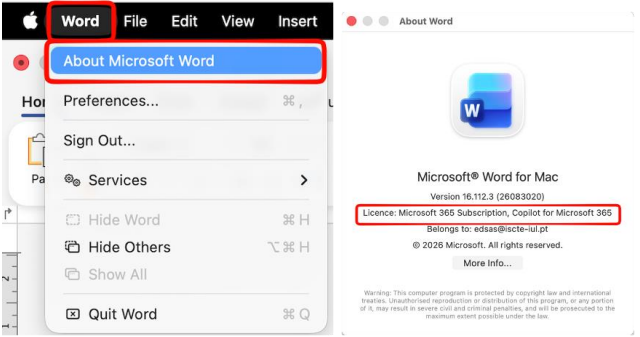
- Open Word, Excel, or PowerPoint.
- From the top menu, select Word (or Excel/PowerPoint) > About Microsoft Word.
- Check the license information.
The license should display:
Licence: Microsoft 365 Subscription
If the license is correct but the issue persists, reinstall Microsoft 365 by following the instructions available at Office 365 – Iscte-Informática
Important: If the license does not display “Microsoft 365 Subscription”, the installed Office version is not compatible with activation through the license assigned by Iscte. In this case:
- Close all Microsoft Office applications: Word, Excel, PowerPoint, and Outlook.
- Open Finder > Applications.
- Select all Microsoft Office applications.
- Right-click and choose Move to Trash.
- Restart your computer.
- Reinstall Microsoft 365 by following the instructions available at: Office 365 – Iscte-Informática
After reinstalling, sign in with your Iscte institutional account and confirm that the license now displays Microsoft 365 Subscription.