IBM SPSS Statistics
SIIC make IBM SPSS Statistics available by following these steps:
- Go to this link.
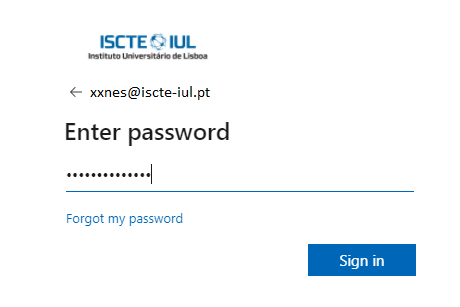
- Log in using your Iscte credentials (eg., xxnes@iscte-iul.pt and password).

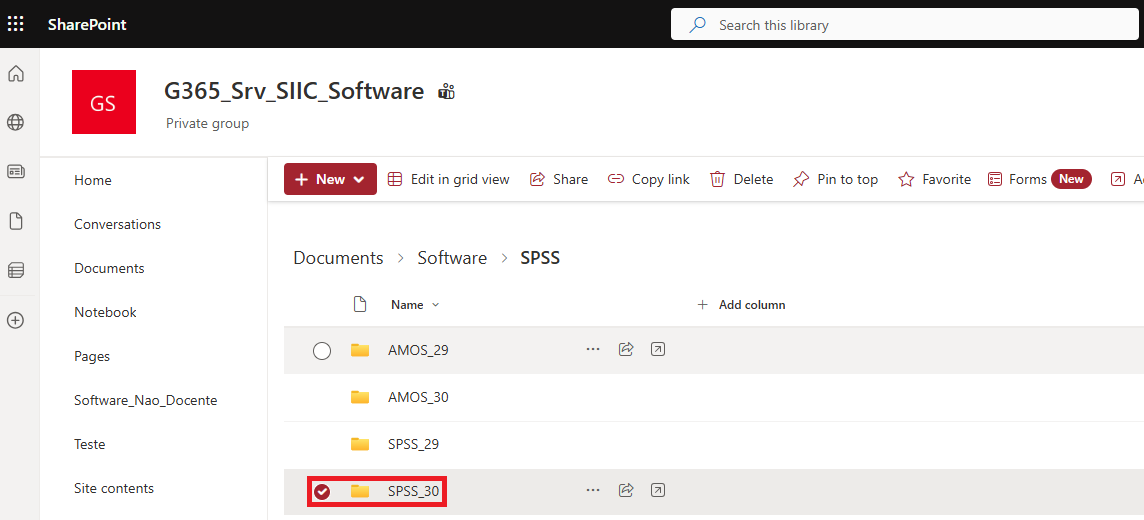
- Open the folder for the version of IBM SPSS Statistics to be installed. As a rule, the latest version.
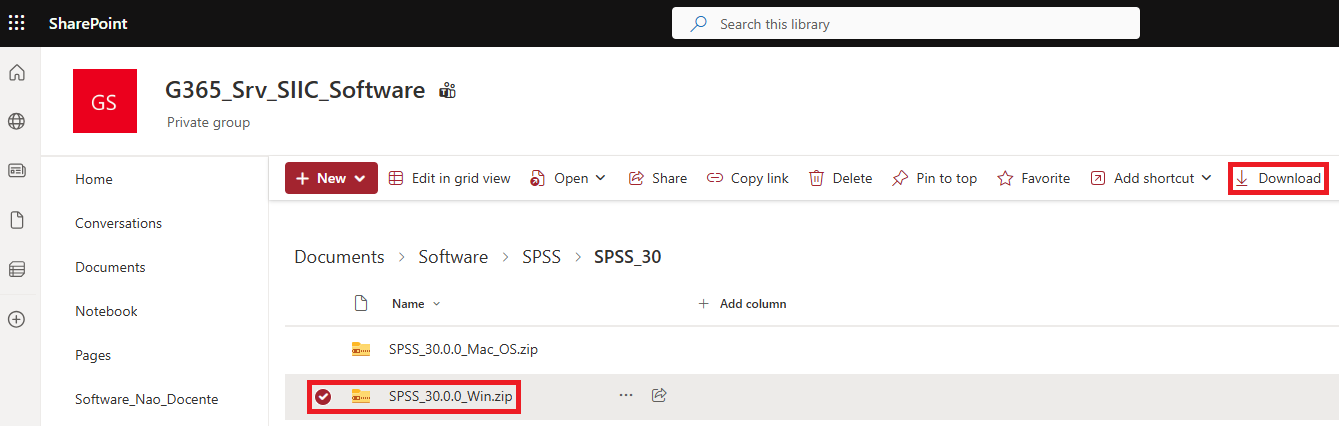
- Select the compressed folder “SPSS_30.0.0_Win.zip” and click on “Download”.
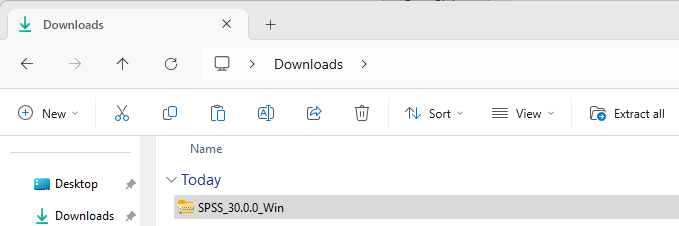
- The compressed folder labeled “SPSS_30.0.0.0_Win” will be downloaded.
SIIC make IBM SPSS Statistics available by following these steps:
- Go to this link.
- Log in using your Iscte credentials (eg., xxnes@iscte-iul.pt and password).
- Open the folder for the version of IBM SPSS Statistics to be installed. As a rule, the latest version.
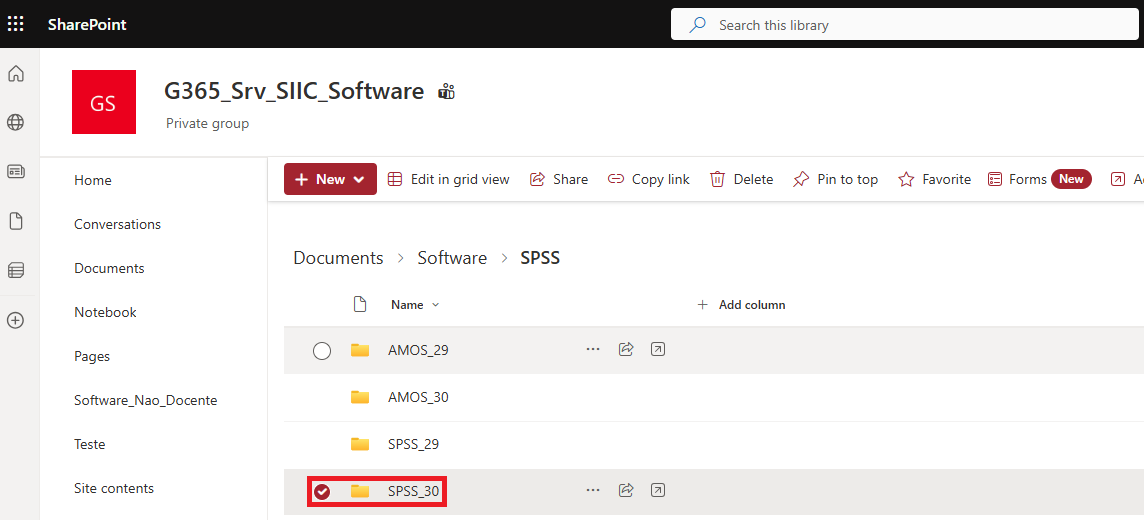
- Select the compressed folder “SPSS_30.0.0_Mac_OS.zip” and click on “Download”.
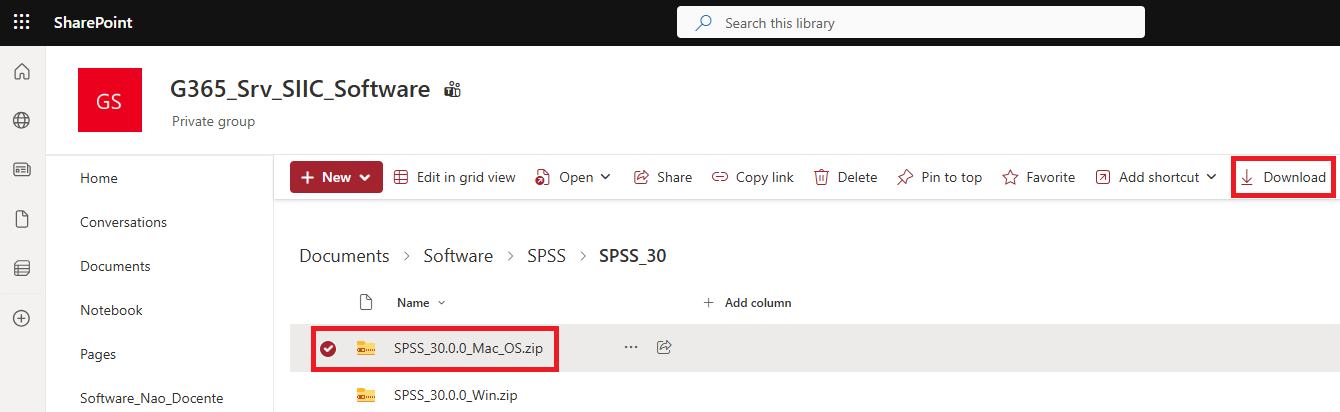
- The compressed folder labeled “SPSS_30.0.0_Mac_OS” will be downloaded.
- Select the compressed folder “SPSS_30.0.0_Win” and click “Extract all“. If you prefer another location, select “Browse…” and choose the desired location. Select “Extract“.
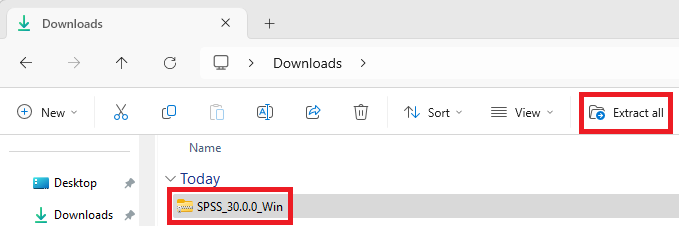
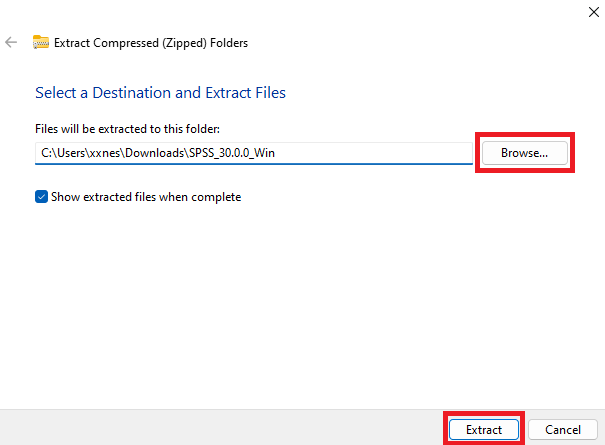
- The “SPSS_30.0.0.0_Win” folder will be generated.
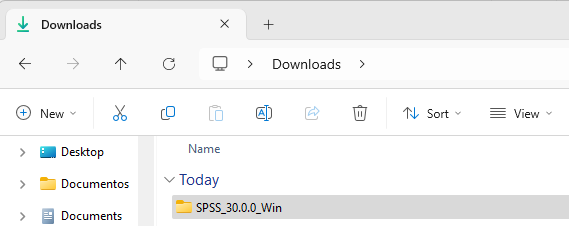
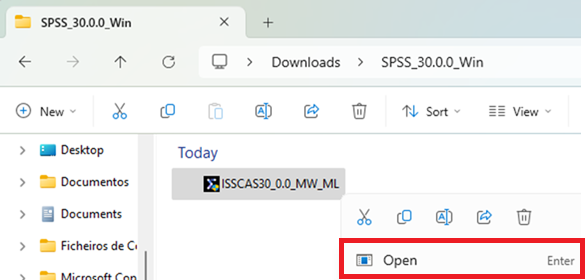
- Open the folder “SPSS_30.0.0.0_Win” and then the file “ISSCAS30_0.0_MW_ML”.
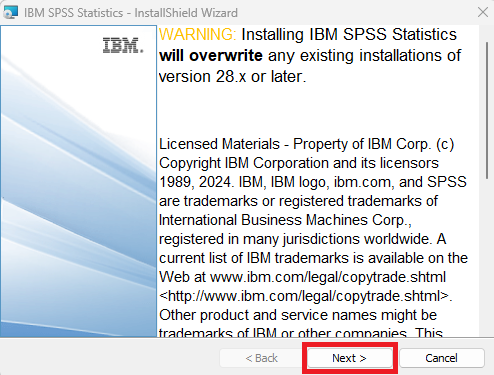
- Click on “Next”.
- Under “License Agreement”, select “I accept the terms in the license agreement” and click “Next”.
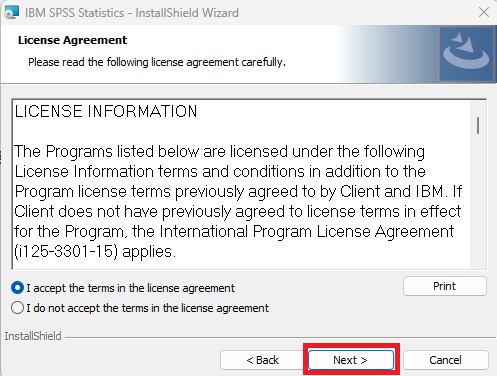
- Under “Destination Folder”, click on “Next”.
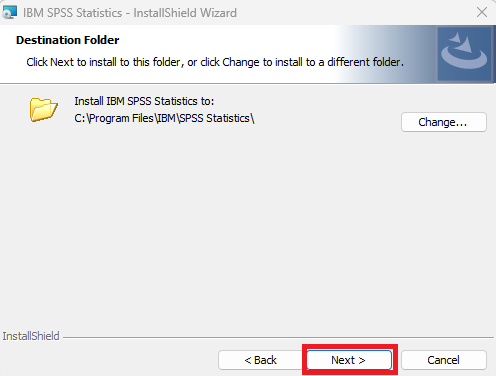
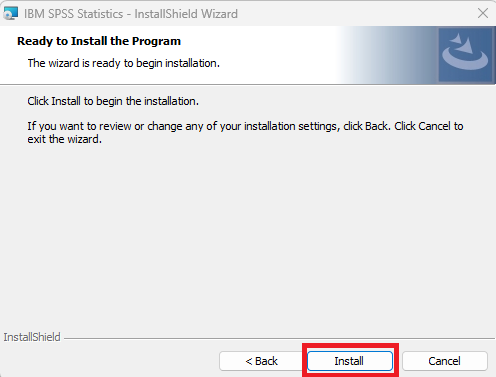
- Click on “Install” to start the installation.
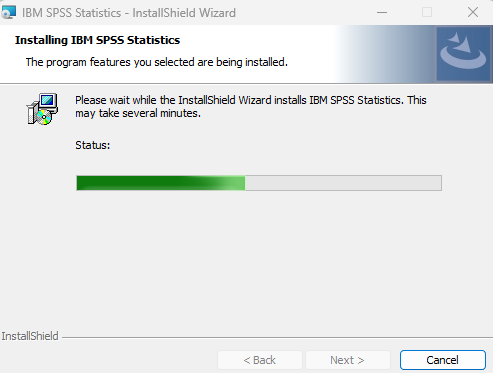
- Wait for the installation process to finish.
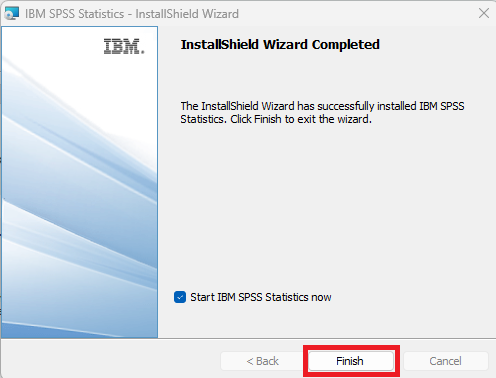
- Once the installation is complete, click on “Finish”.
- Select the compressed folder “SPSS_30.0.0_Win” and click “Extract all“. If you prefer another location, select “Browse…” and choose the desired location. Select “Extract“.
- Start the installation by double-clicking on “SPSSSC_30.0.0.0_Mac_OS.pkg”.

- Click on “Continue” to proceed with the installation.
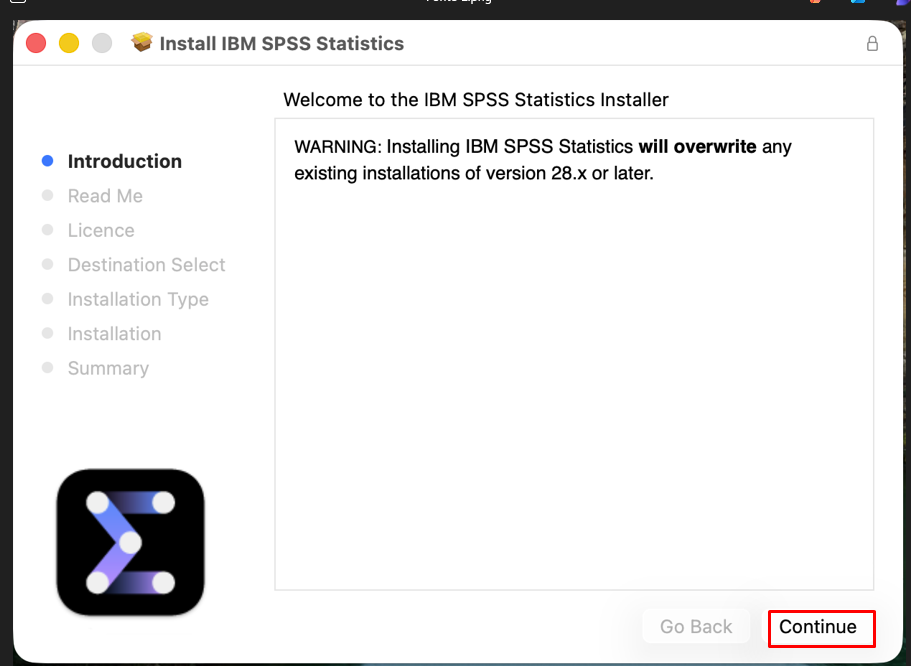
- Click on “Continue”.
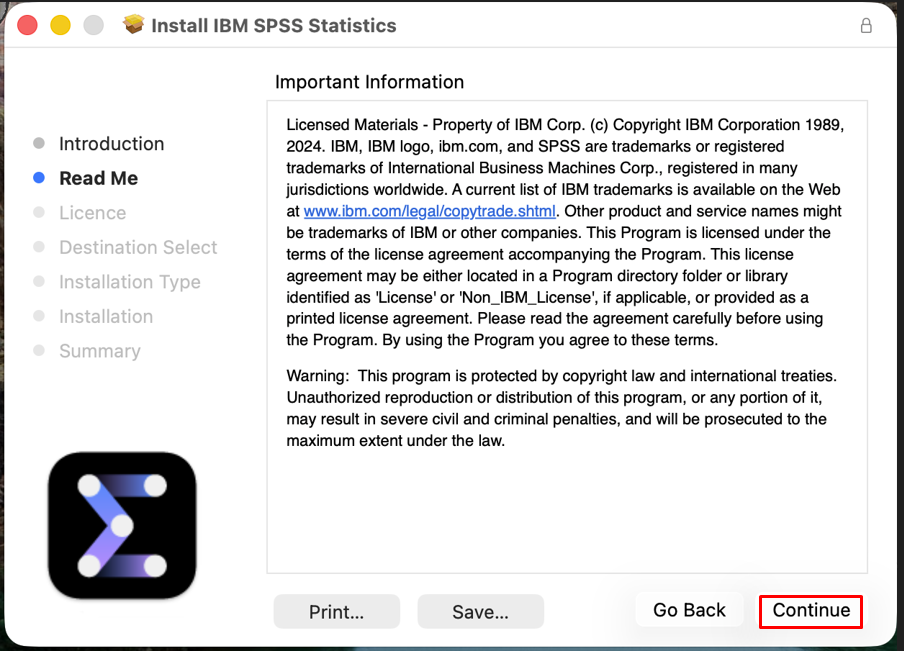
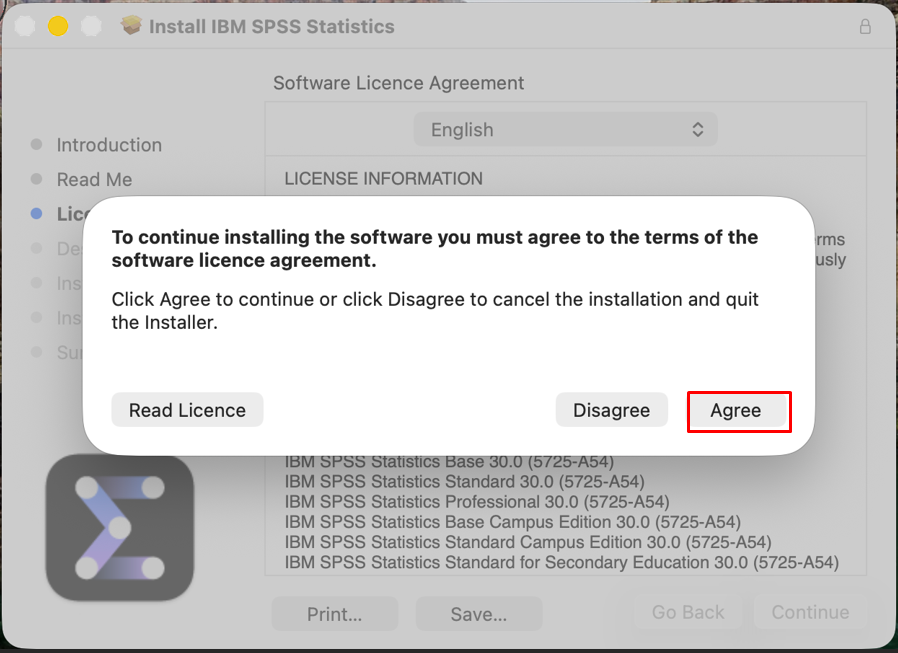
- Click on “Agree“.
- Click on “Install”.
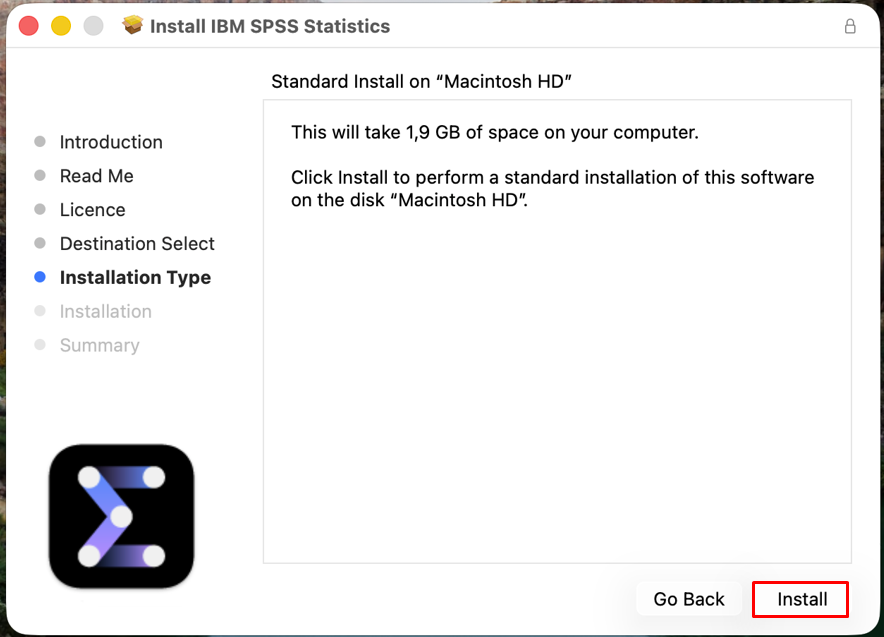
- Authorize the execution of the installation by entering the user credentials of the administrator profile on the computer.
- Wait for the installation process to finish.
- Start the installation by double-clicking on “SPSSSC_30.0.0.0_Mac_OS.pkg”.
Starting with the 2026/2027 academic year, enrolled users can obtain the activation code for their IBM SPSS Statistics software license directly through Moodle.
Notice: Students can obtain the IBM SPSS Statistics software license activation code via Moodle starting August 25, 2026. Until that date, they should follow the instructions available on this page here.
- Go to moodle.iscte-iul.pt with your Iscte account credentials.
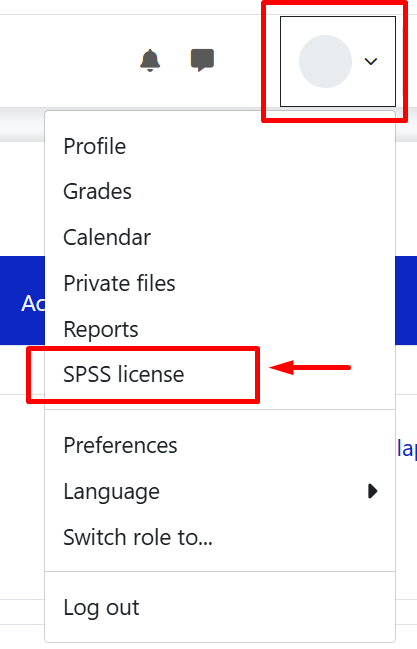
- In the top-right corner of Moodle page, click on your initials or profile picture.
- Select the SPSS License option.
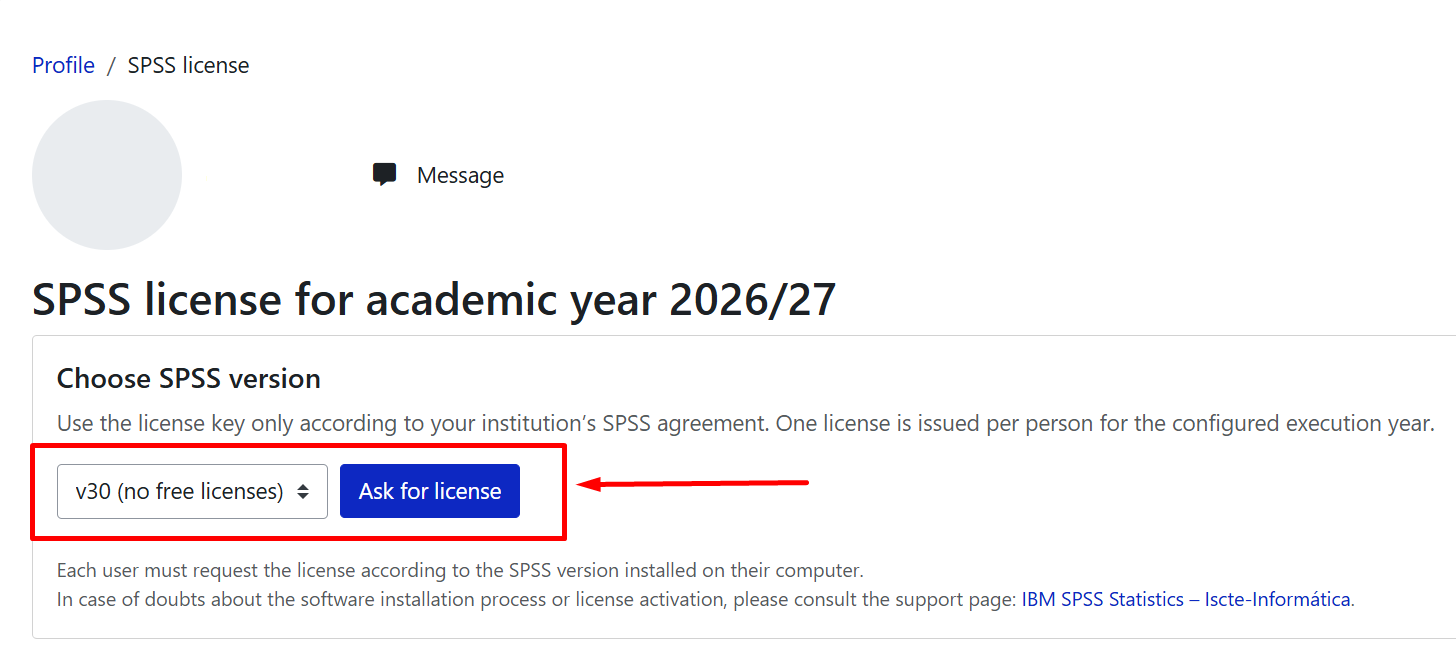
- Select the desired version. It is recommended to choose version 31, as it is the most recent version available.
- Click the Ask for license button.
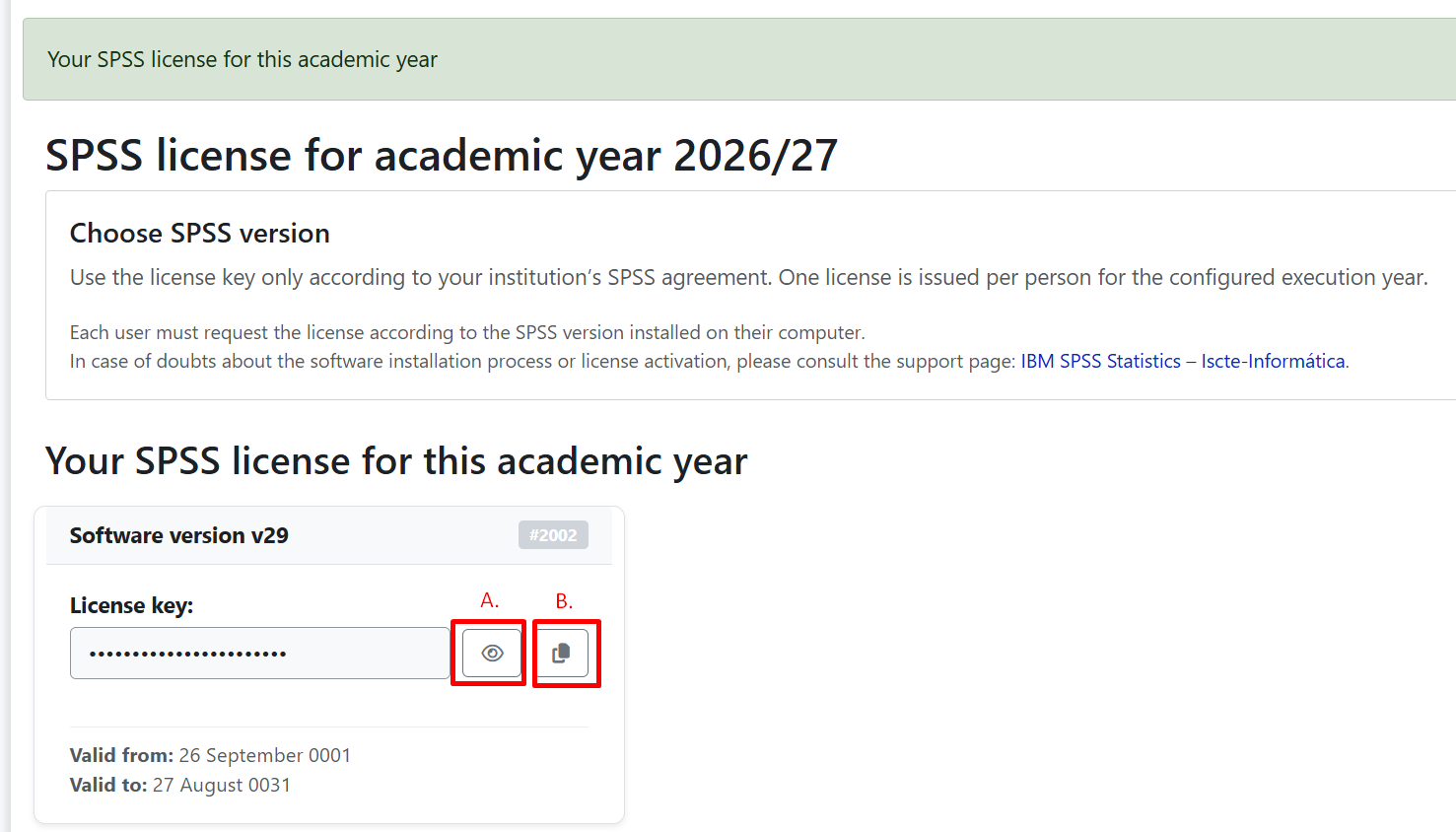
- View the licence key using icon (A) and copy it using icon (B).
- Complete the installation and activation of the software by following the instructions available on the support page: IBM SPSS Statistics – Iscte-Informática.
Note: If you experience any issues obtaining the license through Moodle, please submit a support request through the IAjuda service request portal.
SIIC provides IBM SPSS Statistics licenses to other users who are not registered on Moodle through a request submitted via Iajuda.
- Go to https://iajuda.iscte-iul.pt/.
- Authenticate using the SIIC credentials (e.g. xxnes@iscte-iul.pt and its password).
- Select Information Systems / IT Applications.
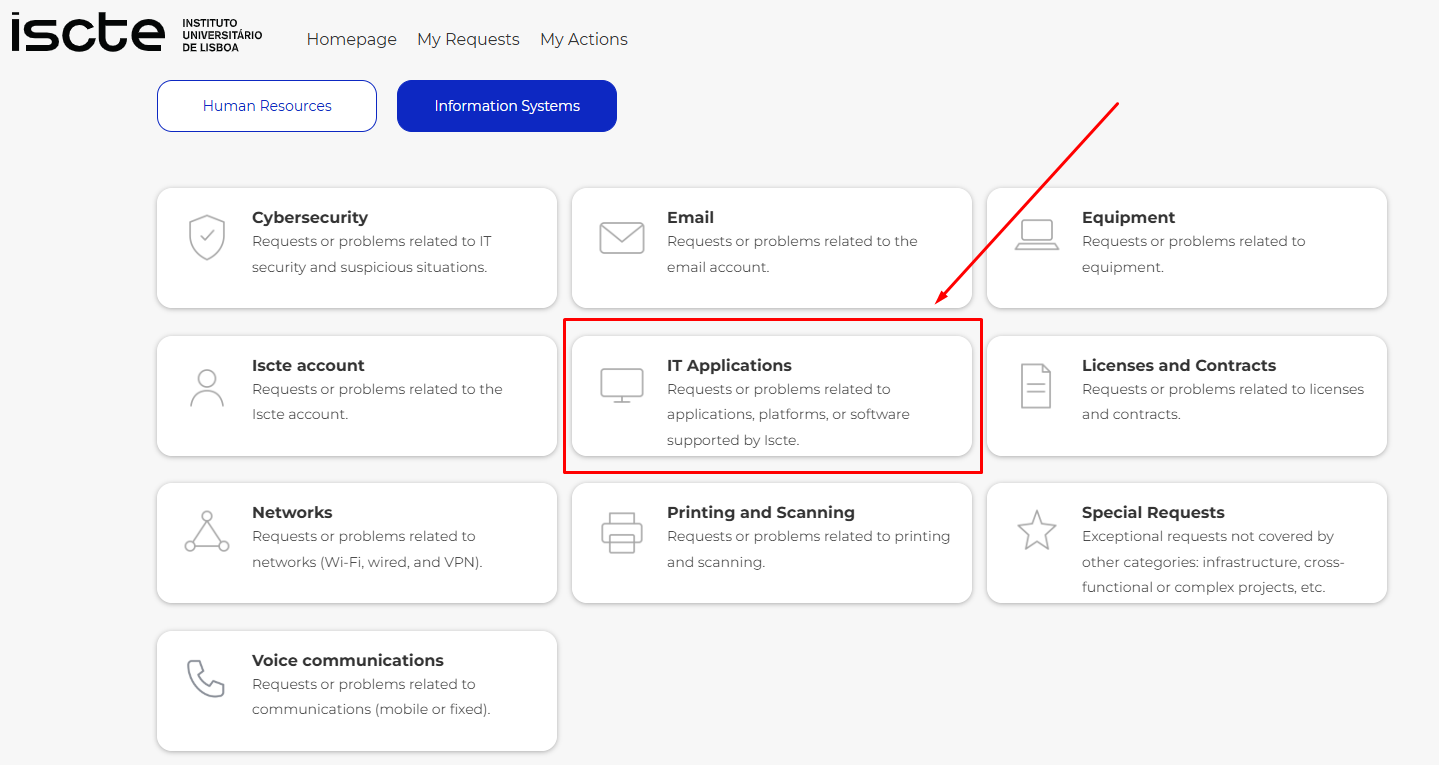
- Choose the category Application access and configuration.
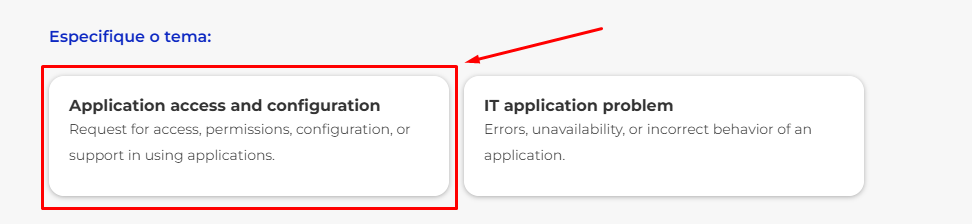
- Choose IBM SPSS Statistics in the Application field.
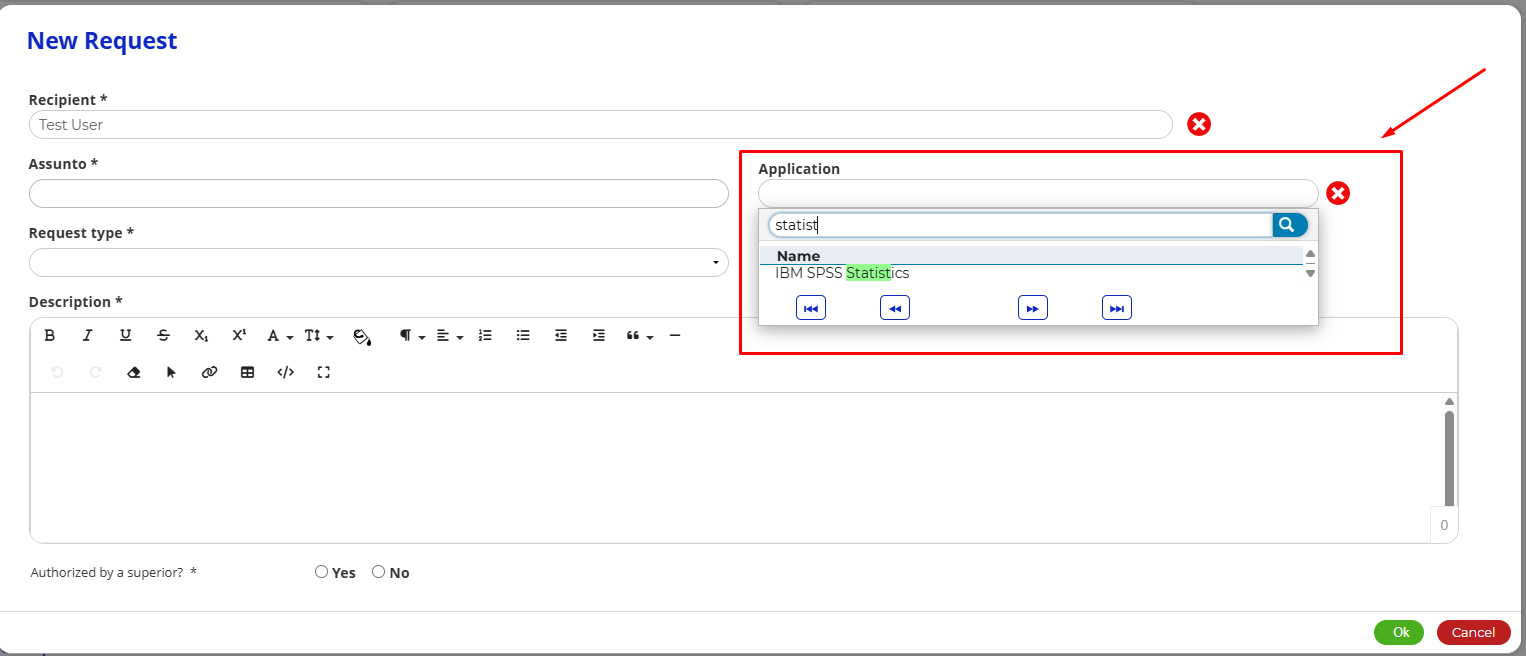
- Fill out the questionnaire, indicating the version you want (for example, IBM SPSS Statistics, version 31, the latest version available).
- Within 48 working hours the license code will be sent.
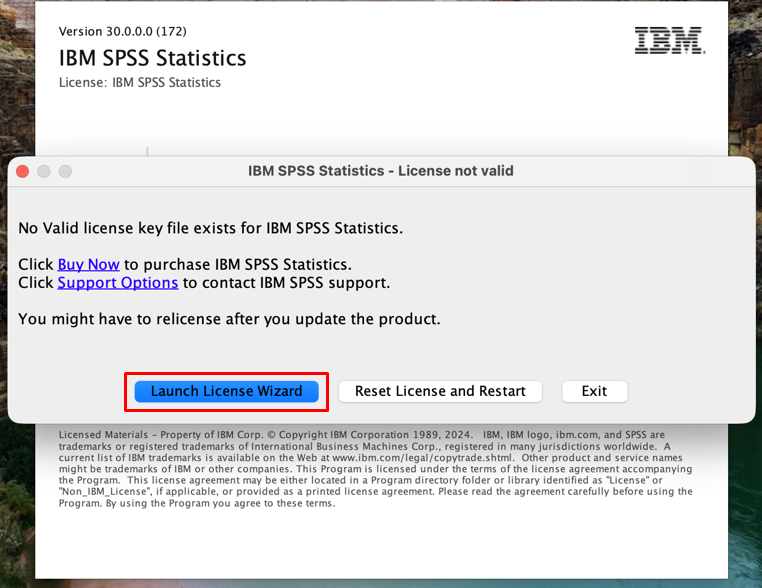
- Click on “Launch License Wizard” to run the application.
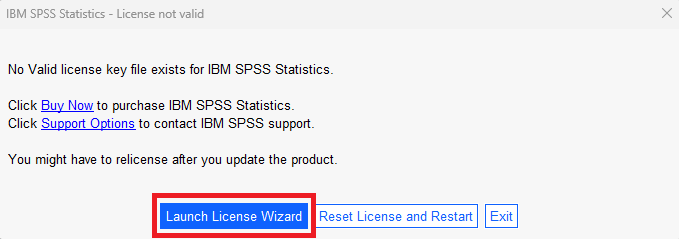
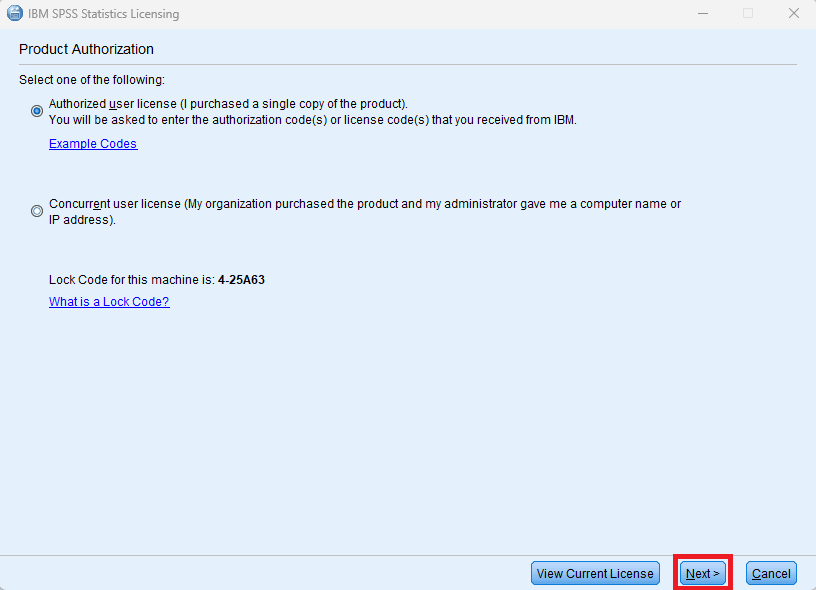
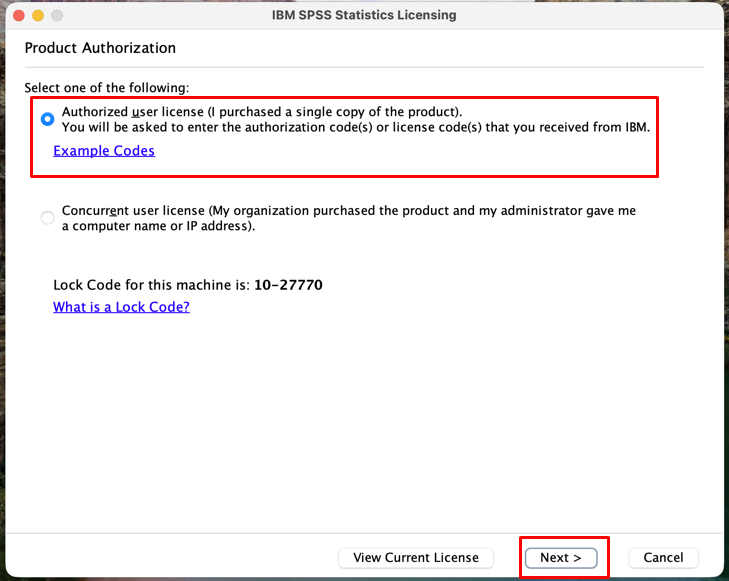
- Under “Product Authorization” select the first option “Authorized user license…” and then click “Next”.
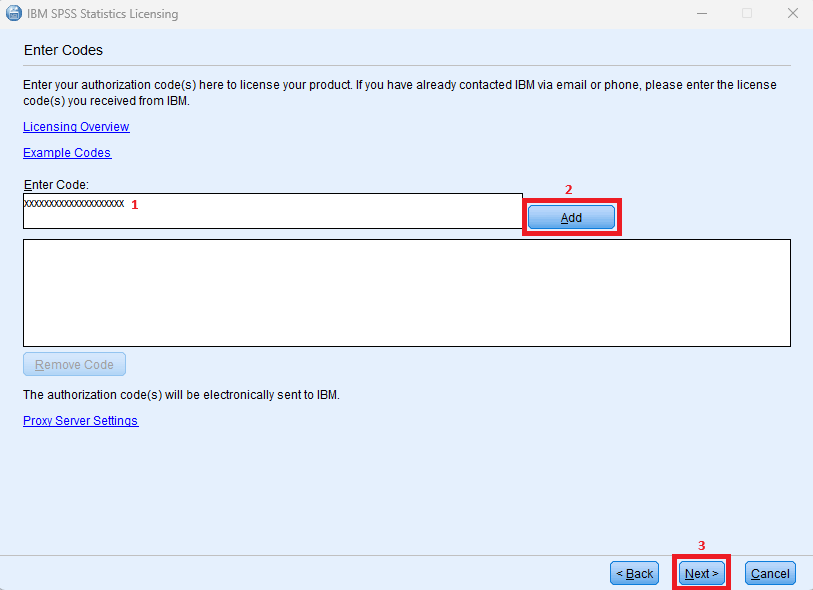
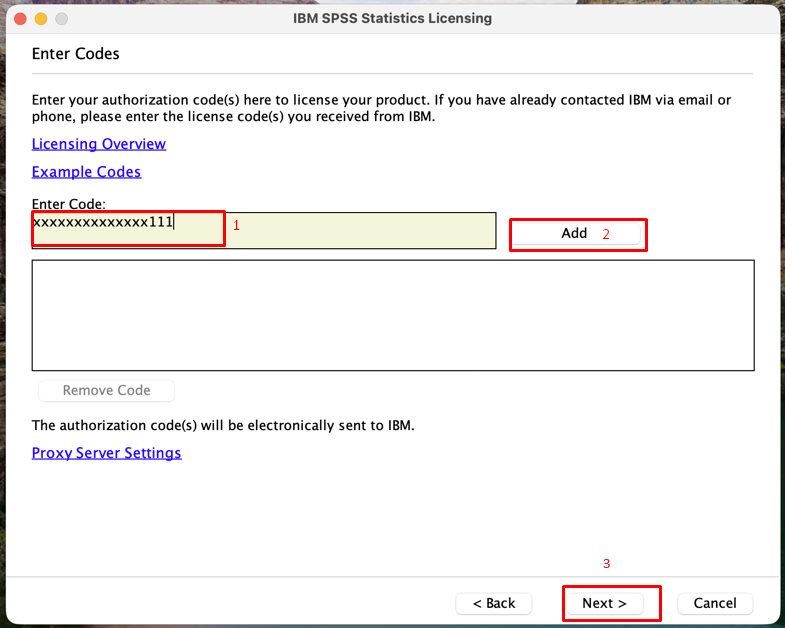
- Enter the authorization code provided by SIIC in the “Enter Code” field (1) and click “Add” (2). Click on “Next” (3).
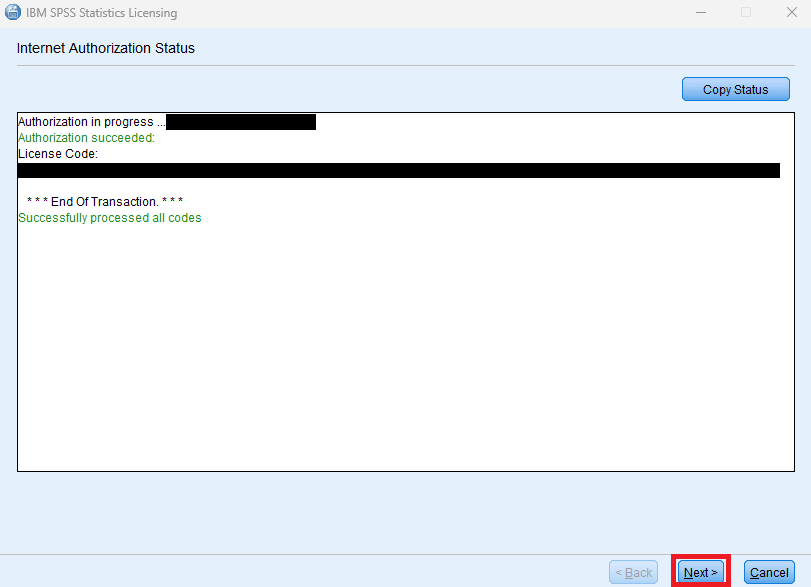
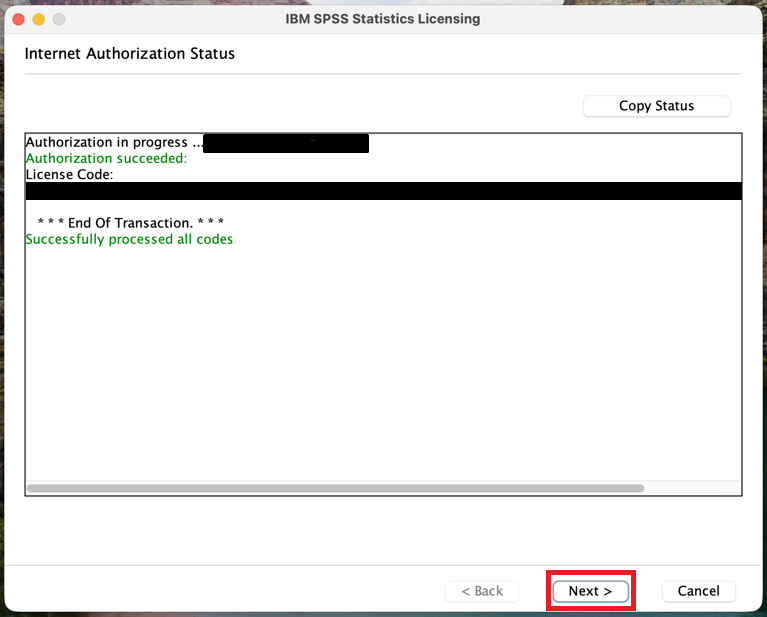
- Click on “Next” to continue the licensing process.
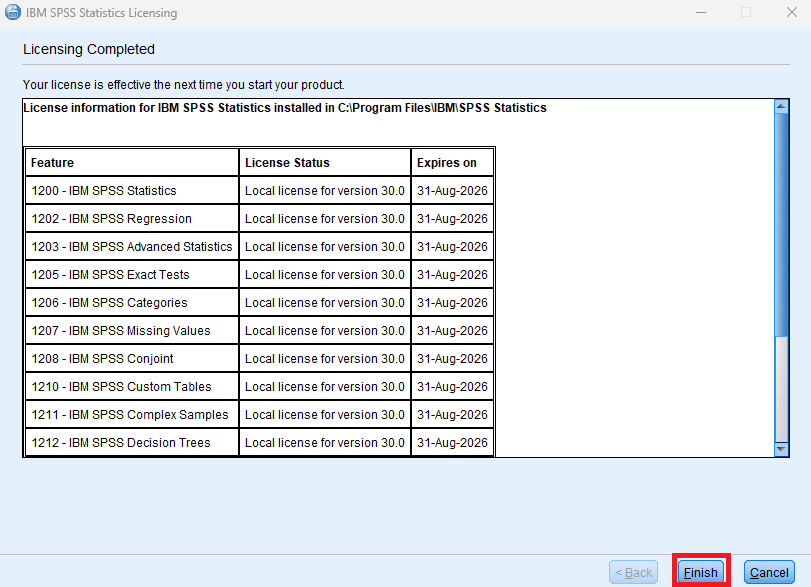
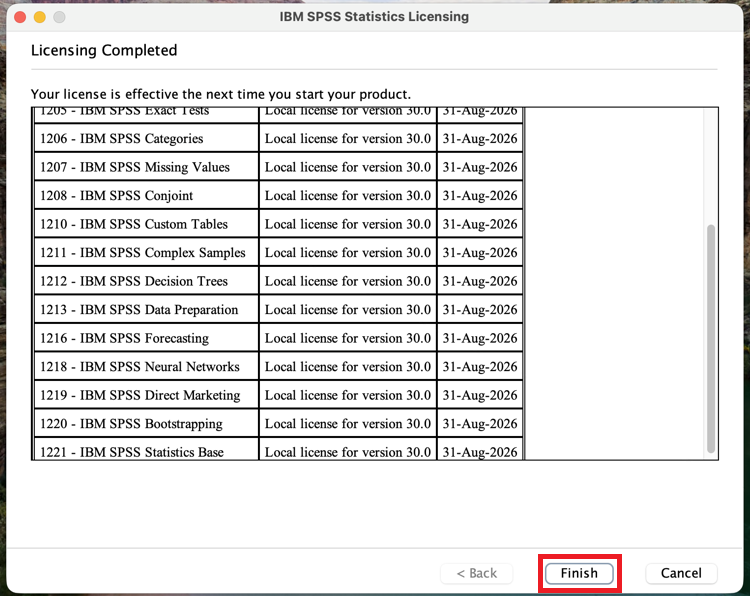
- Click “Finish” to complete the activation.
- Click on “Launch License Wizard” to run the application.
- Click on “Launch License Wizard” to run the application.
- Under “Product Authorization” select the first option “Authorized user license…” and then click “Next”.
- Enter the authorization code provided by SIIC in the “Enter Code” field (1) and click “Add” (2). Click on “Next” (3).
- Click on “Next” to continue the licensing process.
- Click “Finish” to complete the activation.
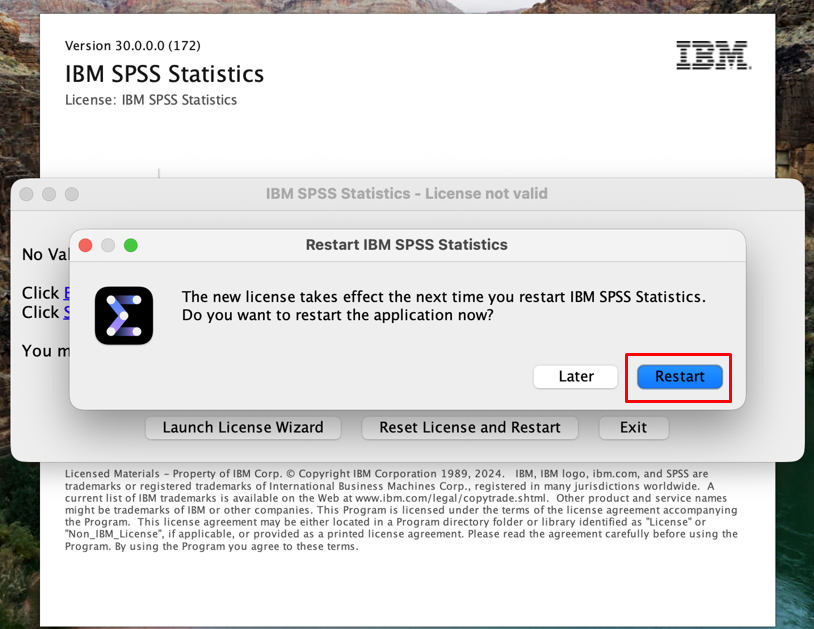
- Click on “Restart”.
- Click on “Launch License Wizard” to run the application.
The installation completes successfully, but activation does not start (Windows / MacOSX)
If you receive an error when activating your IBM SPSS Statistics license (Windows / MacOSX)
Error message when starting IBM SPSS Statistics: "Could not start the application because the side-by-side configuration is incorrect..." (Windows)
The program displays the error "Server Login: Local Computer" (MacOSX)
Issue: The program displays the error below:
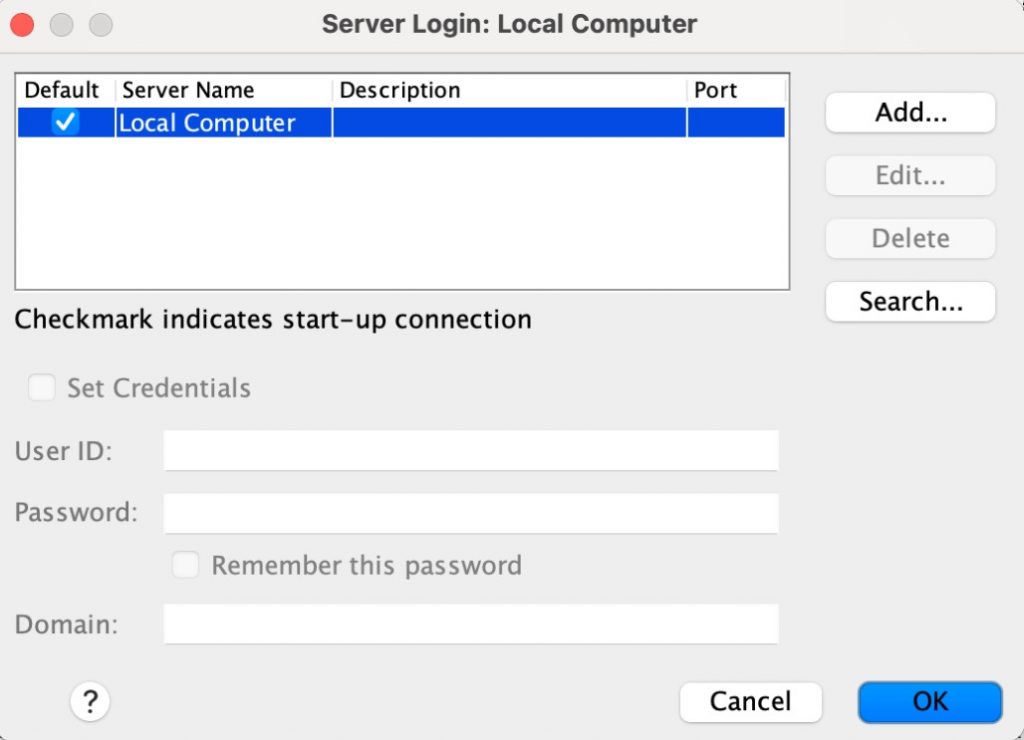
Resolution: You need to download, extract and run the “Fix Pack 1_Mac” file.
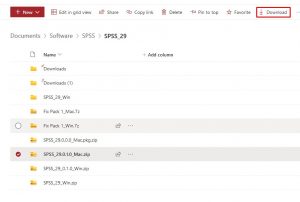
After installing IBM SPSS Statistics and the Fix Pack, follow the instructions to apply the fix:
- Inside the Sonoma folder (macOS 14.0) > extract the folder > 29.0.1.1-IM-S29STATC-MAC- IF001.zip > locate the following file> libplatdep.dylib > back it up to a separate folder for your Desktop
- Close all Statistics 29 Desktop applications
- Go to the subdirectory (e.g. /Applications/IBM SPSS Statistics/SPSS Statistics.app/Contents/lib/”)
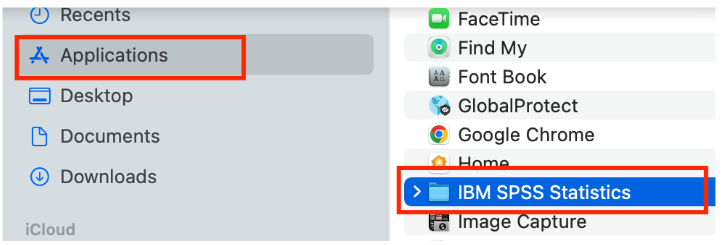
4. Right-click on “Show Package Contents”.
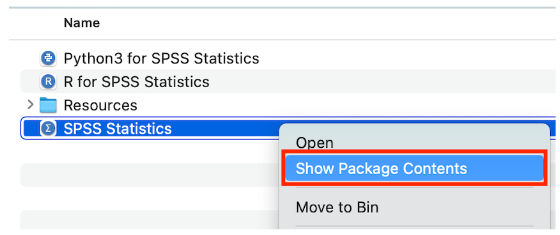
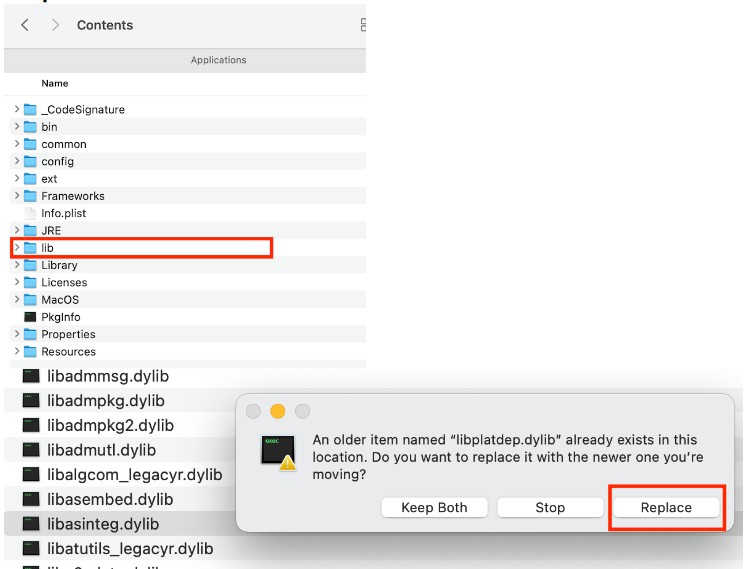
5. In the “Contents” folder, open the “lib” folder, paste the “libplatdep.dylib” file and click the “Replace” button.