
Easyvista
Atualizado/Updated: 2026-03-10
Service Request Catalogue
The catalog is organized in a hierarchical structure (category/subcategory), with the following main categories:
-
- Applications → Access Management and Application Support.
- Data Center → Infrastructure and Server Services (servers, DMZ, backups).
- Cybersecurity → Digital Security and Audits.
- Accounts and Email → Institutional Account and Email Management.
- Equipment → Equipment Support and Management.
- Training → Training Requests.
- Printing and Scanning → Printing and Scanning Services.
- Networks, Internet, and Communications → Network, Internet, and Communications Services.
- Software, Licenses, and Contracts → Software, License, and Contract Management.
How to register a service request?
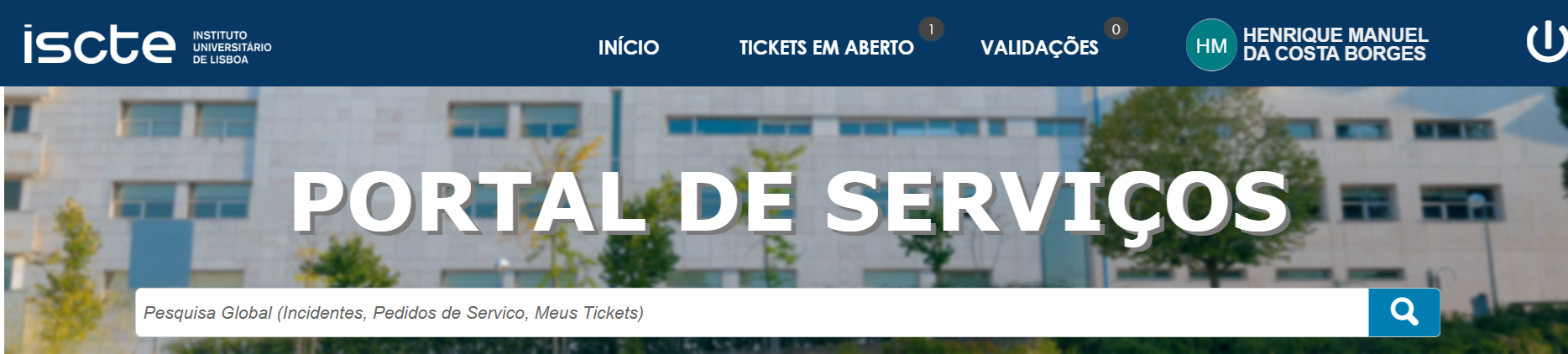
- Access the SIIC Services Portal at https://iajuda.iscte-iul.pt/.
- Click on “New Request“.
- Select the “Category/Subcategory/…“, browsing the Service Request Catalogue.
- Click on “Create Request“.
- Fill out the questionnaire and click “Ok“.
How to track the execution of service requests?
- Access the SIIC Services Portal at https://iajuda.iscte-iul.pt/.
- Click on “My Tickets“.
- Select the “service request“.
- Apply one of the 5 filters provided by iAjuda to facilitate the identification of the ticket: “In Resolution“, “Closed“, “Pending“, “Registered” and “Resolved“.
For each “service request” it is possible to perform 3 types of actions: “Details“, “Update” and “Attachments“.
Details – Gives access to the details (history and attachments) of both the incident and the service request.
Update – Allows you to add information to both the incident and the service request.
Attachments – Allows you to add attachments to both the incident and the service request.
How to accept the execution of a service request?
- Aceder ao Portal de Serviços dos SIIC em https://iajuda.iscte-iul.pt/.
- Clicar em “Validações“.
- Selecionar o “pedido de serviço“.
- Clicar em “Aceitar“.
- Classificação de 1 (insuficiente) a 5 (excelente) a resolução do incidente quer quanto à “Rapidez da intervenção“, quer como a “Qualidade da intervenção”. Se entender que é pertinente, adicionar um comentário.
- Clicar em “Ok“.
How to reject the closure of a service request?
- Access the SIIC Services Portal at https://iajuda.iscte-iul.pt/.
- Click on “Validations“.
- Select the “service request“.
- Click on “Reject“.
- Type a justification.
- Click on “Ok“.
Incidents Catalogue
An incident refers to a disruption or degradation in the performance of a service, equipment, application, or system.
The catalog is organized in a hierarchical structure (category/subcategory), with the following main categories:
-
- Applications → Application and Software Incidents (Failures, errors, unavailability, or performance degradation in platforms and software).
- Data Center → Infrastructure and Server Incidents (Problems with Data Center services, including servers, DMZ, websites, and backups).
- Cybersecurity → Digital Security Incidents (Malicious code, fraud, intrusion, privacy violations, and other threats).
- Accounts and Email → Institutional Account and Email Incidents (Failures, errors, or unavailability in institutional accounts or email).
- Equipment → Equipment and Hardware Incidents (Malfunctions, failures, theft, or performance degradation of physical devices).
- Printing and Scanning → Printing and Scanning Service Incidents (Problems with access, configuration, or operation of the printing system).
- Networks, Internet, and Communications → Network, Internet, and Communications Incidents (Failures or difficulties accessing the network, Wi-Fi, VPN, or VoIP).
- Software → Software incidents.
How to register an incident?
- Access the SIIC Services Portal at https://iajuda.iscte-iul.pt/.
- Click on “New Incident“.
- Select the “Category/Subcategory/…“, navigating in the Incident Catalogue.
- Click on “Create Incident“.
- Fill out the questionnaire and click “Ok“.
How to track incident resolution?
- Access the SIIC Services Portal at https://iajuda.iscte-iul.pt/.
- Click on “My Tickets“.
- Select the “incident“.
Apply one of the 5 filters provided by iAjuda to facilitate the identification of the ticket:
-
- In Resolution – Incidents still in resolution.
- Closed – Resolved incidents.
- Pending – Incidents whose resolution has been suspended.
- Recorded – All incidents recorded by the user.
- Solved – All incidents solved.
For each “Incident” it is possible to perform 3 types of actions:
-
- Details – Gives access to the details (history and attachments) of both the incident and the service request.
- Update – Allows you to add information to both the incident and the service request.
- Attachments – Allows you to add attachments to both the incident and the service request.
How to accept the resolution of an incident?
- Access the SIIC Services Portal at https://iajuda.iscte-iul.pt/.
- Click on “Validations“.
- Select the “incident“.
- Click on “Accept“.
- Rate from 1 (insufficient) to 5 (excellent) the resolution of the incident both in terms of “Speed of intervention” and “Quality of intervention“. If you think it is pertinent add a comment.
- Click on “Ok“.
How to reject the resolution of an incident?
- Access the SIIC Services Portal at https://iajuda.iscte-iul.pt/.
- Click on “Validations“.
- Select the “incident“.
- Click on “Reject“.
- Click on “Ok“.
User Support
-
- 🛠️ iAjuda