
How to export photos and videos from Google Photos using Google Takeout?
2026-Apr-Tue
1. Go to https://takeout.google.com and log in with your Iscte credentials (e.g., xxnes@iscte-iul.pt and your password).
2. By default, all Google products are selected.
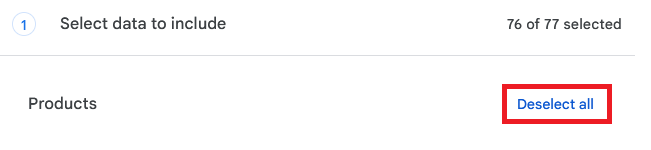
3. Under Select data to include,, click Deselect all.
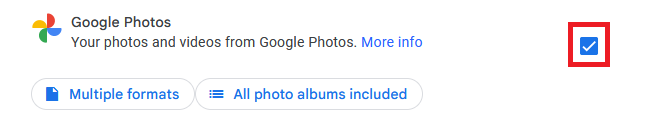
4. In the product list, locate and select the Google Photos.
5. At the end of this step, click Next step.
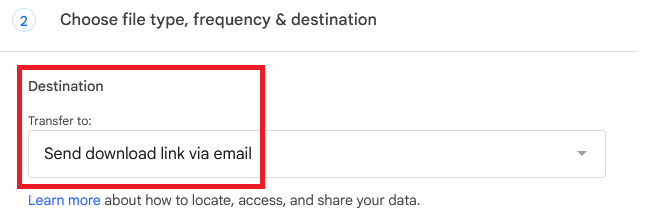
6. Under Choose file type, frequency & destination, set the following options:
Destination: Send download link via email
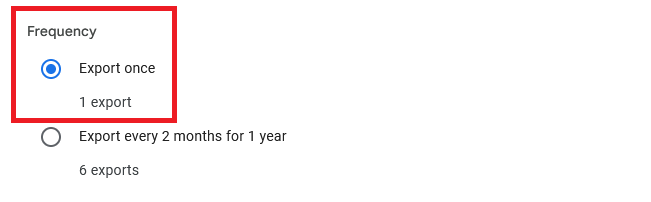
Frequency: Export once
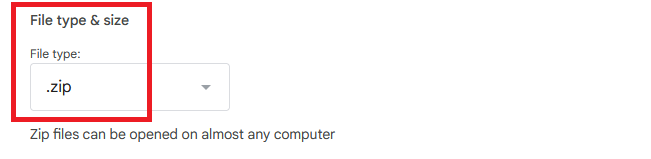
File type: .zip (recommended)
7. At the end of this step, click Create export.
⚠️ Once the export is complete, you’ll receive an email with a link to download the files, which is valid for 7 days. If the link expires, you’ll need to create a new export in Google Takeout.