Skip to content Skip to main navigation Skip to footer

Printing and Scanning

PT

Exclusive service for Iscte employees (teachers, researchers, and technical staff)

IMPORTANT NOTICE

If you use PIN/Fingerprint authentication (Windows Hello) and cannot print, you should follow the instructions available on the page dedicated to the Windows Hello error.

The printing, photocopying, and scanning service operates in follow-me printing mode through the institutional printer:

🖨️ Iscte on printers.iul.intra

    • pre-installed on computers assigned to employees;
    • it can also be installed on personal devices.

Authentication is carried out with the Iscte identification card, personal and non-transferable.

1. Where to Print, Photocopy or scan

The equipment is distributed across various self-service points on the campus. At each point there is:

    • 1 Monochrome printer;
    • 1 Color multifunction printer;
    • Stapling function;
    • Printing, copying, and scanning to email.

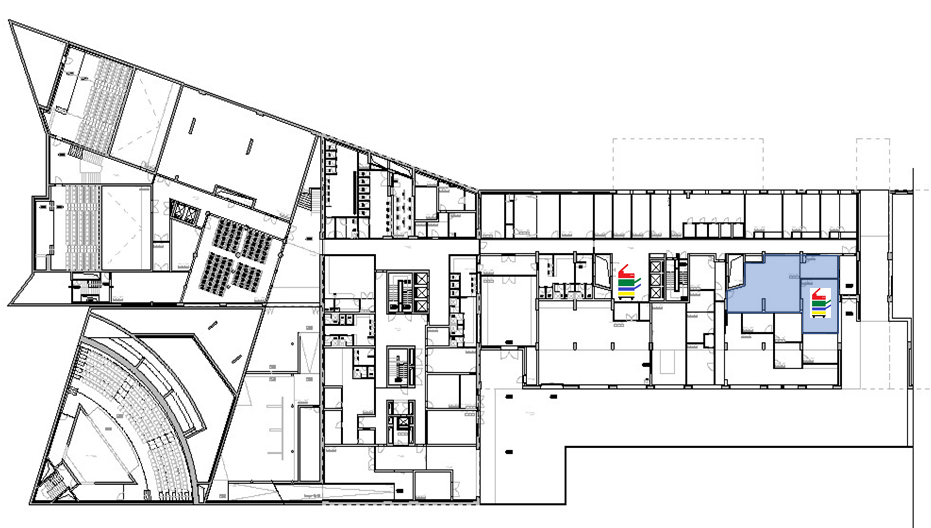
Location of the self-service points:

    • Floor 0
    • Floor 1
    • Floor 2
    • Floor 3
    • BNU Buildibg Reception

2. Printer Installation

2.1 Windows

Essential steps:

  1. Connect to the Iscte VPN (when off campus).
  2. Connect to the print server (\\printers.iul.intra)
  3. Authenticate with:
    • Username → IUL\username
    • Password → the Iscte account password
  4. Install the Iscte printer driver.
  5. Set as the default printer.

⚠️ Problems with Windows Hello (PIN/FaceID/Fingerprint): Follow the following instructions.

    1. Establish a connection to the Iscte print server by running the \\printers.iul.intra command in the Windows search box.

      Note: Outside iscte installations, connect to the VPN before attempting to connect to the Iscte print server.

    2. Authenticate to the print server by entering and remembering Iscte credentials (username and password), as follows:

           Username: Type “IUL\username” (e.g., IUL\xxnes)
           Password: Write the password for the iscte account

    3. Install the “Iscte” network printer driver by using the right mouse button and choosing the “On” option and waiting for the installation to finish.
    4. Open the “Printers and Scanners” menu using, for example, the Windows search box.
    5. Select the printer “Iscte at printers.iul.intra“.
    6. Disable the “Allow Windows to manage the default printer” option.
    • Please note: If you have configured PIN, face recognition or fingerprint authentication (Windows Hello) and cannot print, please follow the steps on this page to resolve the issue: Printing error – Windows Hello.

2.2 MacOS

Essential steps:

  1. Access the driver page via browser (Safari, Chrome, or Firefox).
  2. The website automatically identifies your MacOS.
  3. Download the driver and open the .dmg file.
  4. Authorize the installation using credentials with administrative privileges.
  5. Manually add the printer if necessary using the Advanced option.
  6. At first use, the system requests Iscte credentials.
    1. Access Ricoh Global support through a browser (e.g. Safari, Chrome, or Firefox).
    2. Download the selected driver.
    3. Install from the downloaded driver by opening its DMG file.
    4. Authorize the installation of the driver using the credentials of the local MAC user, with administration privileges.
    5. Access “System Preferences“.
    6. Select “Print and Scan“.
    7. Press the “+” button to add a printer.
    8. Modify the toolbar by right-clicking and choosing “Customize toolbar… “.
    9. Select the “Advanced” icon and drag to the “toolbar“. Finish by pressing “OK“.
    10. Set up the printer “Iscte-PS” by filling in the fields as illustrated below.

           Type: Choose the option “Windows printer via spoolss
           Device: Choose the option “Other device”
           URL: Write “smb://printers.iul.intra/Iscte-PS
           Name: Write “Iscte-MAC
           Use: Choose “”RICOH IM C3000 PS

    11. Click “Add“.
    12. Select the “Two-sided print unit” option and press “OK“.

      On first use of the print service, you will be prompted for access credentials to the print server.

    13. Authenticate by entering the Iscte credentials (username and password) in the form illustrated in the figure below.

           Username: Type “IUL\username” (e.g. IUL\xxnes)
           Password: Type your Iscte account password

2.3 Linux

Essential steps:

  1. Install the SMB client.
  2. Configure the connection to the print server according to the instructions below.
  3. Authenticate with Iscte username and password
    1. Search for “Terminal” in the Linux search window.
    2. Install the “SMB” client, as illustrated in the next two figures.
    3. Search for “printers” in the Linux search window.
    4. Click “Add a Printer” and then “Add.
    5. Under “New printer“, set as below and click “Next“.

           Select device: Choose “Windows Printer via SAMBA
           SMB printers: Type “printers.iul.intra/Iscte-PS
           Authentication: Choose “Set authentication details now”
           Password: Write the password of the Iscte account
           Username: Write “IUL\username” (ex: IUL\xxnes)

    6. Under “Select the driver,” choose “Select the printer from the database.” Under “Brands“, choose the “Ricoh” tag and click “Next“.
    7. Under “Models“, select “IM C3000“; “Drivers“, choose “Ricoh IM C3000 PS (en) (recommended)” and click “Next“.
    8. Under “Installable Options“, configure as below and click “Next“.

           Option Tray: Choose “Not installed
           Large capacity tray: Choose “Not installed
           Internal Tray 2: Choose “Not installed
           Internal Shift Tray: Choose “Not installed
           External Tray: Choose “Not installed
           Finisher: Choose “Finisher SR3250
           Folding UnitChoose “Not installed
           PostScript: Choose “Post Script Emulation

    9. Under “Describe the printer“, name “Iscte-PS“, the description “Ricoh IM C3000“, the location “Self-service” and click “Apply“.
    10. The “Iscte-PS” printer is ready to print.

3. How to Print

  1. Select the document → Print.
  2. Choose the Iscte printer on printers.iul.intra.
  3. Go to any self-service point.
  4. Authenticate with the Iscte card.
  5. Release the job on the multifunction printer.
    1. Tap the tatil screen to activate the equipment (printer or multifunction) and select the “Follow-You Printing” option.

      Follow-You Printing

    2. Bring the Iscte card closer to the card reader.


    3. Select the documents you want to print and tap “Imprimir” (Print).


    4. Log out using the Iscte card or by tapping “End Session“.

4. How to Scan

  1. Authenticate with the card on the multifunction device.
  2. Select Scan-to-Me (to scan documents with few pages) or Scan-to-Email (to scan documents with many pages).
  3. Place the document in the feeder or on the glass.
  4. Confirm the sending (the email appears pre-filled with the user’s email).
    1. Tap the touch screen to enable multifunction and select one of the following options (“Scan-to-Me” (for scanning documents with few pages) or “Scan-to-email” (to scan documents that exceed the maximum size allowed by email).

      scan-to-me

      or

    2. Bring the Iscte card closer to the card reader.


    3. Place the original document feeder, taking into account the orientation.


    4. Check/change the recipient’s address (pre-populated with the authenticated user’s email).

      Scan-to-Me – Add CC/


      Digitalizar-para email –Change recipient and add CC/


    5. Tap “Digitalizar“ (Scan).


    6. Log out using the Iscte card or by tapping “EncerrSessão“ (End Session).

5. How to Photocopy

  1. Swipe the Iscte ID Card on the multifunction device.
  2. Select Copy.
  3. Adjust color, size, and options (staples, simplex/duplex).
  4. Tap Start.
    1. Tap the touch screen to activate the multifunction and select the “Enable Copier” option.


    2. Bring the Iscte card closer to the card reader.


    3. Place the original document feeder, taking into account the orientation.


    4. Tap “Iniciar“ (Start). 

    5. Log out using the Iscte card or by tapping “EncerrSessão“ (End Session).

6. Activation of Iscte ID Card

Contact the IT Services through the available channels.

7. User Support

8. FAQ